
Platform reference for ArmSoM developers. Source: RK-SM-YF-502 cover 2.0.1 / revision table 2.0.0. Match the SoC, Android SDK/BSP, kernel configuration and vendor tools to your board before use; the source does not establish support for a specific ArmSoM board or kernel release. No ArmSoM hardware validation was performed. Examples and screenshots are from the source, not ArmSoM test results.
Source scope and bilingual discrepancy
Source version 2.0.1 is a Chinese/English combined PDF for Rockchip Box Media Center on RK platforms with Android 7.0 or later; no kernel release is specified. It provides a single shared screenshot set, some with Chinese interface text. All four languages use these original images, not a separate English set. The cover says 2.0.1 while the revision table ends at 2.0.0.
DLNA conflict: Chinese p7 requires ro.config.low_ram = false and persist.sys.dlna.enable = true for automatic startup. English p8 says ro.config.low_ram = true, but its following detailed item says true prevents startup, agreeing with Chinese. We follow Chinese false while preserving this conflict. Check the actual SDK implementation.
1 Overview
Media Center is a Box TV app integrating discovery of internal storage, SD cards, USB drives, portable hard disks, Samba/NFS, DLNA/UPnP and other devices, with file browsing, video/music playback, picture viewing and APK installation. Supported landscape configurations:
[size:1280x720 density:160][size:1280x720 density:213][size:1920x1080 density:213][size:1920x1080 density:320]
Source code differs by platform; request the corresponding code through Rockchip Redmine/FAE.
1.1 Home screen and basic operation
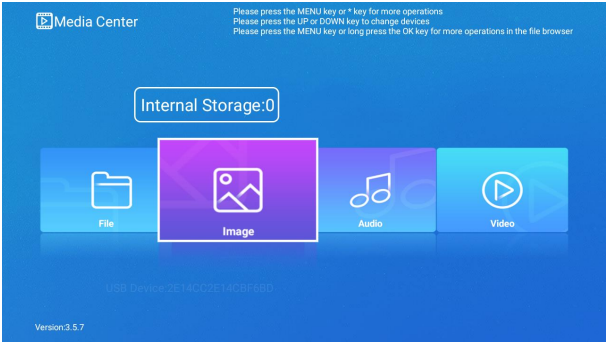
Figure 1: Media Center home screen — Shared Chinese/English source PDF; original screenshot, p. 6.
The home screen lists local storage (internal, SD card, USB drive, portable disk), user-added Samba/NFS and LAN-discovered DLNA UPnP devices. Each has categories for files, video, music, pictures and others. Mouse dragging in all four directions is supported.
- Up/down selects a device.
- Left/right selects its media category; confirm opens it.
- Menu opens Figure 2 to add NFS/Samba, refresh network DLNA or all devices, and configure DLNA display name, enable state and other settings.
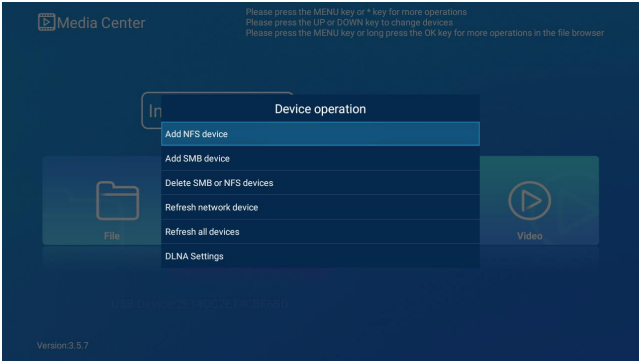
Figure 2: home menu — Shared Chinese/English source PDF; original screenshot, p. 7.
1.2 System properties
Following the Chinese condition, DLNA auto-start requires ro.config.low_ram = false and persist.sys.dlna.enable = true.
ro.config.low_ram: low-memory property;trueprevents auto-start. Manually enable DLNA through Menu → DLNA Setting.persist.sys.dlna.enable: whether to start Media Center DLNA at boot; defaultfalse.
2 Multimedia modules
Media Center automatically scans and classifies files. Video, Image and Audio open their categories; File preserves the device directory structure. Network-device management and DLNA are included. The six modules follow.
2.1 Video playback
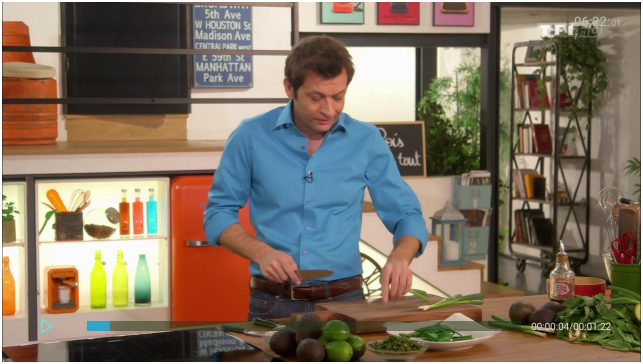
Figure 3: video player — Shared Chinese/English source PDF; original screenshot, p. 9.
Select a video in File or Video and confirm. Defaults: full screen, loop and stereo. A left mouse click also toggles play/pause.
- Confirm pauses/plays.
- One right/left press skips forward/back 10 seconds.
- Hold right/left to fast-forward/rewind.
- Menu opens the bottom controls. PIP appears only with system PIP Feature enabled.
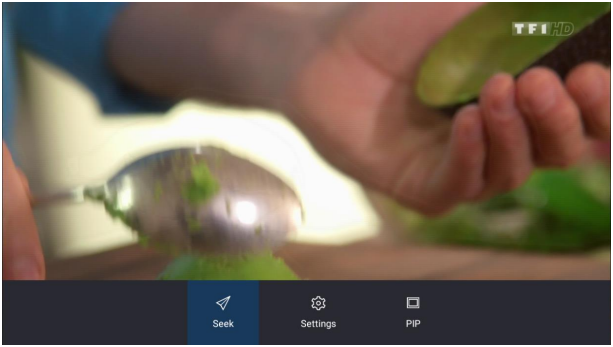
Figure 4: video menu — Shared Chinese/English source PDF; original screenshot, p. 10.
Seek selects an exact playback position (Figure 5).
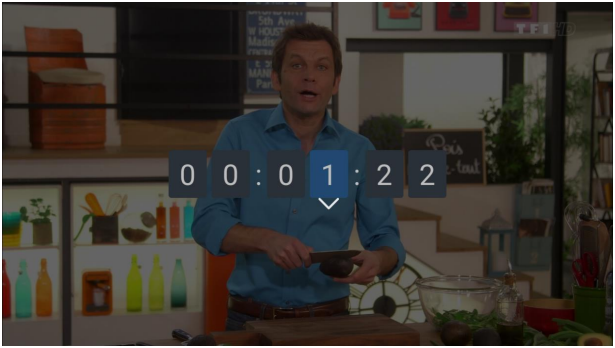
Figure 5: Seek — Shared Chinese/English source PDF; original screenshot, p. 10.
Setting includes display scaling, channel selection, playback mode, subtitles, audio tracks and 3D mode.
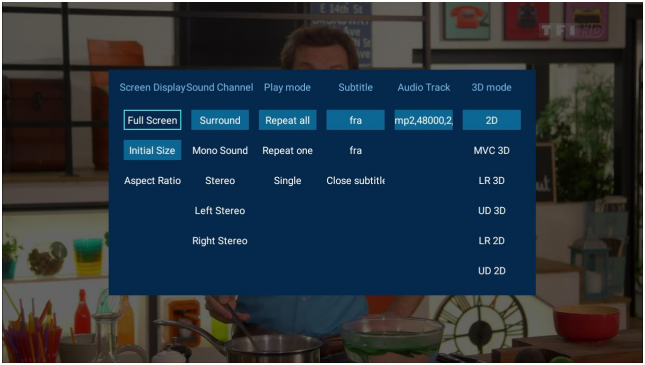
Figure 6: video settings — Shared Chinese/English source PDF; original screenshot, p. 11.
PIP plays in picture-in-picture, allowing other apps to run after leaving Media Center. Hold Home to show recent tasks and center PIP. You can then restore full screen, close PIP or pause it.
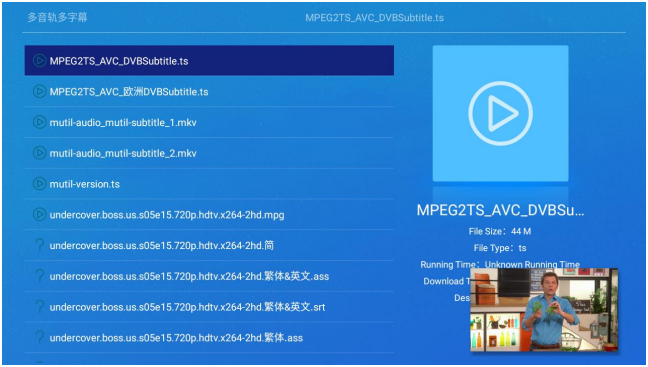
Figure 7: PIP playback — Shared Chinese/English source PDF; original screenshot, p. 11.
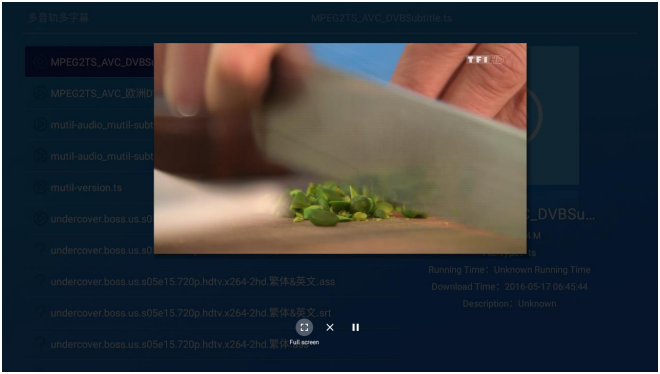
Figure 8: PIP controls — Shared Chinese/English source PDF; original screenshot, p. 12.
2.2 DLNA
RK DLNA is a multi-screen component with three device types:
- DMS (Digital Media Server): stores/shares media for networked DMP and DMR.
- DMP (Digital Media Player): discovers and obtains DMS or M-DMS content, providing playback, rendering and control.
- DMR (Digital Media Renderer): after configuration by another device, plays DMS/M-DMS content. Unlike DMP, it requires DMC (Digital Media Controller) control to retrieve DMS content.
To maintain compatibility and avoid third-party DLNA interference, RK DLNA is separately integrated in Media Center for rapid product integration. Enable it from Media Center DLNA or the DLNA guide app. At Service Status Opened, phone/PC DLNA apps can cast and perform related operations. If unavailable, follow the original casting guide in Figure 9.
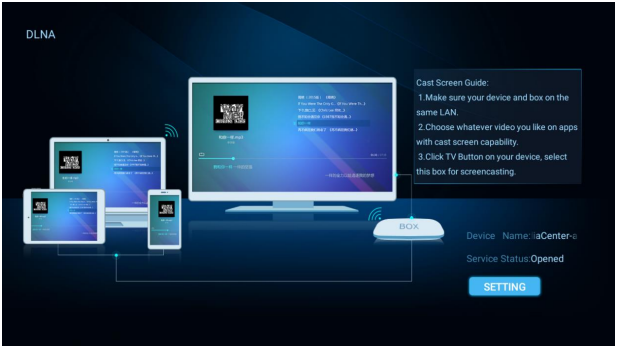
Figure 9: DLNA guide — Shared Chinese/English source PDF; original screenshot, p. 13.
2.3 Music playback
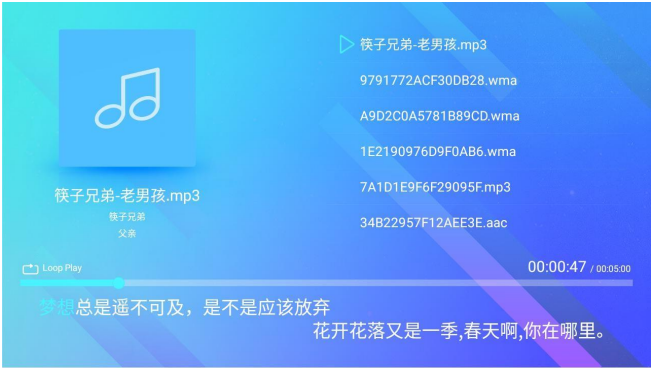
Figure 10: music player — Shared Chinese/English source PDF; original screenshot, p. 14.
Select music in File or Music and confirm; loop is default. The left shows album art, filename, artist and album; the right is the playlist; controls and lyrics are below.
- Up/down selects music. While the selection box is visible, confirm starts that track; after it disappears, confirm pauses/resumes the current track.
- Left/right adjusts playback position.
- Menu opens Figure 11. Play Mode sets the playback mode; Image sets the background.
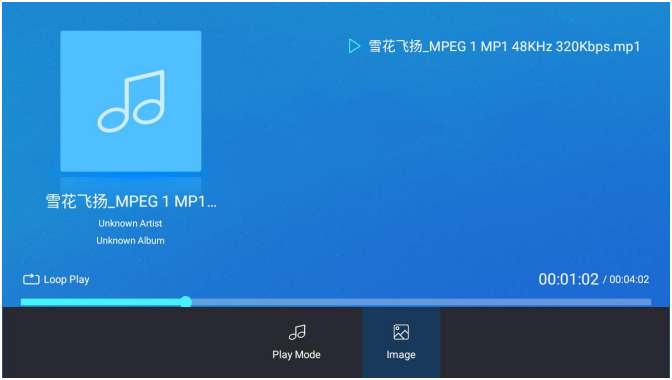
Figure 11: music menu — Shared Chinese/English source PDF; original screenshot, p. 15.
2.4 Pictures and 4K display
Select a picture in File or Image and confirm. Defaults: automatic advance every 5 seconds, fade transition and background music enabled.
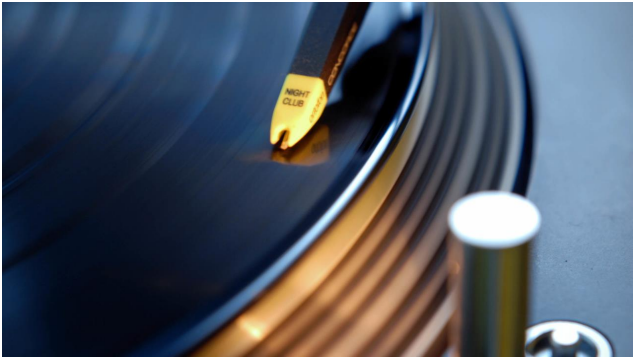
Figure 12: picture display — Shared Chinese/English source PDF; original screenshot, p. 16.
- Confirm toggles autoplay.
- Menu opens the bottom picture menu.
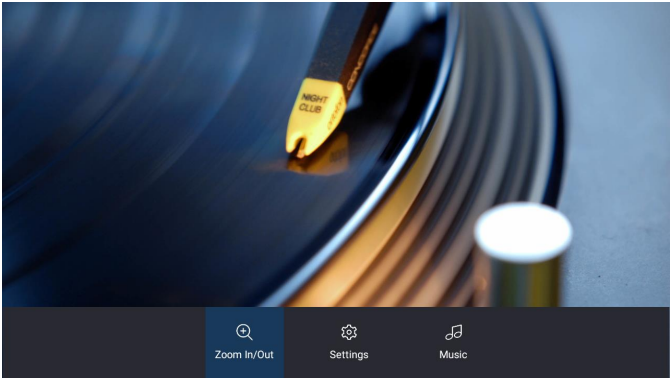
Figure 13: picture menu — Shared Chinese/English source PDF; original screenshot, p. 16.
Zoom In/Out opens zoom controls. Settings opens Figure 14 to set transition mode, interval and picture-detail visibility. Music opens a dialog to enable/disable background music during picture playback.
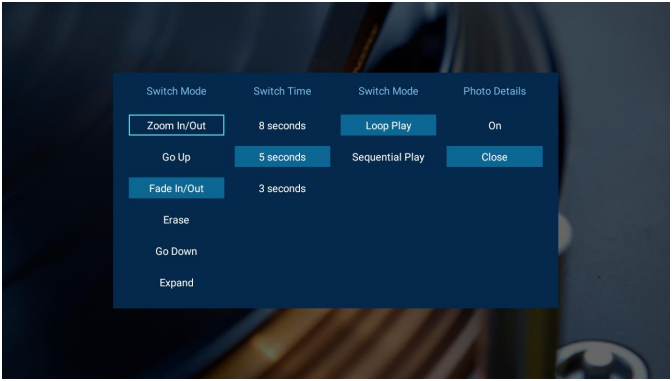
Figure 14: picture settings — Shared Chinese/English source PDF; original screenshot, p. 17.
The source specifies 4K picture support on Android 7.0+ SDK platforms with Media Center 3.5.4 or later and an external 4K display. This is a source capability statement, not verification of all ArmSoM images.
2.5 APK installation
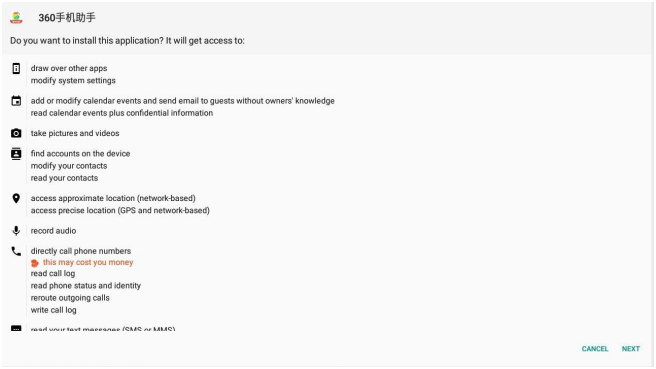
Figure 15: APK installation — Shared Chinese/English source PDF; original screenshot, p. 18.
Start Media Center, select an APK in File and confirm to open the installer. If it fails, check whether the application permissions are enabled.
2.6 Device and file management
Manage local storage (internal, SD, USB and portable disks), Samba/NFS and LAN-discovered DLNA UPnP devices/files. Samba and NFS must be added and mounted manually; the Samba example follows.
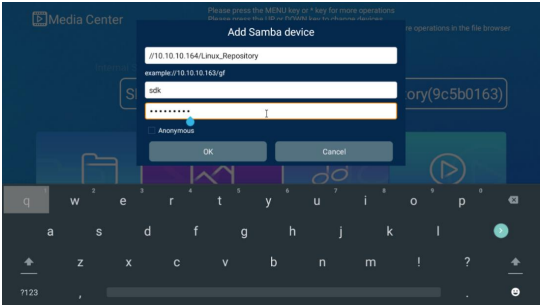
Figure 16: add network device — Shared Chinese/English source PDF; original screenshot, p. 19.
Choose Add Samba device and enter network address, username and password to mount. Figure 17 shows success.
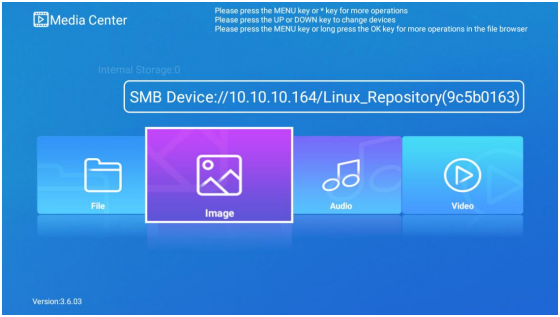
Figure 17: Samba mounted — Shared Chinese/English source PDF; original screenshot, p. 19.
To remove a network device, choose delete devices and select it in the dialog.
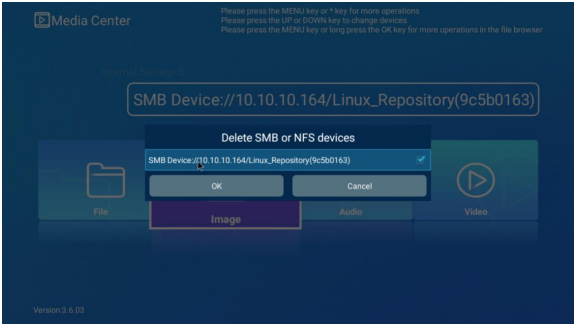
Figure 18: delete network device — Shared Chinese/English source PDF; original screenshot, p. 20.
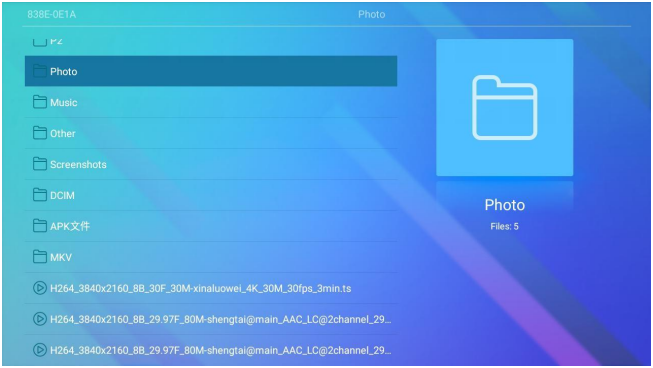
Figure 19: directory view — Shared Chinese/English source PDF; original screenshot, p. 20.
From the home screen, select a device’s File and confirm to open its directory. Menu opens Figure 20 with copy, delete, move, rename, sort, file search and the source’s “Bluetooth analysis”. Both source languages use 蓝牙分析 / bluetooth analysis without explanation; this is not silently renamed to Bluetooth sharing.
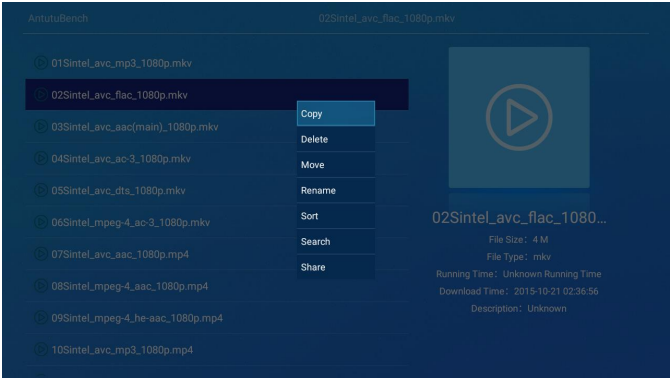
Figure 20: file operations — Shared Chinese/English source PDF; original screenshot, p. 21.
The list follows directory structure, folders first and files afterwards. Up/down selects an item. Preview and details at the right depend on its type.
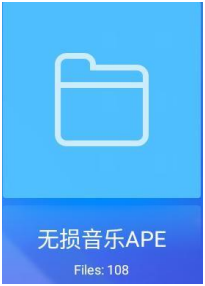
Figure 21: folder preview — Shared Chinese/English source PDF; original screenshot, p. 21.
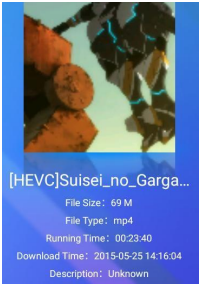
Figure 22: video preview — Shared Chinese/English source PDF; original screenshot, p. 21.
- Folder: folder icon, name and child file/folder count. Confirm loads its children in the same page. English only says subfolder count; Chinese includes files and folders, preserved here.
- Video: thumbnail if available, otherwise default video icon. Details: filename, size, type, duration, last modification time. Confirm starts video playback.
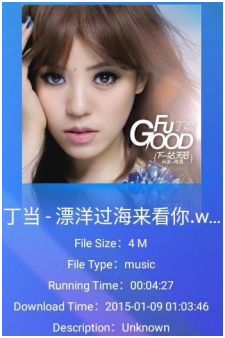
Figure 23: music preview — Shared Chinese/English source PDF; original screenshot, p. 22.
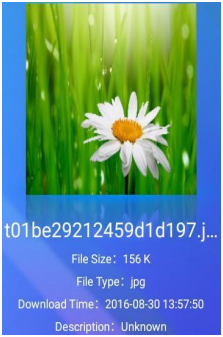
Figure 24: picture preview — Shared Chinese/English source PDF; original screenshot, p. 22.
- Music: album art if available, otherwise default music icon. Details resemble video. Confirm starts music.
- Picture: thumbnail if available, otherwise default picture icon. Detail lines: filename, size, type, last modification time, description. Confirm opens picture browsing.
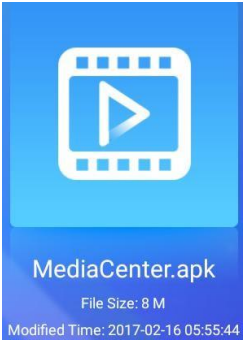
Figure 25: APK preview — Shared Chinese/English source PDF; original screenshot, p. 23.
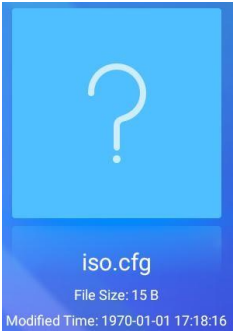
Figure 26: other file types — Shared Chinese/English source PDF; original screenshot, p. 23.
- APK: package icon if available, otherwise default APK icon. Detail lines: filename, size, last modification time. Confirm opens system APK installation.
- Other types: question-mark icon; filename, size and last modification time. Confirm has no action.