
ArmSoM platform reference based on the supplied Chinese and English Rockchip sources. Match the actual board, SoC, SDK/BSP, kernel and peripherals individually; this does not claim support for every ArmSoM board. Source examples and measurements are not ArmSoM tests. No commands or hardware tests were executed.
Covers Buildroot LVGL 8.4.x / 9.1.x and Rockchip lv_gl extensions; examples include intentional source omissions.
Both V1.2.1; all 7 chapters, API parameters and the version-9 lv_drivers merge footnote retained. ZH uses 13 Chinese-source figures; EN/RU/DE use 13 English-source figures. Animation examples intentionally omit code and are not complete compilable programs. The source mixes transparency and visibility terminology; meaning/caveats are annotated without changing code.
| OS | Version |
|---|---|
| Buildroot | 8.4.x |
| Buildroot | 9.1.x |
1. LVGL Introduction
LVGL is the most popular free and open-source embedded graphics library to create beautiful UIs for any MCU, MPU and display type. LVGL is fully open-source and has no external dependencies which makes its porting incredibly simple. It works with any modern MCU or MPU and can be used with any (RT)OS or bare metal setup to drive ePaper, monochrome, OLED, or TFT displays, and even monitors.
2. LVGL Source Code
In Linux SDK, LVGL has three repositories, namely lvgl, lv_drivers 1 and lvgl_demo. The lvgl is the mainly framework source repository. The lv_drivers includes some display APIs such as drm, sdl, wayland, etc. The lvgl_demo includes some demos from Rockchip developers, showing how to do some basic initialization, and how to call the demos from LVGL. Both lvgl and lv_drivers source code are downloaded from github, and applied some patches from Rockchip developers, you can find the patches from buildroot/package/lvgl/lvgl/ and buildroot/package/lvgl/lv_drivers/ . The lvgl_demo source code is in <SDK>/app/lvgl_demo .
3. LVGL Configurations
The LVGL rendering backend is optional. Currently, you can choose to rendering the image to the display directly through DRM, SDL or RKADK. The DRM configuration is used on some platforms without GPU or RGA, such as RK3308. The SDL configuration is used on some platforms with GPU, such as RK3568. The RKADK configuration is used on some platforms with GPU or RGA.
3.1 Configuration Files
The basic configuration files are stored in <SDK>/buildroot/configs/rockchip/gui/lvgl/ .
<SDK>/buildroot/configs/rockchip/gui/lvgl/
├── lvgl_drm.config         # symlink to V8
├── lvgl_rkadk.config       # symlink to V8
├── lvgl_sdl.config         # symlink to V8
├── music.config            # Music DEMO from LVGL team
├── rk_demo.config          # DEMO from Rockchip team
├── v8                      # configurations for LVGL V8
│   ├── base.config         # basic configurations for LVGL
│   ├── lvgl_drm.config     # DRM configurations
│   ├── lvgl_rkadk.config   # RKADK configurations
│   └── lvgl_sdl.config     # SDL configurations
├── v9                      # configurations for LVGL V9
│   ├── base.config
│   ├── lvgl_drm.config
│   ├── lvgl_rkadk.config
│   └── lvgl_sdl.config
└── widgets.config          # Widgets DEMO from LVGL team
3.2 Configuration Files Usage
Include the LVGL configuration files in your defconfig:
$ cat buildroot/configs/rockchip_rk3308_bs_32_ia_release_defconfig | grep lvgl
# select a backend
#include "gui/lvgl/lvgl_drm.config"
# select a demo
#include "gui/lvgl/rk_demo.config"
3.3 External Configurations for SDL
If you are using SDL configurations, you need to select the backend of SDL:
BR2_PACKAGE_SDL2=y
BR2_PACKAGE_SDL2_OPENGLES=y
# Use wayland backend. Depends on your environment
BR2_PACKAGE_SDL2_WAYLAND=y
If you need additional OpenGL(ES) APIs, enable this configuration:
BR2_PACKAGE_LV_DRIVERS_USE_OPENGL=y
4. LVGL Complie
cd buildroot
source envsetup.sh
# choose your board defconfig
# Compile these three package in version 8
make lvgl lv_drivers lvgl_demo -j20
# Compile these two package in version 9
make lvgl lvgl_demo -j20
Please note that if you modify LVGL configuration via menuconfig, we recommend recompiling all three repositories to avoid unexpected errors:
cd buildroot
# Compile these three package in version 8
make lvgl-reconfigure lv_drivers-reconfigure lvgl_demo-reconfigure -j20
# Compile these two package in version 9
make lvgl-reconfigure lvgl_demo-reconfigure -j20
5. LVGL_DEMO Source Code
The path is <SDK>/app/lvgl_demo/ .
5.1 Directory Structure
app/lvgl_demo/
├── cJSON   # cJSON source code
├── common  # common widgets
├── gallery # gallery application
├── lv_demo # basic demos
├── lvgl8   # API porting for V8
├── lvgl9   # API porting for V9
├── rk_demo
│   ├── asr                 # ASR function
│   ├── furniture_control
│   ├── home                # home page
│   ├── include             # head files
│   ├── intercom_homepage
│   │   ├── intercom_call
│   │   └── video_monitor
│   ├── layout              # layout widgets
│   ├── resource            # pictures, fonts
│   ├── rockit              # rockit adaptions
│   ├── setting             # system setting page
│   ├── smart_home
│   └── wifibt              # rkwifibt adaptions
├── sys     # timestamp, cpu information, soc information, etc.
└── tools   # coding style formater
5.2 lv_demo Source Code
The path is <SDK>/app/lvgl_demo/lv_demo . This is mainly used as a sample program to demonstrate how to run the official DEMO. The following instructions skip some irrelevant codes and only select the codes that need attention for explanation:
/* <SDK>/app/lvgl_demo/lv_demo/main.c */
...
int main(int argc, char **argv)
{
    lv_port_init();

    /* DEMO UI initialization */
#if LV_USE_DEMO_WIDGETS
    lv_demo_widgets();
#elif LV_USE_DEMO_BENCHMARK
    lv_demo_benchmark();
#elif LV_USE_DEMO_MUSIC
    lv_demo_music();
#endif
    while (!quit)
    {
        /* call the task handler, all events, rendering,
         * display will be done in this function
         */
        lv_task_handler();
        usleep(100);
    }

    return 0;
}
/* <SDK>/app/lvgl_demo/lvgl8/lv_port_init.c */
/* touch screen rotation */
/* 0, 90, 180, 270 */
static int g_indev_rotation = 0;
/* display rotation */
/* 0, 90, 180, 270 */
static int g_disp_rotation = 0;

void lv_port_init(void)
{
    /* Start of any LVGL applications */
    lv_init();

    /* display initialization */
    lv_port_disp_init(0, 0, g_disp_rotation);
    /* touch screen initialization */
    lv_port_indev_init(g_indev_rotation);
}
/* <SDK>/app/lvgl_demo/lvgl9/lv_port_init.c */
/* touch screen rotation */
/* 0, 90, 180, 270 */
static int g_indev_rotation = 0;
/* display rotation */
/* 0, 90, 180, 270 */
static int g_disp_rotation = 0;
/* log level */
static int log_level = LV_LOG_LEVEL_WARN;
...
void lv_port_init(void)
{
    const char *buf;

    /* Start of any LVGL applications */
    lv_init();

    /* update log level bt getenv */
    buf = getenv("LV_DEBUG");
    if (buf)
        log_level = buf[0] - '0';
    /* setting log callback */
    lv_log_register_print_cb(print_cb);
    /* setting systick callback */
    lv_tick_set_cb(lv_systick);
    /* setting delay callback */
    lv_delay_set_cb(lv_sysdelay);

    /* display initialization */
    lv_port_disp_init(0, 0, g_disp_rotation);
    /* touch screen initialization */
    lv_port_indev_init(g_indev_rotation);
}
6. OpenGL(ES) APIs
Since LVGL itself does not support OpenGL (ES) interface and SDL does not support 3D objects, a set of lv_gl interfaces is encapsulated for some applications that need to use related functions, so that LVGL applications can directly overlay 3D image effects on the original UI applications.
6.1 File Introduction
lv_drivers/sdl/gl/
├── gl.c                // APIs implementation
├── gl.h                // APIs and external structure definition
├── mat.c               // Matrix function implementation
├── mat.h               // Matrix function definition
└── shaders             // OpenGL shaders
    ├── bgra_cube.frag  // BGRA cube fragment shader
    ├── bgra.frag       // BGRA 2D picture fragment shader
    ├── common.vert     // common vertex shader
    ├── cube.vert       // cube vertex shader
    ├── default.vert    // 2D picture vertex shader
    ├── rgba_cube.frag  // RGBA cube fragment shader
    └── rgba.frag       // RGBA 2D picture fragment shader
6.2 enumerate Introduction
6.2.1 Color Format
Now support LV_GL_FMT_RGBA and LV_GL_FMT_BGRA.
enum {
    LV_GL_FMT_ALPHA,
    LV_GL_FMT_LUMINANCE,
    LV_GL_FMT_LUMINANCE_ALPHA,
    LV_GL_FMT_INTENSITY,
    LV_GL_FMT_RGB,
    LV_GL_FMT_RGBA,
    LV_GL_FMT_BGRA,
};
6.2.2 Texture Type
enum {
    GL_TEX_TYPE_2D,
    GL_TEX_TYPE_CUBE,
};
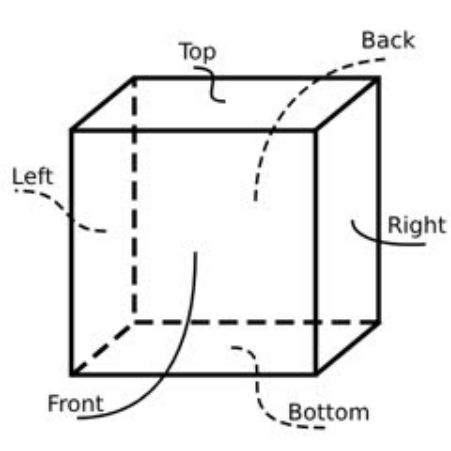
6.2.3 Cube Sides
Used to select the target surface when importing or rendering image.
enum {
    CUBE_LEFT,
    CUBE_RIGHT,
    CUBE_TOP,
    CUBE_BOTTOM,
    CUBE_FRONT,
    CUBE_BACK,
};
In OpenGL coordinates, the center of the screen is the origin (0, 0), the X coordinate is positive to the right, the Y coordinate is positive upward, and the Z coordinate is positive perpendicular to the screen and outward. Therefore, when a cube is created without rotation, the direction facing the user is positive (CUBE_FRONT), and the rest of the directions are similar, as shown in the following figure (the dotted line indicates the invisible part):
6.3 Structure Introduction
Used in applications, mainly focusing on the three structures lv_gl_img_t, lv_gl_tex_t, and lv_gl_obj_t. lv_gl_img_t Used to import external images as GPU texture objects.
typedef struct {
    /* the address of image */
    const void *pixels;
    /* image format */
    int format;
    /* width */
    int w;
    /* height */
    int h;
} lv_gl_img_t;
lv_gl_tex_t Store GPU texture objects and related information.
typedef struct {
    /* width */
    int w;
    /* height */
    int h;
} lv_gl_size_t;

typedef struct {
    /* GPU texture object */
    GLuint gl_tex;
    /* GPU Frame Buffer Object */
    GLuint FBO;
    /* Texture size. For 2D textures, only the first set of sizes is valid.
     * A cube has 6 faces and 6 sets of size information. */
    lv_gl_size_t size[6];
    /* Texture format */
    int format;
    /* Object type, 2D or CUBE */
    int type;
    /* refrence count */
    int ref_cnt;
} lv_gl_tex_t;
lv_gl_obj_t Stores GPU rendering objects and related information, such as vertices, transformation parameters, etc.
typedef struct {
    float x, y, z;
} lv_gl_vec_t;

typedef struct {
    /* width */
    int w;
    /* height */
    int h;
    /* reverse y, just keep it 0 */
    int reverse_y;
    /* bound textures */
    lv_gl_tex_t *tex;
    /* rendering rectangle */
    SDL_Rect r;
    /* viewport rectangle */
    SDL_Rect view;
    /* crop rectagnle */
    SDL_Rect crop;
    /* The viewport area needs to be updated.
     * It is used internally and can be ignored by the application.
     */
    int view_dirty;
    /* The crop area needs to be updated.
     * It is used internally and can be ignored by the application.
     */
    int crop_dirty;
    /* enable crop */
    int crop_en;
} lv_gl_base_t;

typedef struct {
    lv_gl_base_t base;
    /* GPU Vertex Array Object */
    GLuint VAO;
    /* GPU Vertex Buffer Object */
    GLuint VBO;
    /* Output type, default GL_TEXTURE_2D.
     * If you need to render on a cube,
     * specify the rendered surface through this variable.
     */
    int out_type;
    /* Manually specify the coordinates of the four vertices of
     * a 2D object. The default vertex is full screen (note that
     * it is the view size of the framebuffer, not the screen size,
     * and the two may not be equal). Then set the scale, offset
     * and other attributes to perform matrix transformation.
     * You can also freely specify vertex coordinates through this attribute.
     * However, it is not recommended to use both methods together,
     * as the transformations involved are more complicated and
     * it is difficult to estimate the final effect by manual calculation.
     * The range of x, y, and z is [-1, 1]
     */
    lv_gl_vec_t p[4];
    /* Manually specify the reference range of the texture,
     * which is used when only part of the texture slice is needed.
     */
    SDL_Rect tp;

    /* global alpha */
    float alpha;
    /*
     * The order of the following transformations is:
     * pos * offset * scale * self_rot * view_rot * perspective * move
     * Calculate from left to right.
     * The perspective is the view transformation to achieve
     * the effect of near big and far small.
     */
    /* Scaling in three axes */
    lv_gl_vec_t scale;
    /* Offset in three axes */
    lv_gl_vec_t offset;
    /* Roration in three axes */
    lv_gl_vec_t self_rot;
    /* Viewport rotation in three axes */
    lv_gl_vec_t view_rot;
    /* Movements in three axes */
    lv_gl_vec_t move;
} lv_gl_obj_t;
6.4 Function Introduction
void lv_gl_set_render_cb(lv_gl_render_cb_t cb);
Register application layer rendering callback. Object rendering can only be done in the callback. cb: the pointer of rendering callback
void lv_gl_set_fb(lv_gl_obj_t *obj);
Setting framebuffer obj: If it is NULL, the next rendering will be rendered to the screen. If it is not NULL, the next rendering will be rendered to the texture of this object.
void lv_gl_read_pixels(void *ptr, SDL_Rect *r, int type);
Copy the specified area of the current framebuffer to memory. ptr: The memory you want to write. r: Reading area. type: Reading type, default is GL_TEXTURE_2D. If you want to read a cube surface, refer to the enumerate in Cube Sides to select the surface.
lv_gl_tex_t *lv_gl_tex_create(int type, int w, int h, lv_gl_img_t *img);
Create a texture type: Texture type, GL_TEX_TYPE_2D or GL_TEX_TYPE_CUBE w: Texture width. Ignred if the img is not NULL. h: Texture height. Ignred if the img is not NULL. img: The imported image, if empty, will only apply for the corresponding space in the GPU (the default value is all 0.0), if not empty, the corresponding image will also be imported into the GPU. If the texture type is GL_TEX_TYPE_CUBE, this parameter needs to pass in an array with at least 6 items. Reture value: lv_gl_tex_t *, the pointer of texture
void lv_gl_tex_del(lv_gl_tex_t *tex);
Delete a texture
tex: the pointer of texture
void lv_gl_tex_import_img(lv_gl_tex_t *tex, lv_gl_img_t *img);
Import external images to a texture object. tex: the pointer of texture img: The imported image. If the texture type is GL_TEX_TYPE_CUBE, this parameter needs to pass in an array with at least 6 items.
void lv_gl_tex_clear(lv_gl_tex_t *tex, float r, float g, float b, float a);
Fill color to a texture. tex: the pointer of texture r: Red channel value. g: Green channel value. b: Blue channel value. a: Alpah channel value.
lv_gl_obj_t *lv_gl_obj_create(int w, int h);
Create a rendering object. The object can only rendered after binding a texture object. w: width h: height Return value: lv_gl_obj_t *, the pointer of rendering object
void lv_gl_obj_del(lv_gl_obj_t *obj);
Delect a rendering object. obj: the pointer of rendering object
void lv_gl_obj_resize(lv_gl_obj_t *obj, lv_gl_obj_t *parent);
Resize the rendering object. The default rendering object is full screen, so you need to use this interface to reset the scale parameter. It should be noted that this interface uses the width and height of obj and the width and height of the parent view to calculate, rather than the width and height of the parent. obj: the pointer of rendering object parent: rendering target, NULL for screen.
void lv_gl_obj_move(lv_gl_obj_t *obj, lv_gl_obj_t *parent);
Reset the rendering position according to the rendering target. Calculate based on the values of scale and base.r and the width and height of the parent view. Since the value of scale is used, it is recommended to call this interface after resizing. If the scale is manually modified, it is recommended to call this interface again obj: the pointer of rendering object parent: rendering target, NULL for screen.
void lv_gl_obj_reset_points(lv_gl_obj_t *obj);
Reset the vertex parameters of the rendered object, which means full screen display obj: the pointer of rendering object
void lv_gl_obj_reset_tex_points(lv_gl_obj_t *obj);
Reset the texture vertex parameters of the rendered object, which means use the full image obj: the pointer of rendering object
void lv_gl_obj_update_vao(lv_gl_obj_t *obj);
Update the VAO and VBO of the rendering object according to the current vertex parameters and texture vertex parameters. Therefore, if the vertex parameters and texture vertex parameters are manually modified, this interface needs to be called to take effect. If they have not been created, new VAO and VBO will be created. obj: the pointer of rendering object
void lv_gl_obj_release_vao(lv_gl_obj_t *obj);
Release VAO and VBO, using default parameters. obj: the pointer of rendering object
void lv_gl_obj_bind_tex(lv_gl_obj_t *obj, lv_gl_tex_t *tex);
When a texture object is bound, the texture object reference count will increase by 1. If the render object already has a bound texture object, the reference to the original texture object will be reduced, and it will be automatically released when the reference is less than or equal to 0. Therefore, it should be noted that this interface may trigger memory release, and the application needs to avoid external references to texture objects and repeated releases. obj: the pointer of rendering object tex: the pointer of texture object
void lv_gl_obj_set_crop(lv_gl_obj_t *obj, SDL_Rect *r, int en);
Set the crop range, with the lower left corner of the screen as the origin coordinate, upward as the positive Y direction, and rightward as the positive X direction obj: the pointer of rendering object, NULL for screen. r: Crop range, starting coordinates and size. When empty, the starting coordinates are reset to the origin and the size is reset to the size of the rendered object. en: 1 enables crop, 0 disables crop
void lv_gl_obj_get_crop(lv_gl_obj_t *obj, SDL_Rect *r);
Get the crop range obj: the pointer of rendering object, NULL for screen. r: The pointer to store the return value.
void lv_gl_obj_set_viewport(lv_gl_obj_t *obj, SDL_Rect *r);
Set the viewport range, with the lower left corner of the screen as the origin coordinate, upward as the positive Y direction, and rightward as the positive X direction obj: the pointer of rendering object, NULL for screen. r: viewport range, starting coordinates and size. When empty, the starting coordinates are reset to the origin and the size is reset to the size of the rendered object.
void lv_gl_obj_get_viewport(lv_gl_obj_t *obj, SDL_Rect *r);
Get the viewport range obj: the pointer of rendering object, NULL for screen.
r: The pointer to store the return value.
void lv_gl_obj_render(lv_gl_obj_t *obj);
Render the render object on the framebuffer. Can only be used in rendering callback. obj: the pointer of rendering object
7. Gallery DEMO Source Code
For album and gallery applications, a new Gallery DEMO is added, which includes multiple animation effects, such as slide in, fade in, cube rotation, cube flip, cube text display, roller image preview, photo stream, etc.
7.1 Directory Structure
gallery/
├── anims                   // animations
│   ├── cube_flip.c         // cube flip
│   ├── cube_flip.h
│   ├── cube_lyric.c        // cube lyric rendering
│   ├── cube_lyric.h
│   ├── cube_rotate.c       // cube rotate
│   ├── cube_rotate.h
│   ├── fade_out.c          // picture fade out
│   ├── fade_out.h
│   ├── fade_slide_out.c    // picture slide and fade out
│   ├── fade_slide_out.h
│   ├── fold.c              // picture fold
│   ├── fold.h
│   ├── photo_stream.c      // photo stream
│   ├── photo_stream.h
│   ├── roller.c            // picture rollering preview
│   ├── roller.h
│   ├── slide_out.c         // picture slide out
│   ├── slide_out.h
│   ├── stiker.c            // picture stiker testing
│   └── stiker.h
├── CMakeLists.txt
├── gallery.c               // UI entry
├── gallery.h
├── main.c                  // application entry
├── main.h
└── pics                    // picture resources
7.2 UI Entry Introduction
The main.c is same as lv_demo Source Code, so here we mainly introduce the UI entry:
// gallery.c

/* Define the characters in cube lyric rendering demo, two lines for one surface */
static char *lyric[]...

/* The texture objects */
lv_gl_tex_t *tex_cube;
lv_gl_tex_t *tex_2d[6];
lv_gl_tex_t *tex_roller;
lv_gl_tex_t *tex_fb;

/* The rendering objects */
lv_gl_obj_t *obj_fb;
lv_gl_obj_t *obj_img0;
lv_gl_obj_t *obj_img1;
lv_gl_obj_t *obj_cube;
lv_gl_obj_t *obj_fold[4];
lv_gl_obj_t *obj_roller_items[6];
lv_gl_obj_t *obj_roller;
/* The lyric_row array used in cube lyric rendering demo. */
lyric_row *obj_lyrics;

/* Viewport size, equal to the screen size minus the button matrix size. */
SDL_Rect view;

/* Screen size */
SDL_Rect screen;

/* Indicates whether the current animation is playing */
int animing = 0;

/* Font imported from ttf file */
lv_ft_info_t ttf_main;

/* lvgl screen object */
lv_obj_t *scr;
/* lvgl image object */
lv_obj_t *img1;
/* lvgl image object */
lv_obj_t *img2;
/* lvgl object, animation area */
lv_obj_t *anim_area;
/* lvgl button matrix object */
lv_obj_t *btn_mat;
/* lvgl slider object */
lv_obj_t *slider;
/* lvgl object, photo stream container */
lv_obj_t *photo_box;
/* lvgl image objects for photo stream */
lv_obj_t *photos[6];

/* lvgl animations */
static lv_anim_t anims[]...

/* label texts for button matrix */
static const char *btnm_map[]...

/* event callback of button matrix */
static void event_handler(lv_event_t * e)

/* font initialization */
static void font_init(void)

/* create canvas, rendering texts to pictures */
static label_canvas *create_canvas(lv_color_t color, lv_font_t *font)

/* rendering texts to pictures and import to a GPU texture object */
static lv_gl_obj_t *utf8_to_obj(lv_gl_obj_t *parent, label_canvas *lc, char *text)

/* common animation start callback */
void common_anim_start(void)

/* texture object initialization */
static void tex_init(void)

/* UI entry */
void gallery(void)
// gallery.h
typedef struct
{
    /* Specify the text font and color */
    lv_draw_label_dsc_t label_dsc;
    /* buffer for canvas */
    lv_img_dsc_t *img_dsc;
    /* lvgl canvas object */
    lv_obj_t *canvas;
} label_canvas;

typedef struct {
    /* GPU rendering object */
    lv_gl_obj_t **objs;
    /* charactor length */
    int len;
} lyric_row;
7.3 Animations
Since lv_gl cannot automatically trigger rendering, it is necessary to trigger the LVGL framework rendering process in the animation callback. Currently, lv_obj_invalidate(lv_layer_top()) is used in all animation callbacks to trigger rendering. At the same time, since the top layer has no child objects, it will not affect the normal rendering performance.
7.3.1 Cube Flip
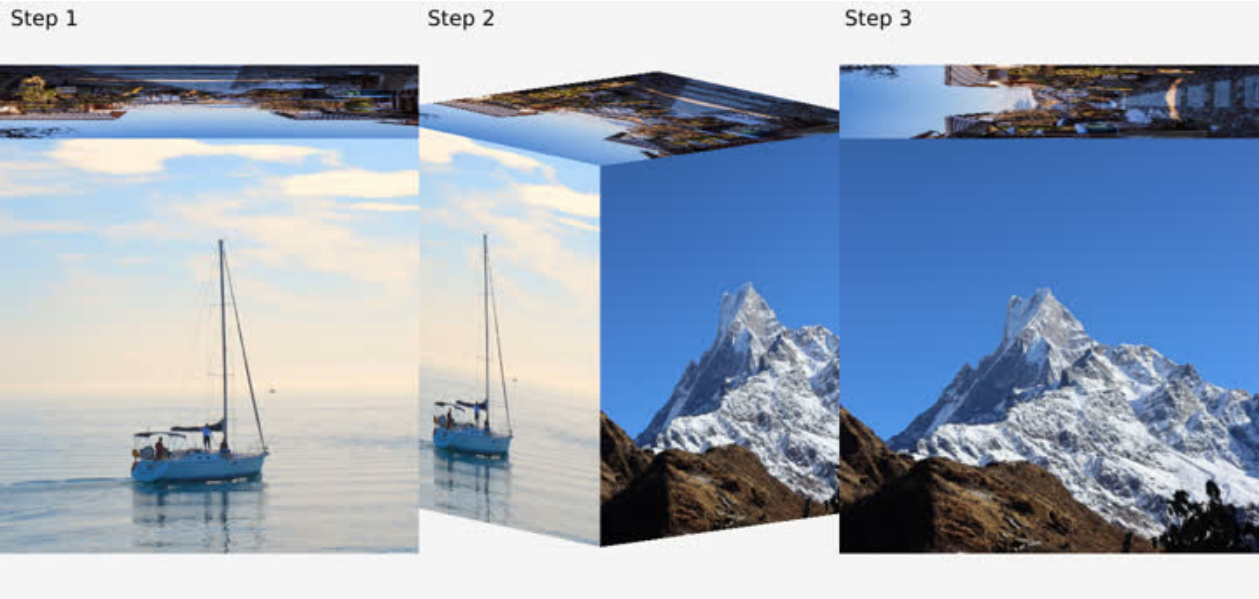
Animation Description The two photos are switched by rotating the cube, and the cube is appropriately reduced during the rotation.
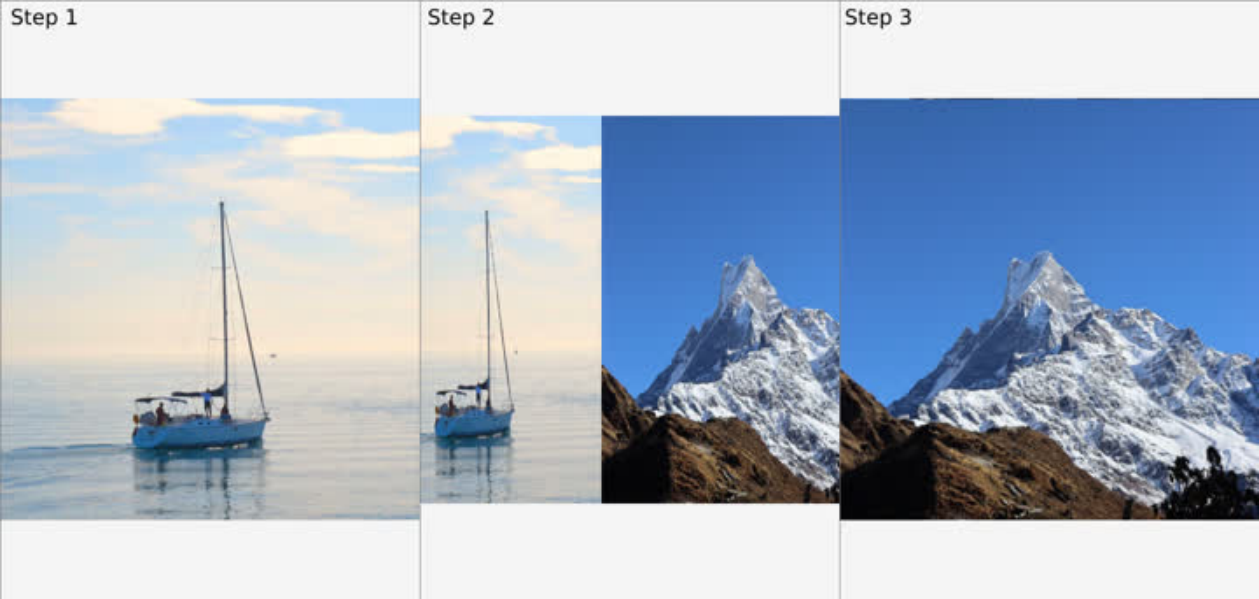
By rotating the X-axis 15 degrees, you can better observe this animation
Code Introduction
 /* anims/cube_flip.c */
/*
 * Define three additional sub-animations.
 * The application divides the complete animation into 4 steps, each rotating 90 degrees
 * The first animation is defined in anims/cube_flip.h, from 0 degrees to 90 degrees
 * The first sub-animation rotates from 90 degrees to 180 degrees
 * The second sub-animation goes from 180 degrees to 270 degrees
 * The third sub-animation goes from 270 degrees to 360 degrees
 * Each sub-animation has act_time = -1000 set to achieve a 1s interval
 * between each action
 */
static lv_anim_t sub_anims[]...
/* Set viewport for all cube animations */
SDL_Rect cube_view;
/* Set the zoom effect according to the current animation progress */
#define ZOOM_IN ...
/* Cube animation rendering callback, for all cube animations */
void anim_cube_render(void)
/*
 * Cube animation start callback, for all cube animations
 * Modify the view to a specific value in the start callback,
 * First, take the side with smaller width and height in the default view
 * for example, if the width is smaller than the height, take the width.
 * And divide this value by 0.57 and plus 2 as the width and height of the new view
 * (the view needs to be square, otherwise subsequent transformations may be abnormal).
 * Since the distance from the center of the cube to any corner is d=sqrt(3)/2*a
 * a is the side length and is equal to 2.0 (the coordinate system is
 * [-1, -1, -1]-[1, 1, 1])
 * Therefore, in order to ensure that no matter how the cube is rotated,
 * any corner will not exceed the coordinate system, that is,
 * d should always be less than 1.0.
 * Then choose a scaling factor of 0.57. sqrt(3)/2*a*0.57=0.9873
 * plus 2 is just an empirical value, which ensures that the cube slightly exceeds the
 * screen and leaves no gaps on the left and right.
 * It can be removed according to actual application conditions
 */
void anim_cube_start(lv_anim_t *a)
/* Start callback */
void anim_cube_flip_start(lv_anim_t *a)
/* Animation callback, set the Y-axis rotation angle and scaling ratio
 * according to the current animation progress
 */
void anim_cube_flip(void *var, int32_t v)
/* End callback, determine the current animation segment according to
 * the value of a->var, and execute the next animation segment or end it
 */
void anim_cube_flip_end(lv_anim_t *a)
7.3.2 Cube rotation
Animation Description Rotating and show image of all surfaces.

Code Introduction
/* anims/cube_rotate.c */
/* start callback, just call anim_cube_start */
void anim_cube_rotate_start(lv_anim_t *a)
/* Animation callback, set the scale to 0.57 (see the previous section for the reason),
 * and set the rotation angle of the X and Y axes according to the animation progress */
void anim_cube_rotate(void *var, int32_t v)
/* End callback, restore animation flag, and restore progress bar */
void anim_cube_rotate_end(lv_anim_t *a)
7.3.3 Cube Lyric rendering
Animation Description
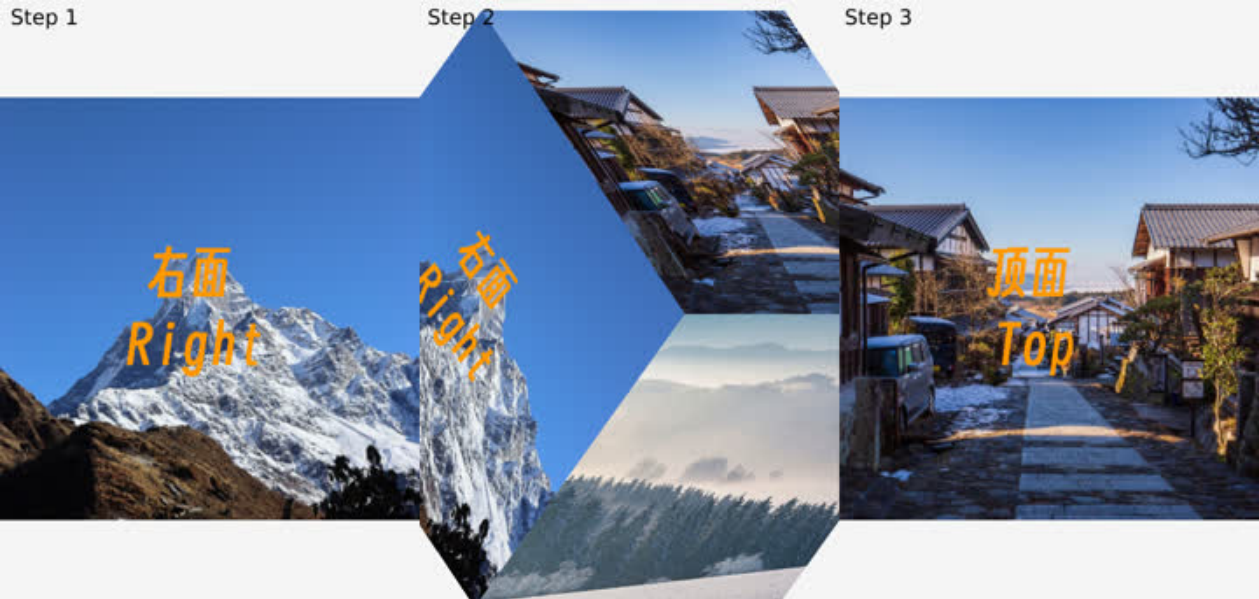
Rotate the cube and show the six surfaces of the cube in sequence, draw characters on the currently displayed surface. You can replace the characters with lyrics to achieve 3D lyrics display in conjunction with music.
Code Introduction
/* anims/cube_lyric.c */
/*
 * Define two additional sub-animations. In the application, each rotation and
 * each line of text rendering is divided into sub-animations to complete.
 * The animation starts from the left, and the main animation completes the two
 * lines of drawing on the left.
 * After the main animation is completed, enable the first rotation sub-animation,
 * rotating from left to right
 * After the rotation is completed, enable the first rendering sub-animation and
 * complete the drawing of the two lines on the right surface.
 * After drawing is completed, enable the second rotation sub-animation,
 * and repeat this cycle until all 6 surfaces are drawn.
 */
static lv_anim_t sub_anims[]...
/* Indicates the number of characters in the current line being drawn. */
static int line;
static int row;
static int col;
/*
 * The rendering callback is different from the ordinary cube.
 * It has an extra step of drawing on the cube, so it has an independent callback.
 * In this callback:
 * The first step is to set the cube as a framebuffer, which means that all
 * subsequent rendering will be drawn onto the cube.
 * The second step is to draw the current character
 * The third step is to reset the framebuffer, which means that subsequent rendering
 * is directly displayed on the screen
 * The fourth step is to render the cube to the screen
 */
void anim_cube_lyric_render(void)
/*
 * The starting callback first calls the cube general starting callback and
 * sets the rendering callback to anim_cube_lyric_render
 * Then rotate the cube to the left to facilitate subsequent animation
 */
void anim_cube_lyric_start(lv_anim_t *a)
/* Draw animation callback, update character index according to current progress,
 * trigger rendering */
void anim_cube_lyric(void *var, int32_t v)
/* Rotation animation callback, rotate the cube to the appropriate face according
 * to the current progress */
void anim_cube_lyric_sub(void *var, int32_t v)
/* The rotation animation ends callback. According to the length of the next line
 * of text, the drawing animation duration is updated (calculated as 300ms per word)
 * and the drawing animation is started.*/
void anim_cube_lyric_sub_end(lv_anim_t *a)
/*
 * Callback when the animation ends. The number of lines increases by one each time
 * the animation is finished.
 * If the number of lines is an odd number, it means that there is still one line that
 * has not been displayed. According to the length of the next line of text,
 * the duration of the drawing animation is updated (calculated at 300ms per word),
 * and the drawing animation is started.
 * If the number of rows is even, it means that the current page has been drawn,
 * than start the rotation animation.
 * If all 12 lines are drawn, end the animation
 * The DEMO has 12 rows in total, 2 rows per page. If you plan for other numbers of
rows,
 * the logic will be different.
 */
void anim_cube_lyric_end(lv_anim_t *a)
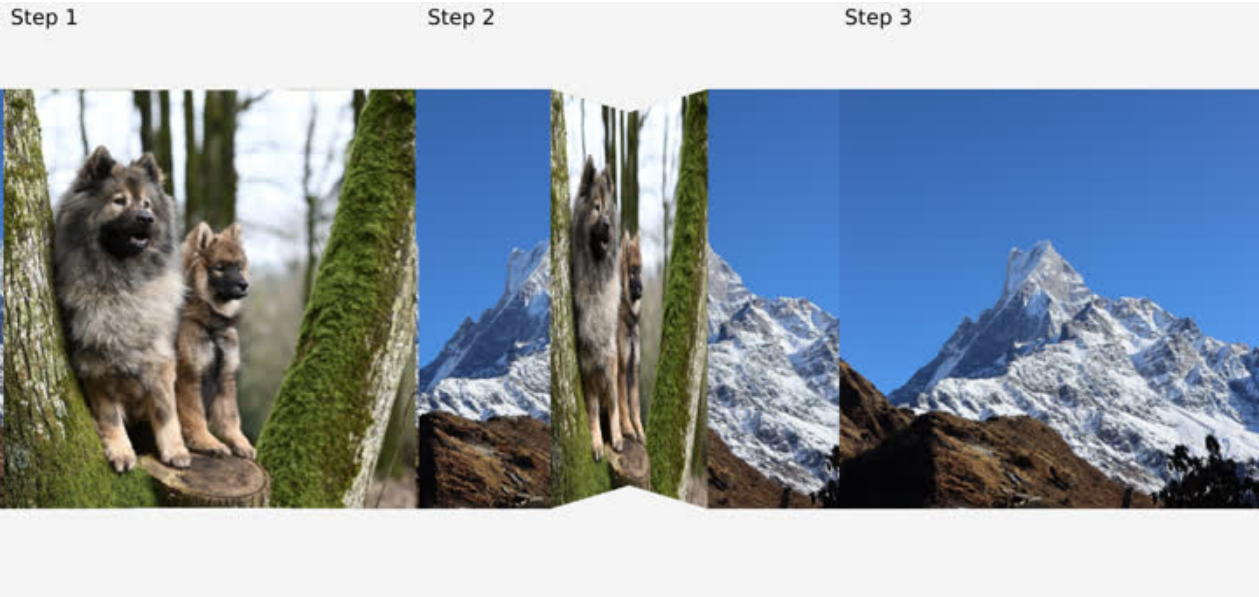
7.3.4 Picture Fold
Animation Description First image folds inwards and exits, while second image is divided into two parts and moves inwards from outside the screen.
Code Introduction
/* anims/fold.c */
/* Rendering callback.
 * The application divides the two images into four parts (each is divided into two
 * parts, left and right), so four rendering calls are made in the rendering callback.
*/
static void anim_fold_render(void)
/*
 * Start callback
 * 1 Set the view to 480x480 (picture size, optional, adjust according to
 *   actual situation)
 * 2 Reset the scale parameters of the 4 render objects according to the new view
 * 3 Divide the image into 4 parts, obj_fold[0] is the left half of image 1,
 *   obj_fold[1] is the right half of image 1, and so on.
 * 4 Set the render callback
 */
void anim_fold_start(lv_anim_t *a)
/*
 * Animation callbacks
 * The requirement for using rotation transformation is relatively complex,
 * because the rotation axis is constantly changing, and the rotation angle needs to be
 * inferred based on the offset value. Therefore, it is achieved by directly setting the
 * vertex coordinates. It only needs to continuously update the X-axis coordinates of
 * each vertex of the four objects in the animation callback. The two points on the
right
 * of obj_fold[0] and the two points on the left of obj_fold[1] are fixedly folded
inward
 * and unchanged. Therefore, the X coordinates of these four points do not need to be
 * changed, and only the Z coordinates need to be set to negative values (currently set
 * to 0~-0.2, adjusted according to the effect). The perspective transformation in the
 * vertex shader will automatically transform the effect of near large and far small.
 */
void anim_fold(void *var, int32_t v)
/* End callback */
void anim_fold_end(lv_anim_t *a)
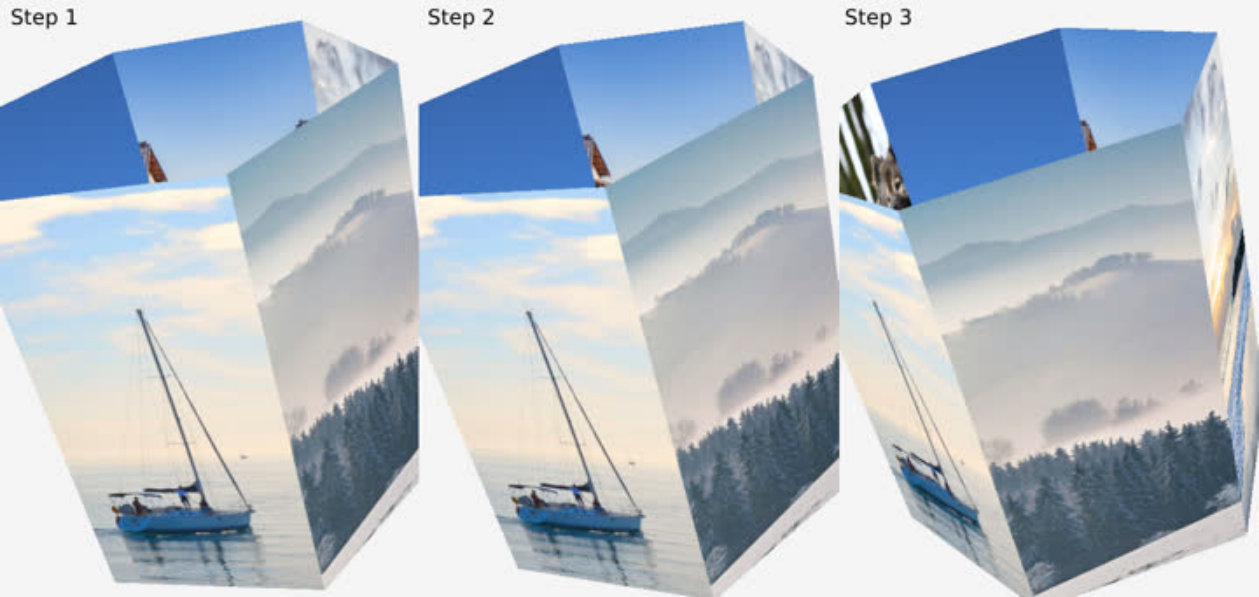
7.3.5 Rollering Image Preview
Animation Description Six pictures form a barrel shape, rotating to display each picture
Code Introduction
/* anims/roller.c */
/* Rendering callback, render 6 pictures in sequence */
void anim_roller_render(void)
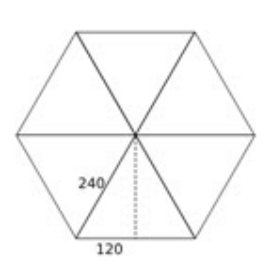
/*
 * Start callback
 * 1 Set the view to 2000x2000. Because it involves rotation, in order to avoid the
image
 *   exceeding the coordinates and causing cropping and loss of the screen, set it to a
 *   large value.
 * 2 Recalculate the size of the rendered object according to the new view, and set
 *   the Z axis offset to 0.20785, so that the image is a certain distance from the
 *   center, thus forming a barrel shape. The Z axis calculation is a simple Pythagorean
 *   theorem, sqrt(240^2 - 120^2) / 2000 * 2.0 = 0.20785, the image width is 240 (see
the
 *   image below), and since it is a hexagon, a simple sqrt(240^2 - 120^2) can calculate
 *   the distance from each face to the center. 2000 is the view size, and the scale
 *   ratio is calculated from it, and then multiplied by the range 2.0 (coordinates
 *   -1.0~1.0) to get the offset value. If it is not a hexagon, you need to calculate
the
 *   distance in other ways, and the way to calculate the scale ratio and offset value
 *   remains unchanged.
 * 3 Set the X-axis rotation to 30 and the Z-axis rotation to 15. In order to have a
 *   tilt effect, set them as needed.
 */
void anim_roller_start(lv_anim_t *a)
/* Animation callback. Add the rotation value to the Y axis of each image.
 * The first image is 0 degrees plus the rotation value, the second image is 60 degrees
 * plus the rotation value, and so on. */
void anim_roller(void *var, int32_t v)
/* End callback */
void anim_roller_end(lv_anim_t *a)
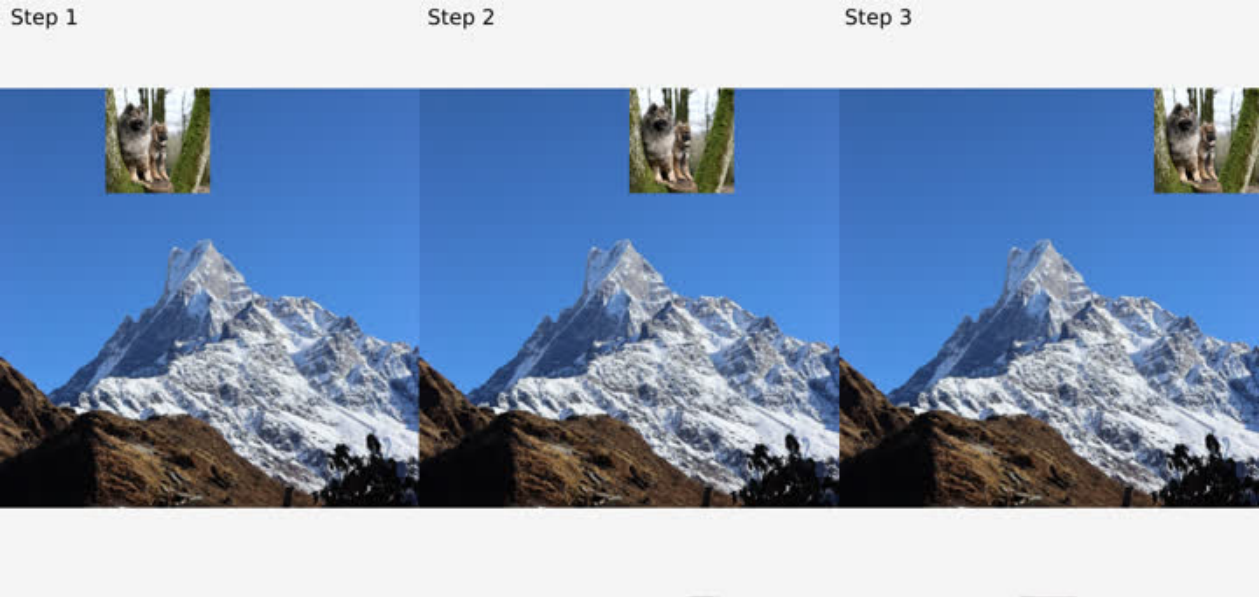
7.3.6 Stiker Test
Animation Description On the background image, move one small grid at a time, step a certain distance, and paste a small image.
Code Introduction
/* anims/stiker.c */
/*
 * Rendering callback
 * 1 Set obj_fb as framebuffer
 * 2 Clear obj_fb with color(0.0, 0.0, 0.0, 1.0) because we need the alpha of framebuffer
 *   always be 1.0 before each rendering
 * 3 Rendering obj_img1 to obj_fb as a backgroud
 * 4 Rendering obj_img0 to obj_fb as a stiker
 * 5 Reset to default framebuffer, rendering obj_fb to screen
 * In actual use, the two images can be rendered directly to the screen.
 * The DEMO is just to show the rendering function and framebuffer function.
 */
static void anim_stiker_render(void)
/* Start callback. Set the coordinates of the texture to 0,0 and call lv_gl_obj_move
 * to update the parameter values.
 */
void anim_stiker_start(lv_anim_t *a)
/* Animation callback. Set the coordinates according to the current animation progress,
 * and call lv_gl_obj_move to update the parameter values.
 */
void anim_stiker(void *var, int32_t v)
/* End callback */
void anim_stiker_end(lv_anim_t *a)
7.3.7 Slide Out
Animation Description A simple slide-out DEMO, as shown in the figure, the first picture gradually slides out of the screen to the left, while the second picture slides into the screen to the left
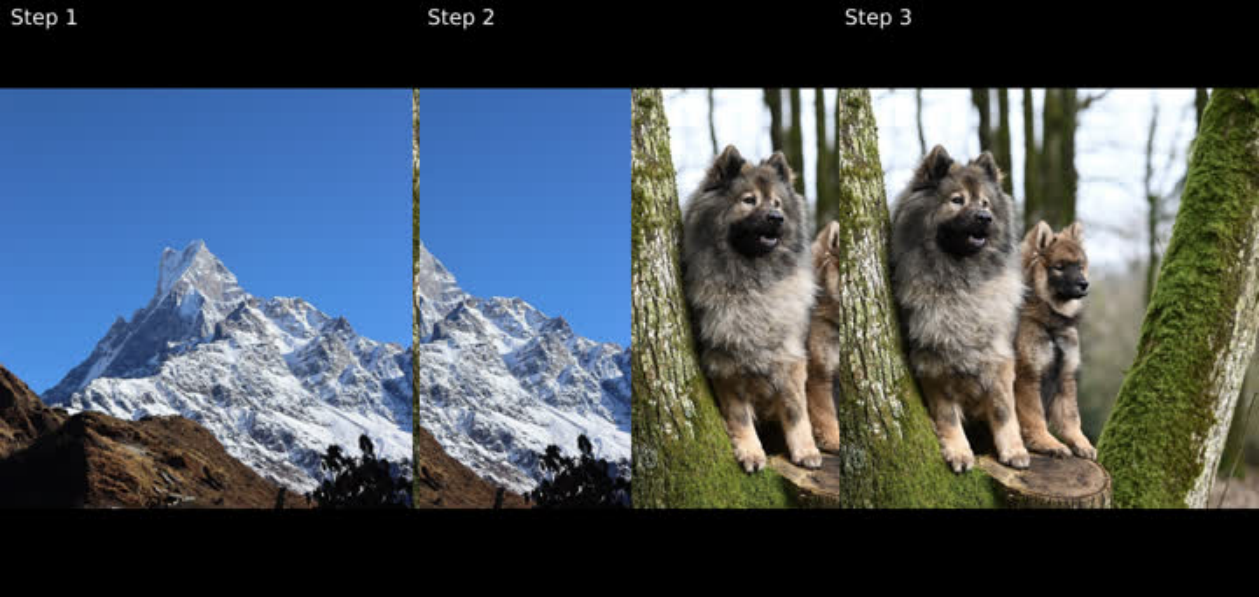
Code Introduction
/* anims/slide_out.c */
/* Calls the common start callback and sets the animation area to be visible */
void anim_slide_out_start(lv_anim_t *a)
/* Animation callback, updates the X coordinates of the two images */
void anim_slide_out(void *var, int32_t v)
/* End callback */
void anim_slide_out_end(lv_anim_t *a)
7.3.8 Fade Out
Animation Description A simple fade-in and fade-out DEMO, as shown in the figure, the transparency of the first picture decreases and gradually fades out of the screen, while the transparency of the second picture increases and gradually fades in the screen
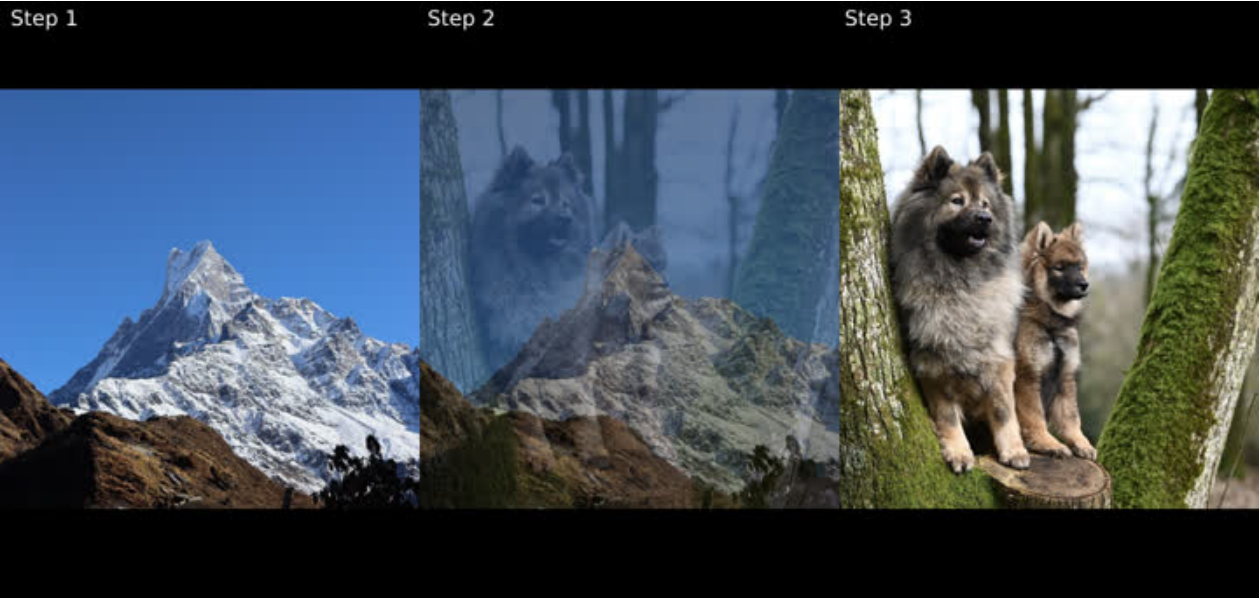
Code Introduction
/* anims/fade_out.c */
/* Calls the common start callback and sets the animation area to be visible */
void anim_fade_out_start(lv_anim_t *a)
/* Animation callback, updates the transparency of the two images */
void anim_fade_out(void *var, int32_t v)
/* End callback */
void anim_fade_out_end(lv_anim_t *a)
7.3.9 Fade and Slide Out
Animation Description Combine the two animations. The first image slides out while reducing its transparency, while second image slides into the screen.
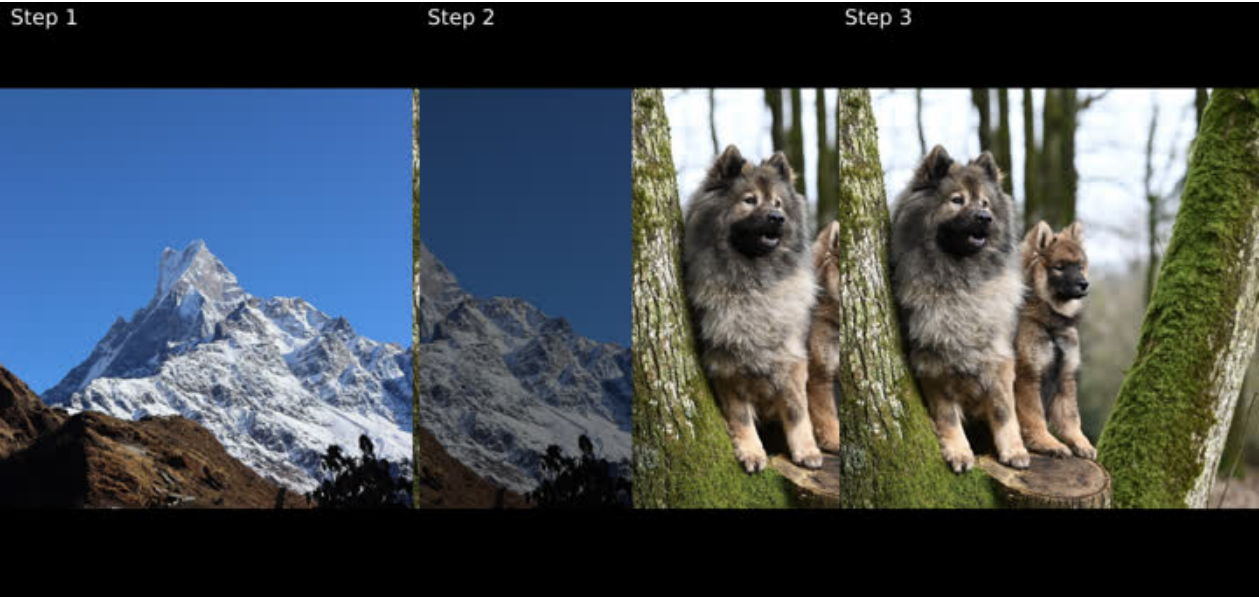
Code Introduction
/* anims/fade_slide_out.c */
/* Calls the common start callback and sets the animation area to be visible */
void anim_fade_slide_out_start(lv_anim_t *a)
/* Animation callback, updates the X coordinates of the two images and the
 * transparency of first image according to the current animation progress */
void anim_fade_slide_out(void *var, int32_t v)
/* End callback */
void anim_fade_slide_out_end(lv_anim_t *a)
7.3.10 Photo Stream
Animation Description 6 pictures scroll from top to bottom. When you touch the screen, the animation will pause and move with the finger. When you release it, the animation will continue.
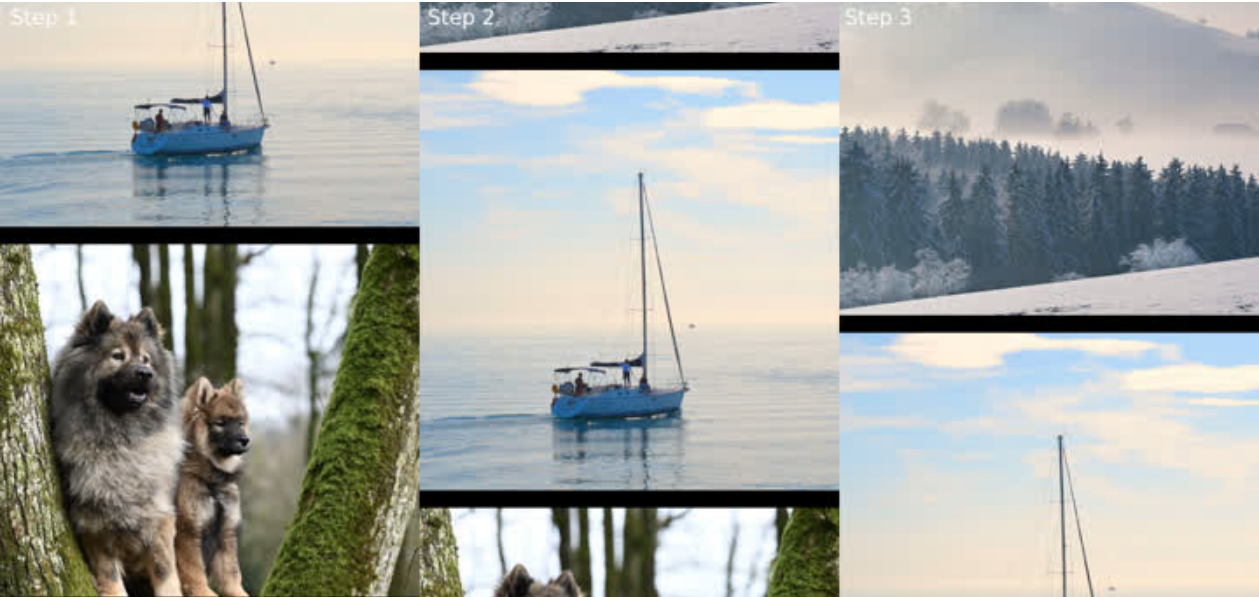
Code Introduction
/* anims/photo_stream.c */
/* image height */
static int32_t img_h = 480;
/* image gap */
static int32_t gap_h = 20;
/*
 * Calculate the maximum Y coordinate based on the image height, image gap,
 * and number of images
 * max_y = n * img_h + (n - 1) * gap_h
 */
static int32_t max_y;
/*
 * Boundary value, used to reset to the top of the photo stream and continue
 * looping after the image reaches max_y
 * boundary = n * img_h + n * gap_h
 * Since the image needs to return to the top after the loop and needs to be
 * spaced from the first image, boundary has one more gap_h than max_y.
 */
static int32_t boundary;
/* Update image coordinates regularly */
static lv_timer_t *timer;
/* The coordinate offset increased by the timer*/
static int32_t timer_ofs = 0;
/* The coordinate offset increased by the last touch */
static int32_t touch_ofs_s = 0;
/* The coordinate offset increased by this touch */
static int32_t touch_ofs = 0;
/* Update and check the Y coordinate of the image to achieve animation effect */
static void update_y(void)
/* Timer callback */
static void lv_timer_cb(lv_timer_t *timer)
/*
 * Touch callback
 * LV_EVENT_PRESSED: Pause the timer and get the coordinates of the pressed
 * LV_EVENT_PRESSING: Get the current touch coordinates, compare with the pressed
 * coordinates, add touch_ofs_s to calculate the offset value and update the coordinates
 * LV_EVENT_RELEASED: Re-enable the timer and record the touch offset to touch_ofs_s
 * The reason for dividing into three offsets is to ensure the continuity of the
 * animation coordinates when the touch is pressed and released,
 * and to avoid coordinate shifting.
 */
static void touch_handler(lv_event_t * e)
/* Stop photo stream */
void anim_photo_stream_stop(void)
/* Initialize the photo stream, create a timer, calculate max_y, boundary, etc. */
void anim_photo_stream_start(lv_anim_t *a)
/* Animation callback
 * In fact, the photo stream is implemented using a timer and has nothing to do
 * in animation callback. The animation callback is used here just to unify the
 * interface and facilitate embedding into the DEMO framework.
 * The actual application development can just use the timer callback.
 */
void anim_photo_stream(void *var, int32_t v)
void anim_photo_stream_end(lv_anim_t *a)
- In version 9 the lvgl team has merged lv_drivers into the lvgl main repository.
Additional explanations from the Chinese source
The Chinese and English code comments differ in detail; each source listing is retained. The Chinese source additionally explains: furniture_control controls household appliances; intercom_homepage is the building intercom, intercom_call handles calls, video_monitor plays RTSP, smart_home is the smart-home application, and wifibt adapts rkwifibt. VAO caches VBO and attribute configuration for switching; VBO stores coordinates and texture vertices; FBO is used when a texture becomes the framebuffer. Gallery lyrics have 12 lines, two per cube face; the lyric_row array has 12 members, each containing the characters of that line. Interaction buttons occupy the lower screen and animation the upper region; one animation finishes at a time. In the sticker example, final alpha is the destination background’s d.a, so the clear-color alpha is 1.0; otherwise the result may be transparent or invisible.
Chinese §1 qualifies the dependency statement: no external dependencies except for some extensions. A Windows or Linux PC environment can debug platform-independent UI without repeated firmware builds and flashing; then copy the code to the embedded device, compile and run it. Extensions still require their corresponding dependencies.