
This is a platform reference for ArmSoM adaptation, fully based on the sole supplied Chinese Rockchip_Developer_Guide_SD_Boot_CN.pdf (RK-KF-YF-171, V1.3.1, 17 pages). No English PDF was supplied; English, Russian and German are complete translations of Chinese. All editions use Chinese original figures, and German shares exactly the English image URLs. The source product-version field is empty and specifies no SDK/BSP or kernel version. Section 4 only lists SoC support for IDB/BCB, not verified support on every ArmSoM board. Check the board SoC, SD wiring/power, boot priority, SDK/BSP, pre-loader/SPL/U-Boot, recovery and SDDiskTool versions. No hardware validation was performed; all procedures and examples come from the source, not ArmSoM tests.
Card creation and upgrades overwrite the selected SD card or device storage. Back up data and verify the target first. No card creation, formatting or upgrade was executed. Screenshots showing v1.53 are not evidence of the v1.67 requirement for BCB being met.
Editorial notes · ArmSoM Docs · Rockchip U-Boot
Overview
This article describes Rockchip SD-card uses: building firmware, creating cards for different functions, firmware layout on the card and the boot sequence. It helps engineers investigate problems encountered when using SD cards.
1. Card types
Rockchip distinguishes ordinary SD cards, SD upgrade cards, SD boot cards and SD repair cards. The Rockchip upgrade-disk creation tool writes update.img to an SD card to create the required card type.
| Card type | Function |
|---|---|
| Ordinary SD card | Ordinary storage device |
| SD upgrade card | Boots recovery from SD; recovery updates device storage with firmware from SD |
| SD boot card | Device boots directly from SD |
| SD repair card | Copies firmware from SD to device storage starting in pre-loader |
2. Building firmware
update.img is Rockchip’s package for a complete firmware set. It contains both the firmware and additional data such as integrity checks, making it convenient to update the entire firmware set.
Rockchip supplies a dedicated tool for creating update.img. In the Rockchip SDK, open RKTools/linux/Linux_Pack_Firmware/rockdev/, as shown below.
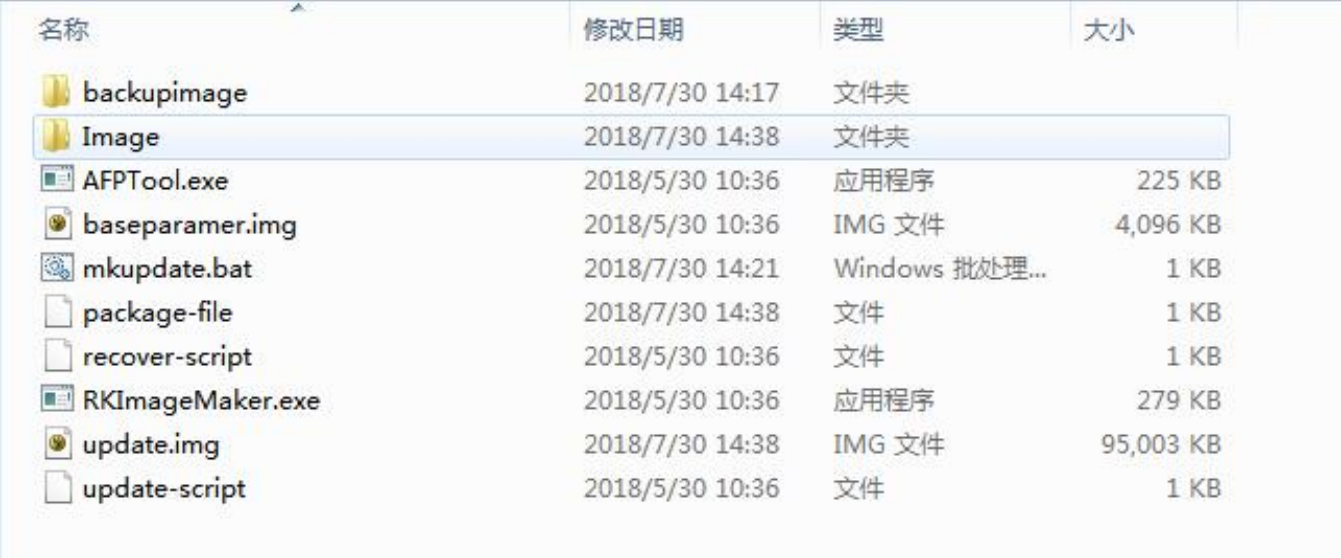
Firmware packaging directory — Chinese original, PDF p. 4
backupimage/
Image/
AFPTool.exe
baseparamer.img
mkupdate.bat
package-file
recover-script
RKImageMaker.exe
update.img
update-script
Edit package-file to package the required update.img. Its contents follow; the code spanning PDF pages 4–5 has been joined.
# NAME Relative path
#
#HWDEF HWDEF
package-file package-file
bootloader Image/MiniLoaderAll.bin
parameter Image/parameter.txt
uboot Image/uboot.img
trust Image/trust.img
misc Image/misc.img
resource Image/resource.img
kernel Image/kernel.img
boot Image/boot.img
#recovery Image/recovery.img
#system Image/system.img
#vendor Image/vendor.img
#oem Image/oem.img
# baseparamer Image/baseparamer.img
# 要写入backup分区的文件就是自身(update.img)
# SELF 是关键字,表示升级文件(update.img)自身
# 在生成升级文件时,不加入SELF文件的内容,但在头部信息中有记录
# 在解包升级文件时,不解包SELF文件的内容。
# RESERVED不打包backup
backup backupimage/backup.img
update-script update-script
recover-script recover-script
The code comments explain that SELF denotes the upgrade file update.img itself for backup. Its content is not included when generating the upgrade file, although the header records it; SELF is not extracted during unpacking. RESERVED does not package backup.
To add a file, specify its name and firmware path. Prefix a firmware entry with # to exclude it. Run mkupdate.bat to generate update.img.
3. Using the tool
3.1 Ordinary SD cards
An ordinary SD card is used just as on a PC. It serves as ordinary storage in U-Boot and the kernel, without any preparation by the tool.
3.2 SD upgrade cards
An RK tool creates an SD upgrade card to update the system in local storage, such as eMMC or NAND flash, without a PC or network. Boot code is written to the card’s reserved area and firmware copied to its visible partition. When the controller boots from the card, the boot and upgrade code writes the firmware to local main storage. Upgrade cards also support PCBA tests and copying Demo files, enabling PC-independent updates and improving production efficiency. The creation procedure follows.
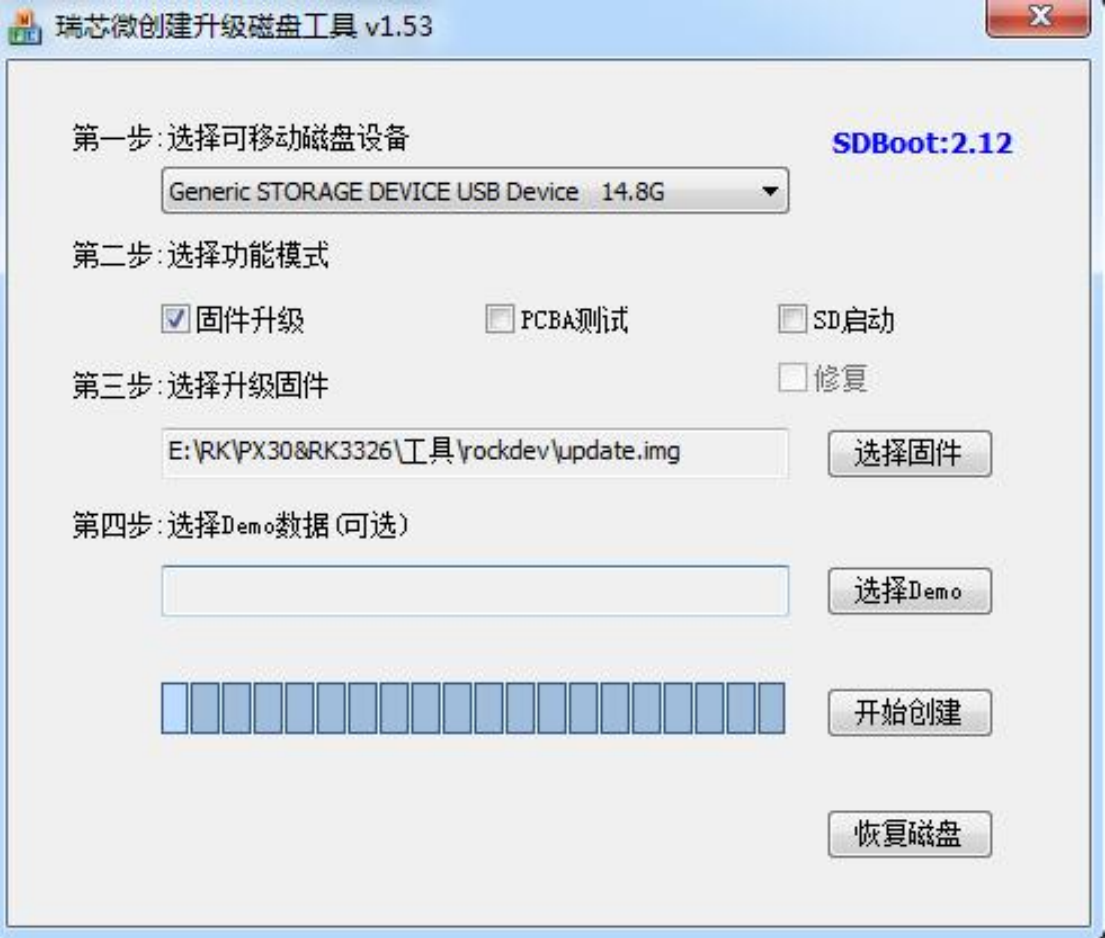
Upgrade-card creation dialog — Chinese original, PDF p. 6
- Select the removable disk.
- Select the function mode: Firmware upgrade.
- Select the firmware to install.
- Click Start creation.
Refer to the screenshot for the configuration.
Use the screenshot as a configuration reference. If an upgrade card already exists and only its firmware and demo files need updating, follow these steps:
- Copy the firmware to the SD-card root and rename it
sdupdate.img. - Copy demo files into the
Demodirectory under the card root.
Upgrade card — non-GPT
| Offset | Data segment |
|---|---|
| sector 0 | MBR |
| sector 64-4M | IDBLOCK(boot flag = 0) |
| 4M-8M | Parameter |
| 12M-16M | uboot |
| 16M-20M | trust |
| …… | misc(BCB contains recovery\n–rk_fwupdate\n) |
| …… | resource |
| …… | kernel |
| …… | recovery |
| Remaining space | Fat32 stores update.img |
Upgrade card — GPT
| Offset | Data segment |
|---|---|
| sector 0 | MBR |
| sector 1-34 | GPT partition table |
| sector 64-4M | IDBLOCK(boot flag = 0) |
| 4M-8M | Parameter |
| …… | uboot |
| …… | trust |
| …… | misc |
| …… | resource |
| …… | kernel |
| …… | recovery |
| Remaining space | Fat32 stores update.img |
3.3 SD boot cards
An RK tool creates an SD boot card so the device starts directly from the card. This makes newly compiled firmware easy to update without flashing device storage; the card can also serve as main storage. Its principal uses are SD boot and PCBA testing. PCBA testing is simply a recovery function and is available with both upgrade and boot cards. The creation procedure follows.
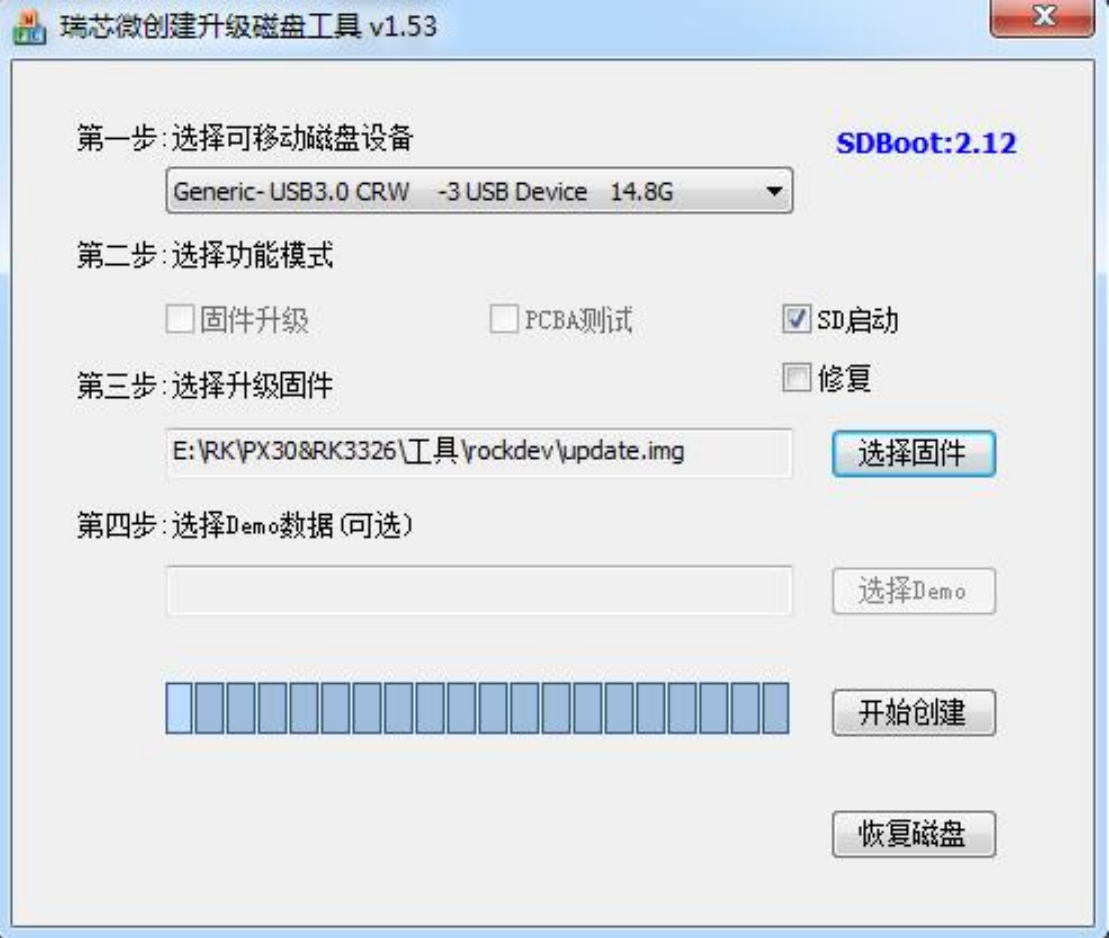
Boot-card creation dialog — Chinese original, PDF p. 8
- Select the removable disk.
- Select the function mode: SD boot.
- Select the firmware to install.
- Click Start creation.
Refer to the screenshot for the configuration.
Boot card — non-GPT
| Offset | Data segment |
|---|---|
| sector 0 | MBR |
| sector 64-4M | IDBLOCK(boot flag = 1) |
| 4M-8M | Parameter |
| 8M-12M | uboot |
| 12M-16M | trust |
| …… | misc |
| …… | resource |
| …… | boot |
| …… | kernel |
| …… | recovery |
| …… | system |
| …… | user |
Boot card — GPT
| Offset | Data segment |
|---|---|
| sector 0 | MBR |
| sector 1-34 | GPT partition table |
| sector 64-4M | IDBLOCK(boot flag = 1) |
| …… | uboot |
| …… | Boot |
| …… | trust |
| …… | resource |
| …… | kernel |
| …… | recovery |
| …… | system |
| …… | vendor |
| …… | oem |
| …… | user |
| Last 33 sectors | Backup GPT |
3.4 SD repair cards
A repair card works similarly to an upgrade card, but firmware updating takes place in the SD upgrade code of pre-loader (miniloader). The tool first writes boot code to the reserved area and then copies firmware to the visible partition. When the controller boots from SD, the upgrade code updates local main storage. This primarily repairs devices with damaged firmware. The creation procedure follows.
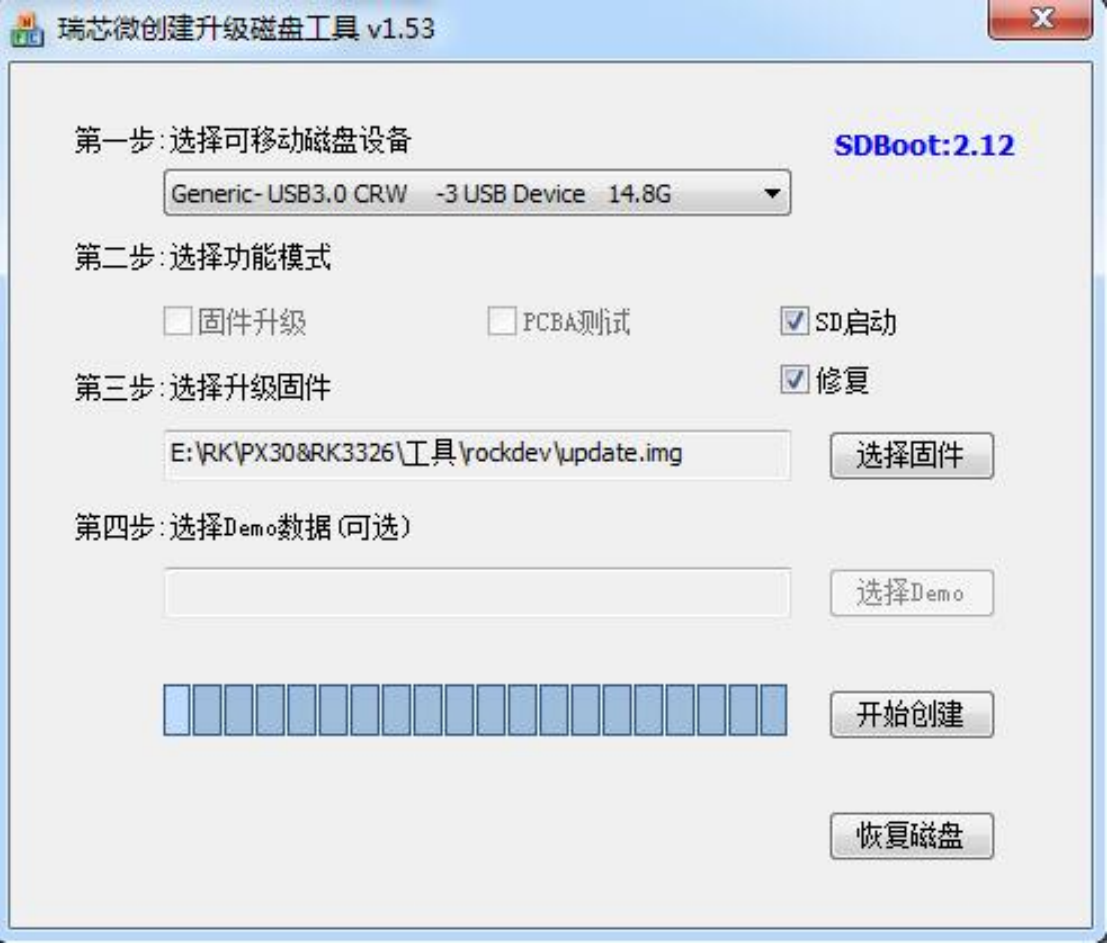
Repair-card creation dialog — Chinese original, PDF p. 10
- Select the removable disk.
- Select the function mode: SD boot and Repair.
- Select the firmware to install.
- Click Start creation.
Refer to the screenshot for the configuration.
Repair card — non-GPT
| Offset | Data segment |
|---|---|
| sector 0 | MBR |
| sector 64-4M | IDBLOCK(boot flag = 2) |
| 4M-8M | Parameter |
| 8M-12M | uboot |
| 12M-16M | trust |
| …… | misc |
| …… | resource |
| …… | boot |
| …… | kernel |
| …… | recovery |
| …… | system |
| …… | user |
Repair card — GPT
| Offset | Data segment |
|---|---|
| sector 0 | MBR |
| sector 1-34 | GPT partition table |
| sector 64-4M | IDBLOCK(boot flag = 2) |
| …… | uboot |
| …… | Boot |
| …… | trust |
| …… | resource |
| …… | kernel |
| …… | recovery |
| …… | system |
| …… | vendor |
| …… | oem |
| …… | user |
| Last 33 sectors | Backup GPT |
4. Card flags
SD cards carry flags for their functions. A starting magic number of 0xFCDC8C3B at sector 64 identifies a special card whose firmware is read to boot the device; otherwise it is treated as an ordinary card. The card-type flag is stored at “sector 64 + 616bytes”, with three values:
| Flag | Card type |
|---|---|
| 0 | Upgrade or PCBA-test card |
| 1 | Boot card |
| 2 | Repair card |
Writing an idb block flag has these drawbacks:
- It is an RK-specific, incompatible design.
- It creates a security issue: writing the flag during card creation breaks idb block integrity.
- Newer idb blocks do not reserve space for this flag. Reserving it would still cause the above problems.
To solve these problems, RK reuses Android BCB and puts recovery\n--rk_fwupdate\n in its recovery field as the flag for entering SD upgrade. Support for the two mechanisms is listed below.
| Platform | idb block flag | Android BCB |
|---|---|---|
| rk3588 | ✓ | |
| rk3568/rk3566 | ✓ | |
| rv1126/rv1109 | ✓ | ✓ |
| rk3399 | ✓ | ✓ |
| rk3368 | ✓ | ✓ |
| rk3328 | ✓ | ✓ |
| rk3326 | ✓ | ✓ |
| rk3308 | ✓ | ✓ |
| rk3288 | ✓ | ✓ |
| rk3229 | ✓ | ✓ |
| rk3128 | ✓ | ✓ |
| rk3126 | ✓ | ✓ |
The idb block flag method will gradually be phased out as platforms and tools are updated. SDDiskTool v1.67 or later is required for the Android BCB method.
5. Boot-flow analysis
SD boot consists of the pre-loader/SPL stage and the U-Boot stage. Both pre-loader and U-Boot detect the SD card and the Startup Flag in its IDB Block, then perform the corresponding function. SPL instead gives SD the highest boot-device priority: if bootable firmware exists on the card, it is loaded and started first.
5.1 pre-loader boot flow
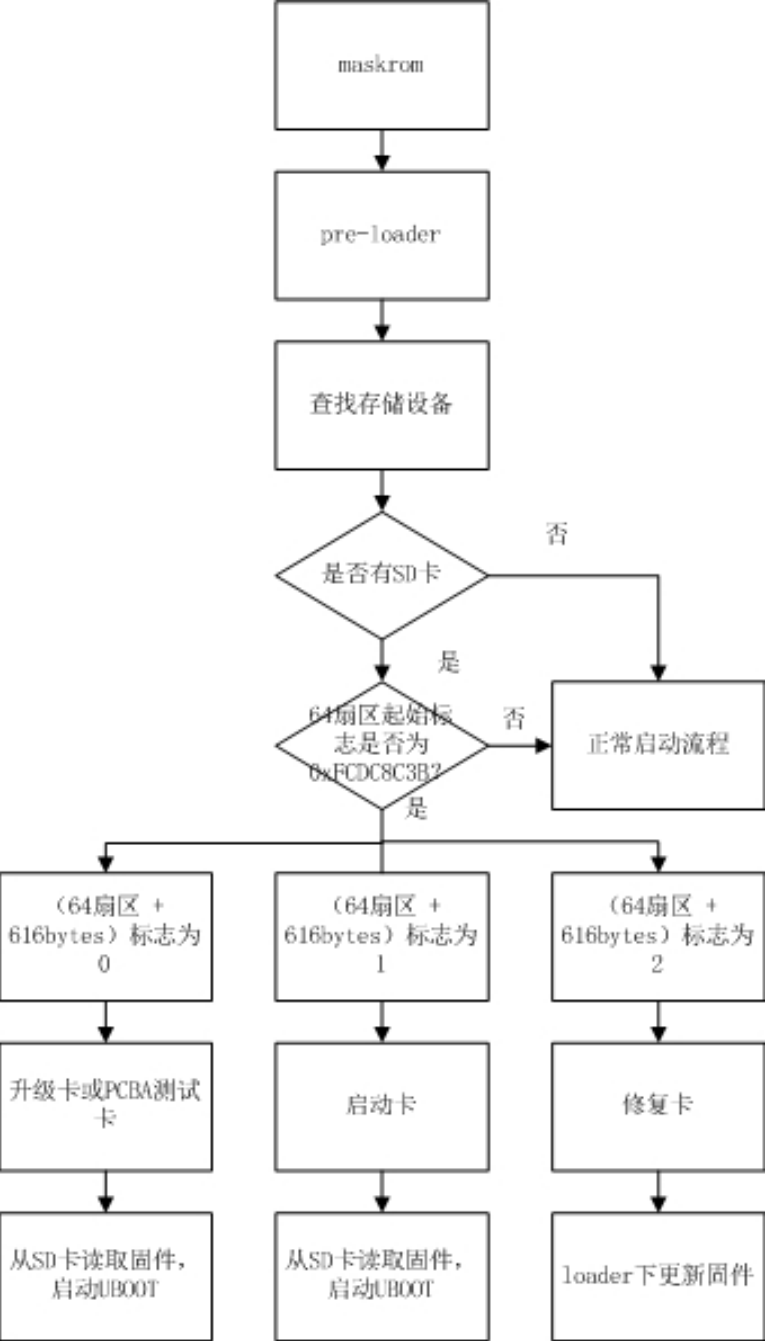
Original pre-loader flow — Chinese original, PDF p. 13
Editable explanation of the diagram: maskrom → pre-loader → find storage devices. If no SD card exists or the sector-64 magic is not 0xFCDC8C3B, follow normal boot. Otherwise branch on the flag at “sector 64 + 616bytes”: 0 selects upgrade/PCBA-test card, 1 selects boot card; both read firmware from SD and start UBOOT. Value 2 selects a repair card and updates firmware in loader.
5.2 SPL boot flow
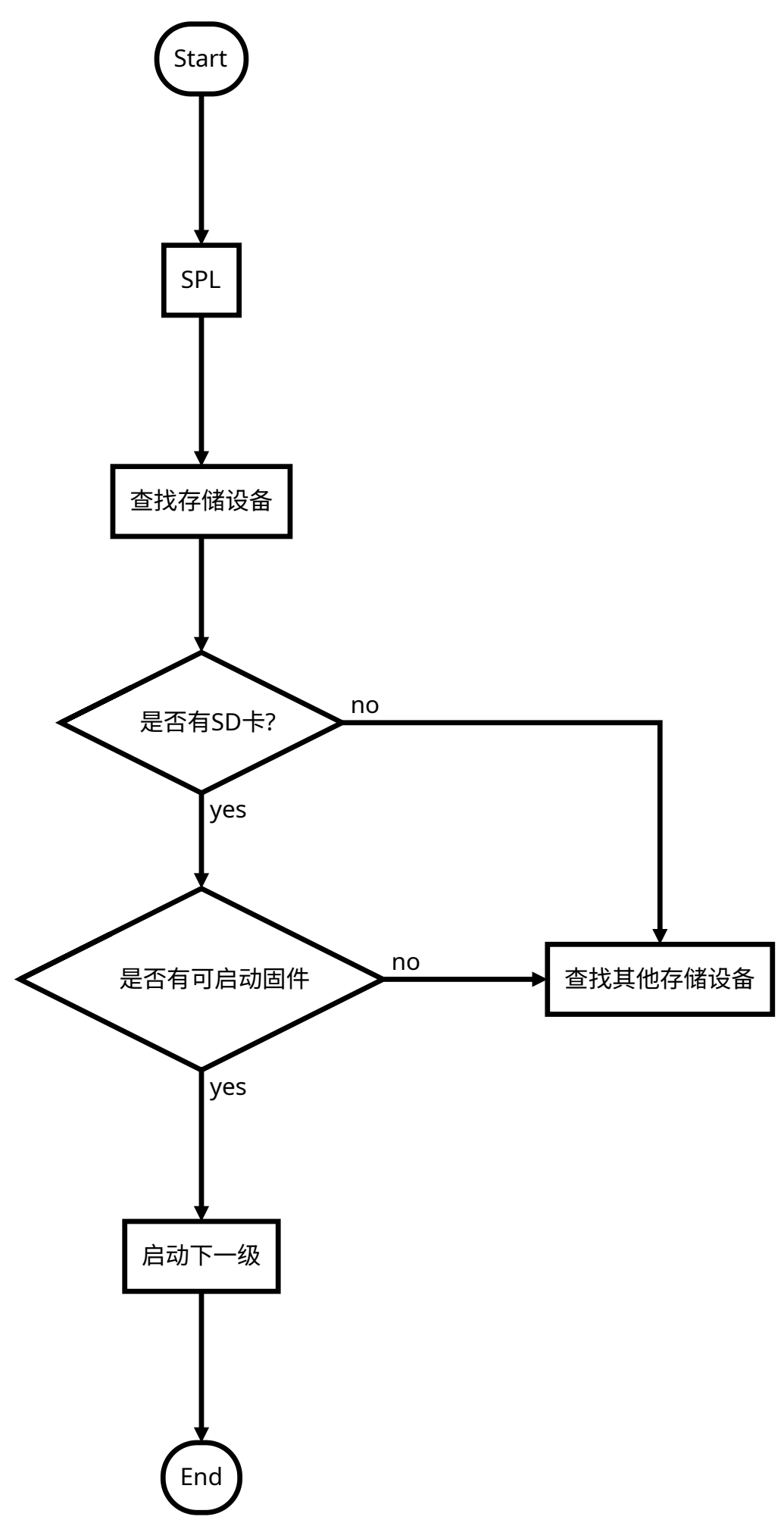
SPL flow extracted from the original vector diagram — Chinese original, PDF p. 14
Start → SPL → find storage devices. If no SD card exists, look for other storage devices. If SD exists but lacks bootable firmware, also look elsewhere. If bootable firmware exists, start the next stage → End.
5.3 U-Boot boot flow
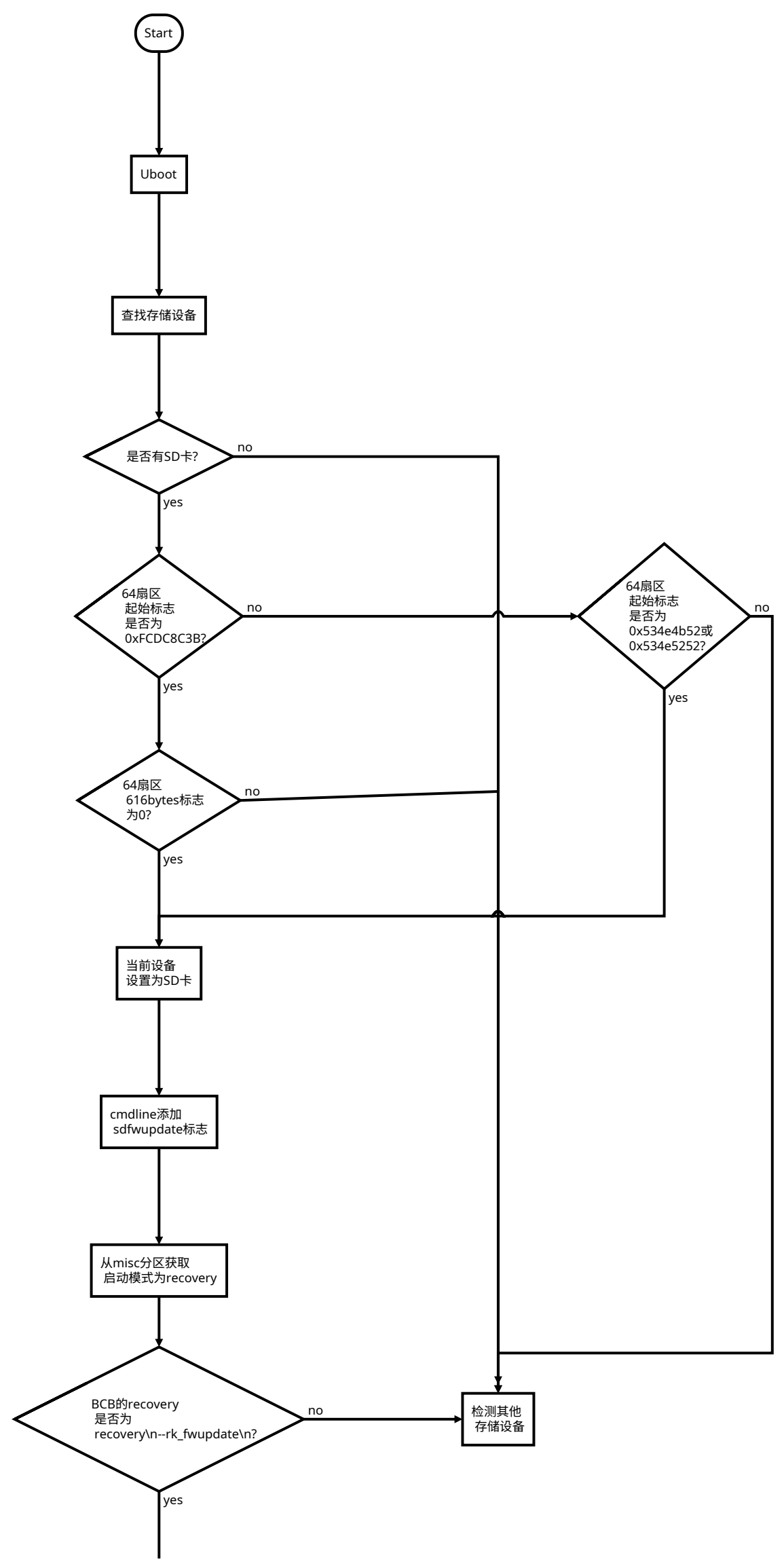
U-Boot flow, first part — Chinese original, PDF p. 16
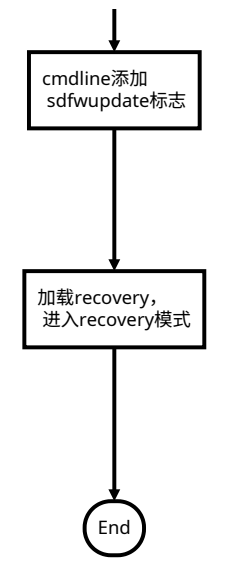
U-Boot flow, continuation on the next PDF page — Chinese original, PDF p. 17
Diagram nodes and branches:
- Start → Uboot → find storage devices. Without SD, check other storage devices.
- With SD, check whether the starting magic in sector 64 is
0xFCDC8C3B. If so, check whether the 616bytes flag is 0; otherwise check other storage devices. - If the magic is not
0xFCDC8C3B, test for0x534e4b52or0x534e5252; if neither matches, check other storage devices. - For the old magic with flag 0, or either new magic, set the current device to SD.
- Add
sdfwupdateto cmdline → obtain recovery boot mode from misc → check whether BCB recovery isrecovery\n--rk_fwupdate\n. If not, check other storage devices. - If it matches, the continuation diagram again adds
sdfwupdateto cmdline, then loads recovery and enters recovery mode → End. The duplicate node is retained from the source; verify actual behavior against the U-Boot branch in use.
5.4 recovery and PCBA
For details, the source refers to Rockchip Recovery 用户操作指南 V1.03.pdf (Rockchip Recovery User Guide). That referenced document was not supplied for this article.
6. Important notes
- For non-GPT format, U-Boot requires
CONFIG_RKPARM_PARTITION. - When creating an SD upgrade card,
update.imgmust containMiniloaderAll.bin,parameter.txt,uboot.img,trust.img,misc.img,resource.imgandrecovery.img; otherwise flashing reports failure to write the MBR. The spellingMiniloaderAll.bindiffers in case fromMiniLoaderAll.binin section 2. Both source spellings are retained; check the actual filename.