
Platform reference for ArmSoM developers. Source: RK-SM-YF-295 V1.0.0. Match the SoC, Android SDK/BSP, kernel configuration and vendor tools to your board before use; the source does not establish support for a specific ArmSoM board or kernel release. No ArmSoM hardware validation was performed. Examples and screenshots are from the source, not ArmSoM test results.
Source scope
This V1.0.0 guide describes Samba on Rockchip Android 10/11. The source lists all Rockchip chips, but this is the source platform scope, not a claim that every ArmSoM image includes the client or CIFS support. Only a Chinese PDF was supplied; all four versions use its two original screenshots.
1 Samba Client
1.1 Android Samba Client application
Google provides the open-source Android Samba client at samba-documents-provider. The source guide states that no official precompiled APK was provided: build it from source, or obtain an APK compiled by someone else. That statement describes the original guide, not a fresh check of current releases.
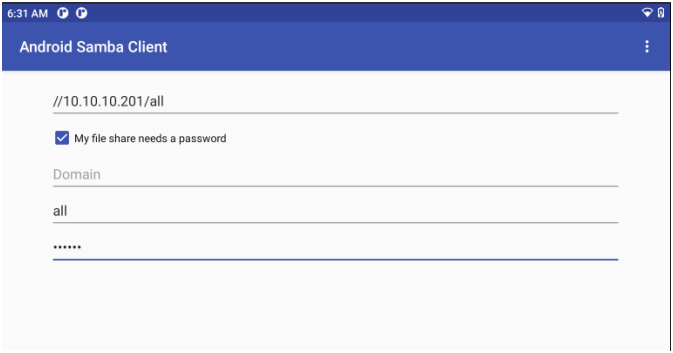
Android Samba Client connection form — Chinese source PDF; original figure, p. 2.
Enter the folder shared by the Samba server and the account details, then select MOUNT. After a successful mount, the app automatically opens Google Files to browse the mounted share.
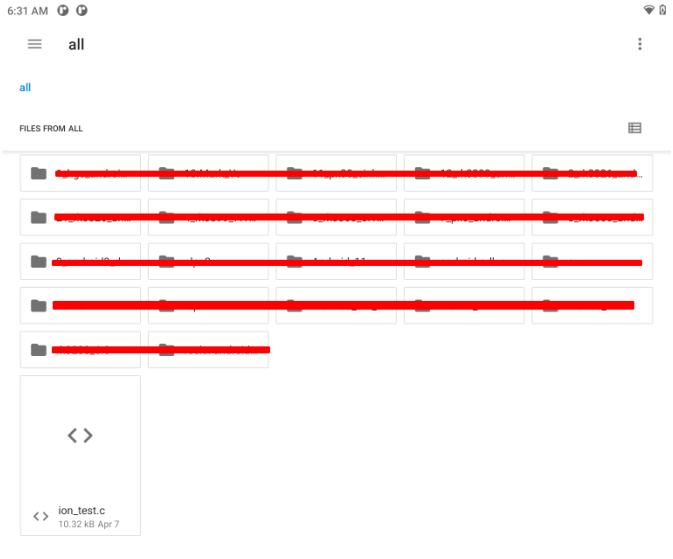
Mounted share in Google Files — Chinese source PDF; original figure, p. 3.
1.2 Mount a Samba share from the command line
The kernel must support CIFS. Enable the following kernel option, rebuild the kernel image and flash it. The original procedure requires no Android-side change.
CONFIG_CIFS=y
Set up a Samba server on the PC first; server setup is outside the source guide. On the device, enter ADB shell, create the mount point, then mount the share. The second mount command is the original concrete example; use one mount command appropriate to your server.
adb shell
mkdir -p /sdcard/share
mount -t cifs -o username=<SMB_USER>,password=<SMB_PASSWORD>,vers=2.1 //<SMB_IP>/<SMB_PATH> /sdcard/share

mount -t cifs -o username=all,password=all,vers=2.1 //10.10.10.201/all /sdcard/share
After mounting, list the shared directory. Unmount it when finished.
ls -l /sdcard/share
umount /sdcard/share