
Based on Chinese and English RK-KF-YF-348 V1.2.0 (2023-03-06), with Chinese as the baseline. Source platform table: RK3308/Linux 4.4 and RV1126/RV1109/Linux 4.19. All eight chapters, partition/structure/parameter tables, code and flowcharts are retained. This ArmSoM reference requires checking the actual board, SDK, partitions and boot chain. No upgrades or hardware tests were performed. Flashing, SD creation and wipe_userdata overwrite or erase data: back up and verify targets. Source descriptions of power-loss recovery and A/B fallback are not guarantees that arbitrary devices cannot be damaged.
1. Overview and Codes
1.1 Overview
Rockchip Linux platform supports two boot-up modes: recovery mode and Linux A/B mode:
-
Recovery mode: there is a separate partition (recovery.img) on the device for upgrade.
-
Linux A/B mode: there are two firmware on the device that can be switched. Users can choose one according to their requirements for both the modes with their advantages and disadvantages.
1.2 Codes
Rockchip Linux platform supports two upgrade modes.
| Upgrade Mode | path of codes | Recovery mode | Linux A/B mode | Description |
|---|---|---|---|---|
| updateEngine | external/recovery/update_engine external/recovery | Support | Support | Default use in RV1126/RV1109 |
| rkupdate | external/rkupdate | Support | Nonsupport | Other platroms, This document does not introduce |
2. Recovery Mode
2.1 Overview
There will be a recovery partition on the device, which is consists of kernel+resource+ramdisk and mainly used for upgrade operations on the machine in recovery mode. U-boot will determine whether the system to be booted is a normal system or a recovery system based on the fields stored in the misc partition (see the misc partition section for details). Due to system independence, the recovery mode can guarantee the integrity of upgrade even when upgrade process is interrupted. If the power is abnormally powered down, the upgrade can still continue. Advantages:
-
It can guarantee the integrity of upgrade. Disadvantages:
-
There is one more partition which is only used for upgrade in the system.
-
Reboot the system into recovery mode during upgrade process and should not upgrade directly in the normal system. Partition Instruction:
| Partition name | Image name | Description |
|---|---|---|
| loader | MiniLoaderAll.bin | First level loader |
| u-boot | uboot.img | Second level loader |
| trust | trust.img | Secure environment, like OP-TEE, ATF(Some platforms will merge trust and uboot) |
| misc | misc.img | Boot parameter partition |
| recovery | recovery.img | Root file system consisting of kernel+dtb+ramdisk |
| boot | boot.img | kernel+dtb |
| rootfs | rootfs.img | Root file system, read only |
| oem | oem.img | used for manufacturer, read and write |
| userdata | userdata.img | used for users, read and write |
2.2 Configure and Compile
Buildroot: the recovery configuration files are selected as follows: (make menuconfig):
BR2_PACKAGE_RECOVERY=y  #turn on upgrade related functions
BR2_PACKAGE_RECOVERY_USE_UPDATEENGINE=y #use the new upgrade program, if not
configured, the original upgrade process will be used by default.
BR2_PACKAGE_RECOVERY_RECOVERYBIN=y  #turn on recovery bin file
BR2_PACKAGE_RECOVERY_UPDATEENGINEBIN=y #compile the new upgrade program
BR2_PACKAGE_RECOVERY_NO_UI=y # disable UI
Buildroot: the rootfs configuration files are selected as follows (make menuconfig):
BR2_PACKAGE_RECOVERY=y #turn on upgrade related functions
BR2_PACKAGE_RECOVERY_USE_UPDATEENGINE=y #use the new upgrade program
BR2_PACKAGE_RECOVERY_UPDATEENGINEBIN=y  #compile the new upgrade program
BR2_PACKAGE_RECOVERY_NO_UI=y # disable UI
With and Without Display Currently only RK3308 uses the recovery without display, if the recovery of other chipset do not need display, just configure the following item in the file “buildroot/package/rockchip/recovery/recovery”:
TARGET_MAKE_ENV += RecoveryNoUi=true
The SDK will enable the above configuration by default, so users do not need to configure it again. The source code is in “external/recovery/” directory, if you need to do some modifications, compile as follows:
# Step1: run the following command:
source envsetup.sh
# Step2: choose the rootfs configuration of a platform,and then run the following
command:
make recovery-dirclean
source envsetup.sh
# Step3: choose the recovery configuration of a platform, and then run the
following command:
make recovery-dirclean
./build.sh
# Step4: flashing the firmware again.
If the SDK version is relatively new, you can try to compile as follows:
./build.sh external/recovery
./build.sh
# flashing the firmware again.
2.3 OTA Upgrade
The upgrade supports network upgrade and local upgrade, and you can specify the partition to be upgraded. Run the following command on the normal system. Network upgrade:
# updateEngine --misc=update --image_url=firmware address --partition=0x3FFC00 --
version_url=version file address --savepath=/userdata/update.img --reboot
updateEngine --image_url=http://172.16.21.110:8080/recovery/update.img \
    --misc=update --savepath=/userdata/update.img --reboot &
Local upgrade:
updateEngine --image_url=/userdata/update.img --misc=update \
    --savepath=/userdata/update.img --reboot &
Process introduction:
-
Firmware versions comparison(–version_url)
-
Download the firmware(–image_url) and save it locally(–savepath)
-
Upgrade recovery partition
-
Reboot(–reboot)
-
Enter the recovery mode, upgrade the partition(–partition)
-
Successfully upgrade and reboot into the normal system. Optional parameters:
-
–version_url: remote address or local address. If this parameter is not set, versions comparison will not do .
-
–savepath: firmware saves path, it is “/tmp/update.img” by default. It is recommended to set to “/userdata/update.img”.
-
–partition: set the partition to be upgraded. It is recommended to set it to 0x3FFC00. It is not supported to upgrade the parameter and loader partitions. See the Chapter of Parameters Introduction for details.
-
–reboot: after upgrading the recovery partition, reboot into the recovery mode.
2.4 Log Checking
- Check log by serial port In the “buildroot/output/rockchip_***/target” directory:
touch .rkdebug
Create this hidden file to print the upgraded log in recovery mode by serial port.
- Checking through the “userdata/recovery/Log” file: After upgrading, check the log file under “userdata/recovery” directory in the device.
cat userdata/recovery/Log
3. Differential upgrade
The tools/linux/Linux_Diff_Firmware/ under Linux SDK can be used to make differential package,which has features as below: support uboot/trust/kernel partitions support squashfs rootfs partition and features are not ready yet like: the read/write partitions, e.g. EXT2/3/4 filesystem the partition bases on MTD layer, e.g. UBI filesystem the encrypted partitions A/B mode OTA
3.1 Dependencies and Building
The production of differential package involves thress parts as follows:
.
├── buildroot
│   └── 0001-package-recovery-add-bzip2-dependency.
│   └── 0002-bsdiff-use-mmap-to-save-memory-when-apply-patch.patch
├── external
│   └── recovery
│       └── 0001-update_engine-add-differ-ota-funcion.patch
│       └── 0002-update_engine-recover-from-unexpected-reboot-when-do.patch
└── tools
    └── 0001-ota-add-diff-firmware-script.patch
Please ensure that the above three projects have included. If not, you can upgrade the sdk or request patches from RK. The tools that the PC side relies on include: bsdiff, md5sum. BSdiff can be installed using the following command,
sudo apt install bsdiff
3.2 Partition size requirements
Requirements for ddr and partition size at the board end, No requirement for DDR size, regardless of the size of the differential package The size of free partitions should not be less than the sum of update_diff.img and rootfs.img file size For example, saying update_diff.img is saved in the /userdata/ directory, then At the very least, it is necessary to be able to save the new rootfs.img image in /userdata
3.3 Build differential package
Create a differential package by unpacking, differentiating the new and old OTA images, and packaging.
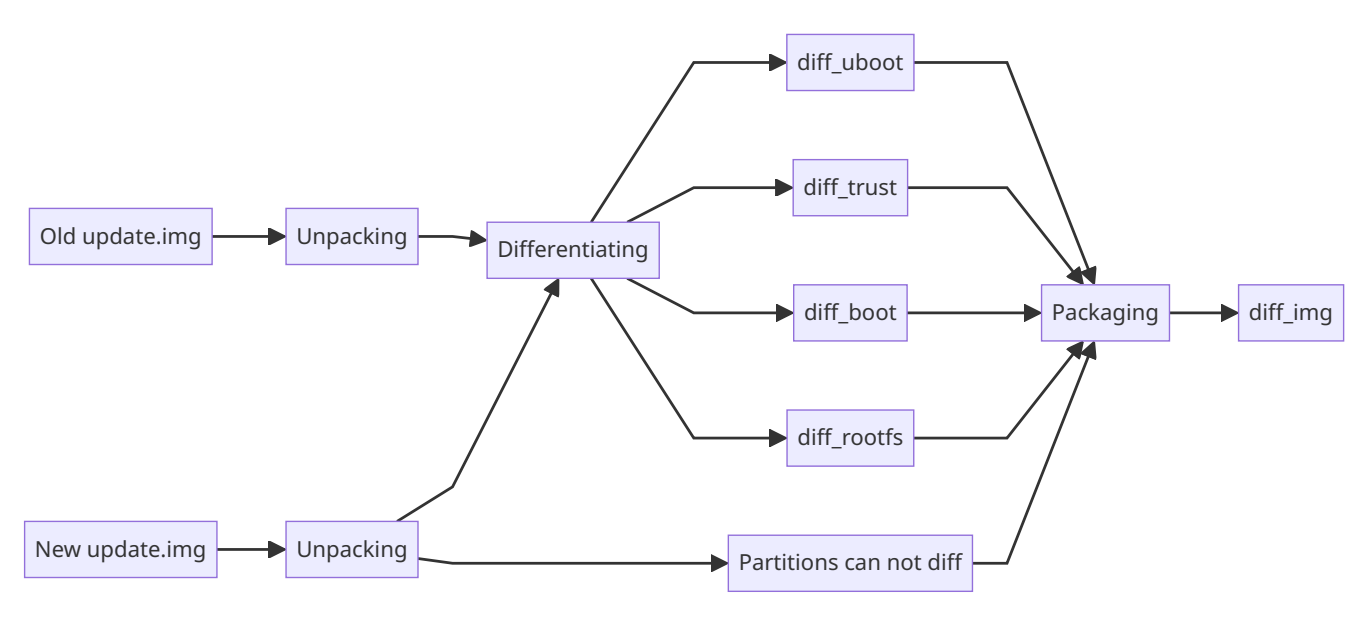
Differential flow: unpack old and new update.img, compute uboot/trust/boot/rootfs differences, then package those differences together with partitions from the new image that are not differentiated into diff_img.
NOTE It’s better the new update.img only contains the partition to be upgraded For old firmware, it is recommended to use update.img that contains all partitions, and at least contain partitions to be upgraded The old firmware must be the same as the firmware on the target machine Usage:
cd tools/linux/Linux_Diff_Firmware/
./mk-diff-ota.sh update_old.img update_new.img update_diff.img
It will generate update_diff.img which can replace the new update.img on target board for upgrading. NOTE shall use updateEngine on target board to do upgrading, the rkupdate does not support differential package yet.
4. Linux A/B Mode
4.1 Overview
You have to prepare two separate system firmwares which are respectively stored in the flash in Linux A/B mode . The system can be booted from one of the slots. If the current slot fails to boot, it can be started from another slot, and the system can be directly upgraded in the normal state, without entering the system upgrade mode, and just restart the system to enter the upgraded system. The following advantages are included in Linux A/B mode due to its two boot slots:
-
The machine can be upgraded directly on the current system without rebooting into upgrade mode.
-
Prevent the machine from crashing for failure upgrade. If the upgrade fails, the machine can return to the current version.
-
If the current system is destroyed due to misoperation, the system will automatically switch to another slot. Disadvantages:
-
There are two slots in Linux A/B mode, so it will increase the system firmware usage on the flash. Partition: Since there are already multiple backups of miniloader, trust, and uboot on the device, these partitions do not support the dual partitions at present, only the boot and system are dual- partitioned. The partition table is as follows:
| Partition | Image | Description |
|---|---|---|
| loader | Miniloader.bin | First level loader, there are 4 backups in the device |
| uboot_a | uboot.img | Second level loader, there are 2 backups in the device,the backups number can be changed by modifying the “u- boot/make.sh” |
| uboot_b | uboot.img | backup of uboot_a |
| trust | trust.img | Related to secure, there are 2 backups in the device,the backups number can be changed by modifying the “u- boot/make.sh” (Some platforms will merge trust and uboot) |
| misc | misc.img | Boot parameter partition |
| boot_a | boot.img | kernel+dtb, boot system_a |
| boot_b | boot.img | kernel+dtb, boot system_b |
| system_a | rootfs.img | Root file system |
| system_b | rootfs.img | Root file system |
| oem | oem.img | Manufacturer prefabricated, read and write, No backup |
| userdata | userdata.img | For data, readable and writable, No backup |
4.2 Boot Process
4.2.1 Data Format and Storage
The storage position is 2K offset from the misc partition, and AvbABSlotData and AvbABData data structures are as follows AvbABSlotData: store slot_a and slot_b
| Date name | Usage |
|---|---|
| unsigned char priority | Partition priority, 0~15, 0 is not automatic, 15 is the highest priority |
| unsigned char tries_remaining | The number of attempts to start, the highest is 7, can be modified |
| unsigned char successful_boot | 0: unbootable,1: bootable |
| unsigned char is_update:1 | 0: upgrade failed, 1: upgrade successfully , and the last 7 bits are reserved data. |
AvbABData: slot_a and slot_b boot information
| Date name | Usage |
|---|---|
| unsigned char magic[AVB_AB_MAGIC_LEN] | structure header information: \0AB0 |
| unsigned char version_major | version information |
| unsigned char version_minor | version information |
| unsigned char reserved1[2] | reserved data |
| AvbABSlotData slots[2] | Partition boot information |
| unsigned char last_boot | The partition that was successfully boot last time: 0->slot_a, 1->slot_b |
| unsigned char reserved2[11] | reserved data |
| unsigned char crc32 | Crc data verification |
4.2.2 Two boot modes
According to the configuration method of the upper bootcontrol program, there are two boot modes: successful_boot and reset retry. The difference of the two modes is as follows:
| Mode | Advantage | Disadvantage | parameters need to set when successfully boot(A boot) | parameters need to set when upgrade(A boot, B upgrade) |
|---|---|---|---|---|
| Successful boot | As long as the system is booted normally, it will not go back to the old version of firmware. | After the device is working for a long time, if some memory are stored abnormally, the system will always restart. | tries_remaining=0 successful_boot=1 last_boot=0 | A:priority=14 B:priority=15 |
| Reset retry | Always maintain the retry mechanism can fix storage issues | 1. The machine will go back to the old version which may not be controlled. 2.If the retry try many times for users misoperation, it will be misidentified that the current partition is bootable. | tries_remaining=7 last_boot=0 | A:priority=14 B:priority=15 |
4.2.3 Boot Process Flow Chart
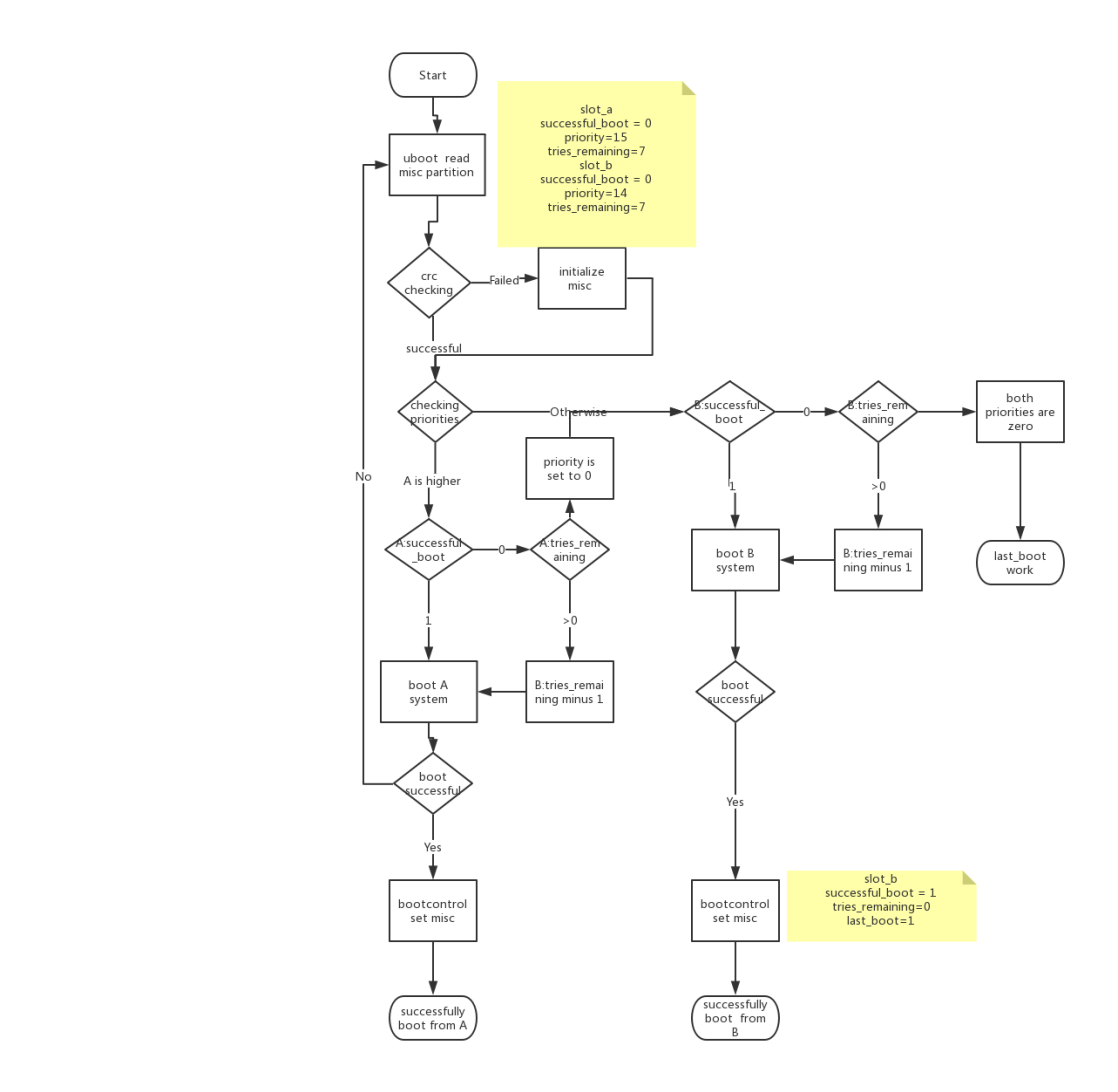
4.3 Compilation Configuration
4.3.1 uboot
Add the following configurations to defconfig, take rk3308 64bit for example: “u-boot/configs/rk3308_defconfig”:
CONFIG_AVB_LIBAVB=y
CONFIG_AVB_LIBAVB_AB=y
CONFIG_AVB_LIBAVB_ATX=y
CONFIG_AVB_LIBAVB_USER=y
CONFIG_RK_AVB_LIBAVB_USER=y
CONFIG_ANDROID_AB=y
4.3.2 Buildroot
BR2_PACKAGE_RECOVERY=y  #enable recovery function
BR2_PACKAGE_RECOVERY_BOOTCONTROL=y  #enable the boot control script
BR2_PACKAGE_RECOVERY_RETRY=y
#The boot mode is retry mode. it is successful_boot mode by default when not
configured.
BR2_PACKAGE_RECOVERY_USE_UPDATEENGINE=y  #Use the new upgrade program
BR2_PACKAGE_RECOVERY_UPDATEENGINEBIN=y
BR2_PACKAGE_RECOVERY_NO_UI=y # disable UI
#compile the new upgrade program
Note: after finishing the configuration, you must recompile as follows:
make recovery-dirclean
make recovery
./build.sh
If the SDK version is relatively new, you can try to compile as follows:
./build.sh external/recovery
./build.sh
# flashing the firmware again.
4.3.3 Partition Table
Set parameter partition table of corresponding BoardConfig.mk as follows:
#choose device/rockchip/rk3308/parameter-ab-64bit.txt file
# parameter for GPT table
export RK_PARAMETER=parameter-ab-64bit.txt
64bit: please refer to /device/rockchip/rk3308/parameter-ab-64bit.txt 32bit: please refer to /device/rockchip/rk3308/parameter-ab-32bit.txt
4.3.4 Firmware output
Select the corresponding board configuration (such as BoardConfig***-ab.mk). If you want to use SD card boot disk to upgrade AB system mode, the method is as follows:
# enable build update_sdcard.img
export RK_UPDATE_SDCARD_ENABLE_FOR_AB=true
Run the following command after finishing the above setting :
./build.sh
The following firmwares will be generated:
tree rockdev/
rockdev/
├── boot.img
├── MiniLoaderAll.bin
├── misc.img
├── oem.img
├── parameter.txt
├── rootfs.img
├── uboot.img
├── update_ab.img
├── update_sdcard.img
├── update_ota.img
└── userdata.img
Firmware Upgrade In the rockdev and IMAGE directories, there will be update_ota.img for OTA upgrades. The IMAGE package includes boot.img and rootfs.img. The tools/linux/Linux_Pack_Firmware/rockdev/rv1126_rv1109-package-file-2-ota file can be modified according to actual cause. As shown below:
# NAME        Relative path
#
#HWDEF        HWDEF
package-file  package-file
bootloader    Image/MiniLoaderAll.bin
parameter     Image/parameter.txt
uboot_a       Image/uboot.img
boot_a        Image/boot.img
system_a      Image/rootfs.img
oem           Image/oem.img
Firmware flashing The update_ab.img is generated in both rockdev and IMAGE directories, which is used for flashing. Modify the file tools/linux/Linux_Pack_Firmware/rockdev/rv1126_rv1109-package-file-2-ab file as needed. As shown below:
# NAME          Relative path
#
#HWDEF          HWDEF
package-file    package-file
bootloader      Image/MiniLoaderAll.bin
parameter       Image/parameter.txt
misc            Image/misc.img
uboot_a         Image/uboot.img
uboot_b         Image/uboot.img
boot_a          Image/boot.img
boot_b          Image/boot.img
system_a        Image/rootfs.img
system_b        Image/rootfs.img
oem             Image/oem.img
4.4 OTA Upgrade
Upgrade online:
# updateEngine --update --image_url=firmware address --partition=0x3FFC00 --
version_url=version file address --savepath=save the firmware address --reboot
updateEngine --image_url=http://172.16.21.110:8080/linuxab/update_ota.img --
update --reboot
Upgrade locally:
# updateEngine --update --image_url=firmware address(update_ab.img or
update_ota.img) --partition=0x3FFC00 --version_url=version file address --
savepath=save the firmware address --reboot
updateEngine --image_url=/userdata/update_ota.img --update --reboot
Process introduction:
-
Firmware versions comparison
-
Download the firmware (–image_url) and save it locally (–savepath)
-
Upgrade the specified partition(–partition)
-
Set the upgrade partition to the partition to be upgraded
-
Restart
-
Try to boot the upgraded partition Optional parameters:
-
–partition: set the partition to be upgraded. In Linux A/B mode, it is recommended to upgrade only uboot_a/uboot_b boot_a/boot_b and system_a/system_b, that is setting it to 0xFC00. It is not supported to upgrade the parameter and loader partitions. See parameter instruction for details.
-
–version: if this parameter is not set, there will be no versions comparison.
-
–savepath: firmware save path. It is “/tmp/update.img” by default. and it is recommended to use the default value.
-
–reboot: reboot after upgrade
4.5 Partition Boot Settings
4.5.1 Bootable Settings
Set the current partition to be bootable by the misc and then execute after the system successfully boots, mark the system to start successfully. Please refer to the following script.
$external/recovery/update_engine$ cat S99_bootcontrol
case "$1" in
start)
/usr/bin/updateEngine --misc=now
;;
stop)
printf "stop finished\n"
;;
*)
echo "Usage: $0 {start|stop}"
exit 1
;;
esac
exit 0
4.5.2 Upgrade Partition Settings
updateEngine --misc=other --reboot
Process introduction:
-
Write a command to the position 4K offset from the misc in order to boot another partition
-
Restart Optional parameter:
-
–reboot, the machine will not restart immediately and will not take effect until the next reboot by default. Note: the updateEngine program is automatically set after OTA upgrade is completed, no need to repeat the settings.
5. Create a SD card Upgrade Disk
Creating an upgrade disk refers to inserting the SD card created by the SDDiskTool card-making tool to the machine to upgrade, this section will introduce how to create a upgrade disk and some upgrade issues in details. Create an Upgrade Disk As shown in the figure below, use the tool in the project directory “tools\windows\SDDiskTool” to create a upgrade disk.
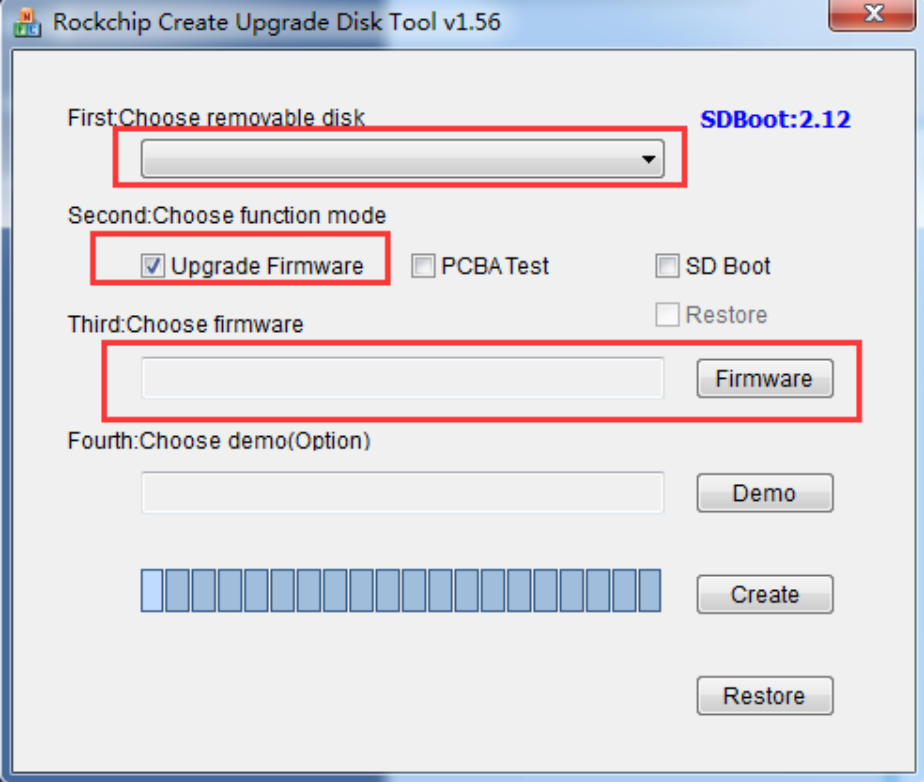
Choose the packaged update.img file by the “Firmware” button. After that, click the “Create” button. If the creation is successful, a prompt will appear. At this point, there will be two files in the root directory of the SD card, and the upgraded firmware update.img will be named sdupdate.img. After all the preparations are completed, insert the SD card into the device and power on.
5.1 Instructions for making SD card boot disk in Recovery system mode
To make SD card boot disk in Recovery system mode, just use SDDiskTool to make update.img directly into sdupdate.img.
5.2 Instructions for making SD card boot disk in AB system mode
When the SDK compiles the AB system mode, the ./build.sh updateimg command will package 3 update.img, as follows: update_ab.img: Contains a complete AB system partition, which can be used for complete burning update_ota.img: Only include A slot partition system or B slot partition system update_sdcard.img: Can only be used to make a SD card boot disk in AB system mode
When making an SD card boot disk in AB system mode, use SDDiskTool to load update_sdcard.img. After making the SD card boot disk, copy update_ab.img or update_ota.img to the SD card boot disk.
rksdfw.tag
sd_boot_config.config
sdupdate.img
update_ab.img  # first priority
update_ota.img # second priority
6. Restore the Factory Settings
The configuration files that can be read and written were stored in the userdata partition. The factory firmware will set some configuration parameters by default. After using a period of time, the configuration file will be generated or modified. Sometimes users need to clear the data, at this time, they need to restore the factory configuration. SDK implementation: Function keys “RECOVERY + VOLUMEUP” are used to trigger to restore the factory configuration, please refer to the code in these directory: buildroot/board/rockchip/rk3308/fs-overlay/etc/input-event-daemon.conf board/rockchip/rk3308/fs-overlay/usr/sbin/factory_reset_cfg
updateEngine --misc=wipe_userdata --reboot
Process introduction:
-
Write format command to the position that 4k offset from the misc partition
-
Reboot(–reboot)
-
The S21mountall.sh is used to dentify formatting commands in the misc
-
format the userdata Optional parameter:
-
–reboot: if this parameter was not set, the factory settings will be restored after the next reboot of the machine.
7. Details of the Upgrade Program
7.1 Parameters
The updateEngine mainly includes upgrading partition and writing the Misc configuration function, command parameters are as follows:
*** update_engine: Version V1.1.0 ***.
--misc=now             Linux A/B mode: Setting the current partition to bootable.
--misc=other           Linux A/B mode: Setting another partition to bootable.
--misc=update          Recovery mode: Setting the partition to be upgraded.
--misc=wipe_userdata   Format data partition.
--update               Upgrade mode.
--partition=0x3FFC00   Set the partition to be upgraded.(NOTICE: OTA not support
upgrade loader and parameter)
                       0x3FFC00: 0011 1111 1111 1100 0000 0000.
                                 uboot trust boot recovery rootfs oem
                                 uboot_a uboot_b boot_a boot_b system_a system_b.
                       000000000000000000000000: reserved
                       100000000000000000000000: Upgrade loader
                       010000000000000000000000: Upgrade parameter
                       001000000000000000000000: Upgrade uboot
                       000100000000000000000000: Upgrade trust
                       000010000000000000000000: Upgrade boot
                       000001000000000000000000: Upgrade recovery
                       000000100000000000000000: Upgrade rootfs
                       000000010000000000000000: Upgrade oem
                       000000001000000000000000: Upgrade uboot_a
                       000000000100000000000000: Upgrade uboot_b
                       000000000010000000000000: Upgrade boot_a
                       000000000001000000000000: Upgrade boot_b
                       000000000000100000000000: Upgrade system_a
                       000000000000010000000000: Upgrade system_b
                       000000000000001000000000: Upgrade misc
                       000000000000000100000000: Upgrade userdata
--reboot               Restart the machine at the end of the program.
--version_url=url      The path to the file of version.
--image_url=url        Path to upgrade firmware.
--savepath=url         save the update.img to url.
–misc now: used to set the current partition as a bootable partition in Linux A/B mode Note: The “external/recovery/update_engine/S99bootcontrol” script will run this command in the end of booting, setting the current partition as a bootable partition, which needs to be enabled.
BR2_PACKAGE_RECOVERY_BOOTCONTROL=y
other: used to set another partition as the upgraded partition, and try to boot from another partition after reboot in Linux A/B mode.
Note: if the updateEngine is used to upgrade, it will be set automatically after the upgrade is completed, no need to repeat the settings. update: used to upgrade the recovery partition in the normal system, and upgrade the remaining partitions in the recovery system in Recovery mode. display: used to debug, display the data structure of the misc partition. –update sdboot: do the sdboot upgrade process, that is, operate flash directly without partition concept. Without parameters: mainly used in Linux A/B mode, directly upgrade in the current mode. –partition=0x0000 Set the partition to be upgraded, the default value is 0x3FFC00, upgrade uboot,trust,boot, recovery,rootfs,oem,uboot_a,uboot_b,boot_a,boot_b,system_a,system_b partitions. The higher 16bits are already used, and the lower 8 bits are reserved bits which can be extended. 1: upgrade, 0: not upgraded
| Bit | Partition |
|---|---|
| 23 | loader |
| 22 | parameter |
| 21 | uboot |
| 20 | trust |
| 19 | boot |
| 18 | recovery |
| 17 | rootfs |
| 16 | oem |
| 15 | uboot_a |
| 14 | uboot_b |
| 13 | boot_a |
| 12 | boot_b |
| 11 | system_a |
| 10 | system_b |
| 9 | misc |
| 8 | userdata |
| 7~0 | Reserved |
–reboot After the updateEngine runs successfully, the machine restarts. –vsersion_url If it was set, it will be compared to the RK_VERSION= version value in the “/etc/version” file before upgrade. Local path: read the version number from the firmware. Remote path: download the version file from the remote, and the remote version file format must be consistent with the “/etc/version”. –image_url Set the path of the upgrade firmware, which can be remote or local path. –savepath Set the path where the firmware is saved. If it is not set and the upgraded firmware path is a remote address, the default value is /tmp/update.img.
7.2 Upgrade Customize Partition
typedef struct {
char name[32];      //firmware name
bool need_update;   //need to upgrade
bool is_ab;         //whether it is A/B dual patition
long long size;     //firmware size
long long offset;   //Offset position in update.img
long long flash_offset; //Offset position in flash
char dest_path[100];    //Target path
update_func cmd;        //Upgrade function
}UPDATE_CMD, *PUPDATE_CMD;
To upgrade the customize partition “factory”, add the following line below, and –partition needs to set the corresponding bit value to 1:
{"factory", false, false, 0, 0, 0, "", flash_normal},
external/recovery/update_engine/update.cpp
UPDATE_CMD update_cmd[] = {
           {"bootloader" , false , false , 0 , 0 , 0 , "" , flash_bootloader} ,
           {"parameter"  , false , false , 0 , 0 , 0 , "" , flash_parameter}  ,
           {"uboot"      , false , false , 0 , 0 , 0 , "" , flash_normal}     ,
           {"trust"      , false , false , 0 , 0 , 0 , "" , flash_normal}     ,
           {"boot"       , false , true  , 0 , 0 , 0 , "" , flash_normal}     ,
           {"recovery"   , false , false , 0 , 0 , 0 , "" , flash_normal}     ,
           {"rootfs"     , false , true  , 0 , 0 , 0 , "" , flash_normal}     ,
           {"oem"        , false , false , 0 , 0 , 0 , "" , flash_normal}     ,
           {"uboot_a"    , false , false , 0 , 0 , 0 , "" , flash_normal}     ,
           {"uboot_b"    , false , false , 0 , 0 , 0 , "" , flash_normal}     ,
           {"boot_a"     , false , false , 0 , 0 , 0 , "" , flash_normal}     ,
           {"boot_b"     , false , false , 0 , 0 , 0 , "" , flash_normal}     ,
           {"system_a"   , false , false , 0 , 0 , 0 , "" , flash_normal}     ,
           {"system_b"   , false , false , 0 , 0 , 0 , "" , flash_normal}     ,
           {"misc"       , false , false , 0 , 0 , 0 , "" , flash_normal}     ,
           {"userdata"   , false , false , 0 , 0 , 0 , "" , flash_normal}     ,
Closing line restored from the Chinese source:
};
8. Appendix
8.1 Firmware Package Tools
8.1.1 Windows Package Tool
The Windows package tool is located in the tools\windows\AndroidTool\rockdev directory. Modify the package-file first to add the image to be upgraded into package. Note that the path here is relative path.
The mkupdate.bat batch program will link the “tools\windows\AndroidTool\rockdev\Image” to the rockdev directory under root directory. So please make sure the corresponding image exists under rockdev. Then execute the mkupdate.bat which will package corresponding image in rockdev under root directory into update.img and stored in rockdev under root directory.
8.1.2 Linux Package Tool
The Linux package tool is available in the “tools/linux/Linux_Pack_Firmware/rockdev” directory. Modify the package-file first to add the image to be upgraded into package. Note that the path here is relative path. The “tools/linux/Linux_Pack_Firmware/rockdev/Image” will link to the rockdev under root directory. So please make sure the corresponding image under rockdev exists. Then execute the mkupdate.sh which will package the corresponding image in rockdev under root directory into update.img and stored in rockdev under root directory.
8.2 Misc Partition
The Misc partition is a partition without a file system. It is used to store some boot configuration parameters. The current structure is as follows. Please see the “external/recovery/bootloader.h” and “external/recovery/update_engine/rkbootloader.cpp” for details.
| Offset address | Usage |
|---|---|
| 2k | Linux A/B partition boot information |
| 4k | Format command |
| 16k | Communication between Recovery system and Normal system |
Source reconciliation and implementation boundaries
- Both sources are V1.2.0: Chinese 21 pages, English 25. Chinese chapter 5 has 5.1 creation, 5.2 Recovery and 5.3 A/B; English puts creation in the introduction and uses 5.1/5.2. All content is retained. English explicitly excludes EXT3 and UBI; Chinese says ext2/ext4 and MTD NAND. Differential A/B, encrypted and writable partitions remain unsupported. Chinese requires a new OTA image rather than a full download image, a stronger rule than English “better only contains” upgraded partitions; follow the Chinese baseline.
- The vector differential flowchart was exported from the original pages (CN 8, EN 9), not replaced with isolated text labels. The English A/B figure uniquely annotates successful slot_b with successful_boot=1, tries_remaining=0, last_boot=1. Initial A priority=15, B=14, both successful_boot=0 and tries_remaining=7. Failed CRC initializes misc. Priority and success/retry state select a slot; exhaustion sets priority to zero, and the diagram uses last_boot if both priorities are zero.
- Prose says uboot is not dual-partitioned, while tables and package examples include uboot_a/uboot_b. Check the platform. English explicitly says OEM has no backup; neither a single oem nor userdata is A/B redundancy. OTA prose names only boot/rootfs but its package example includes uboot/oem: package-file determines the actual contents.
- –version and misspelled –vsersion_url conflict with –version_url in help. S99bootcontrol/S99_bootcontrol also differ. English recovery/recovery lacks the .mk extension provided by Chinese. Code blocks preserve comments and PDF wrapping; split –update and shell lines require checking before execution. Private HTTP addresses are unaccessed source examples.
- misc offsets: 2K A/B data, 4K formatting command, 16K Recovery/Normal communication. Section 4.5.2 nevertheless claims 4K for slot switching. Do not write raw offsets based on this contradiction; inspect rkbootloader.cpp. The source type unsigned char crc32 is questionable for CRC32; verify the actual definition. successful_boot=0 is not absolutely unbootable: the flowchart permits attempts using tries_remaining. Reset retry’s disadvantage incorrectly says retry exhaustion misidentifies a slot as bootable; verify behavior against implementation.
- English UPDATE_CMD update_cmd[] omits its closing };. The original excerpt is retained and the Chinese closing line supplied separately. A custom factory bit must match actual array order and mask mapping. Low eight bits are reserved. 0x3FFC00 is the documented default group, 0xFC00 is recommended for A/B. Although help lists loader/parameter bits, the prose explicitly excludes OTA updates of those partitions.
- Both sources truncate the first patch-tree name at 0001-package-recovery-add-bzip2-dependency.; inspect the SDK. The default headless configuration and the claim that only RK3308 is headless mix historical defaults; inspect BR2_PACKAGE_RECOVERY_NO_UI. Verify actual Log filename case.