Platform reference for ArmSoM developers. Source: cover V1.0 / revision table V2.0. Match the SoC, Android SDK/BSP, kernel configuration and vendor tools to your board before use; the source does not establish support for a specific ArmSoM board or kernel release. No ArmSoM hardware validation was performed. Examples and screenshots are from the source, not ArmSoM test results.
Source version and scope
This is a historical Rockchip Android Widevine project-start guide. Its cover says V1.0, while its revision table contains V2.0 and the addition of Keybox application instructions. Both labels are retained here; the full technical body is used. No specific SoC, SDK release or kernel version is specified. Widevine L1 requires a platform with TrustZone and a suitable Widevine L1 Android SDK. This material does not establish present-day licensing terms, portal behavior, certification or ArmSoM product eligibility. Only the Chinese PDF is supplied; original diagrams (some with English labels) are reused in all languages.
1 Overview
1.1 Widevine
The source introduces Widevine as Google DRM functionality introduced after Android 3.0. The Widevine website provides product, technical, documentation, Keybox and support information. The source distinguishes three security levels as follows.
| Level | Secure bootloader | Key provisioning | Security hardware / TEE | Keybox and video-key processing | Video path |
|---|---|---|---|---|---|
| L1 | Yes | Factory | Yes | Keys never exposed in clear to host CPU | Hardware-protected video path |
| L2 | Yes | Factory | Yes | Keys never exposed in clear to host CPU | Clear video streams delivered to renderer |
| L3 | Yes | Field | No | Clear keys exposed to host CPU | Clear video streams delivered to decoder |
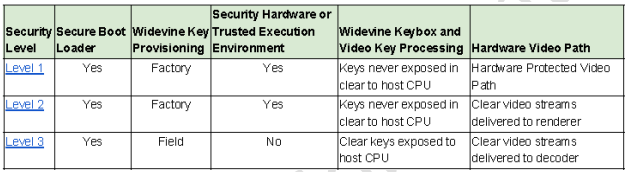
Original security-level comparison — Chinese source PDF; original figure, p. 4.
Because L2 demand was limited, the guide mainly offers L1 and L3. L3 provides basic protection for content and Keybox without special chip or solution requirements, for content providers without special requirements. L1 uses Rockchip TrustZone hardware protection for Keybox, encryption/decryption keys and decrypted streams. It applies when the content provider explicitly requires TrustZone and a Secure Video Path.
1.2 Widevine workflow
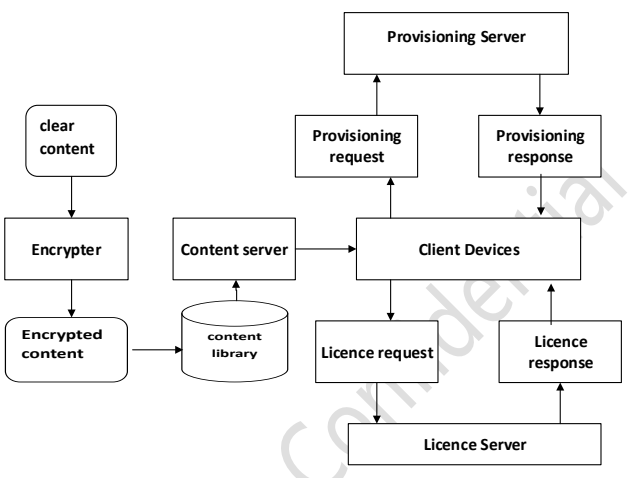
Provisioning, content and license workflow — Chinese source PDF; original figure, p. 5.
- The encryption server encrypts clear content and stores it in the content library. A standard HTTP server delivers encrypted content to client devices.
- The Provisioning Server distributes a unique device certificate. The guide describes this step as optional and intended to improve security. The device uses its Widevine Keybox as a root of trust to obtain the certificate. The application uses an RSA-signed certificate, rather than the Keybox itself, for license requests.
- The client requests a license from the Licence Server. After verifying the device, the server sends a signed and encrypted license. The device can access the DRM content only after obtaining that license.
2 Widevine L1 development
2.1 Project relationships
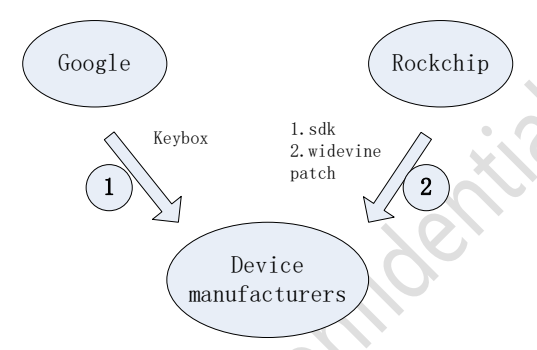
Google, Rockchip and device manufacturer relationships — Chinese source PDF; original figure, p. 6.
The diagram assigns Keybox delivery to Google and SDK/Widevine patches to Rockchip, with the device manufacturer integrating both inputs.
2.2 Project development sequence
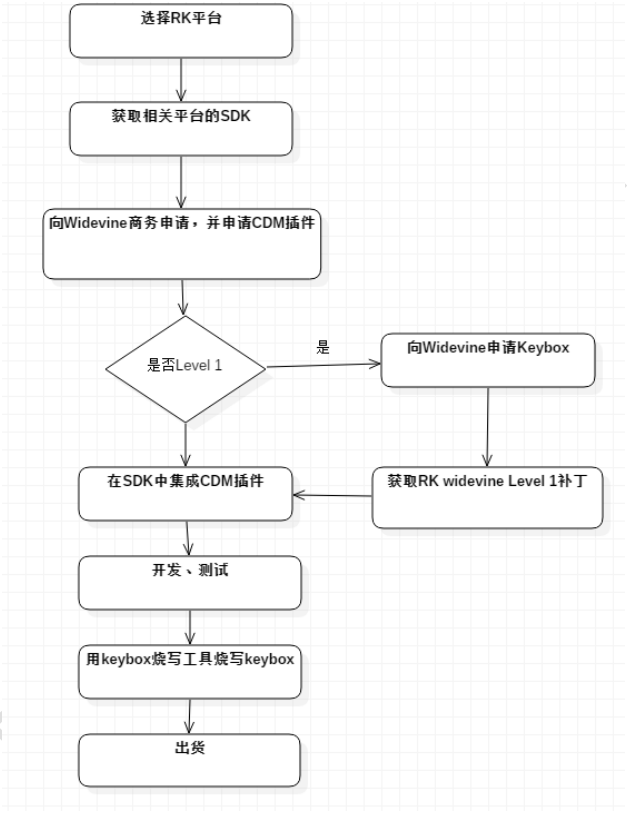
L1 project development flow — Chinese source PDF; original figure, p. 7.
- Select a Rockchip platform; L1 requires TrustZone support.
- Obtain a Widevine L1 Android SDK from Rockchip.
- Establish the commercial relationship with Widevine and apply for the CDM plug-in.
- For Widevine Level 1, apply for a Keybox.
- Obtain the associated Rockchip patches.
- Integrate the Level 1 patches and the Widevine CDM Client into the SDK.
- Develop and test.
- During factory production, program the Keybox.
2.3 Keybox application steps
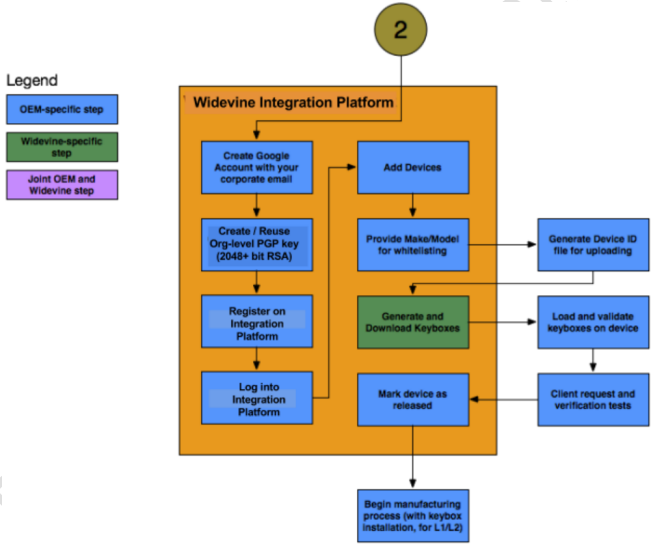
Keybox application and production workflow — Chinese source PDF; original figure, p. 8.
Blue boxes in the original diagram identify OEM tasks. Follow the sequence:
- Create a Google account using your company email.
- Create a PGP key, specified as a 2048-bit RSA cipher key.
- Register on Integration Platform.
- Sign in.
- Add the device.
- Supply Model, Make and other device information for the Google whitelist.
- Generate DeviceId manually and upload it.
- Integration Platform generates Keybox from this information.
- Download and verify Keybox.
- Test Widevine Level 1 on the device.
- Ship mass-produced Level 1/2 devices after programming Keybox.
3 FAQ
3.1 Widevine_DRM_Getting_Started
Google normally supplies its Getting Started document when a manufacturer applies for Widevine L1. The original guide presents the following reference points:
- Apply for Widevine CDM Client, the Android-side integration plug-in. Different Android releases use different plug-ins.
- Apply for organization-specific credentials. Access to Widevine Cloud License Services requires per-organization credentials; the guide describes a key linked to related authentication certificates in the interaction flow.
- For an Android product integrating Widevine, the reporting route depends on the final application and may include server-side allowlists. A device requiring Google Apps such as Play Store, Gmail or YouTube is directed to the Android Partnership team; an AOSP device without Google Apps is directed to Widevine.
- The historical text says a license agreement is required and that Widevine does not charge license fees for its products/services. This is source context, not confirmation of current commercial or legal terms.
- The source directs questions to the Widevine website.
3.2 Widevine_DRM_Getting_Started_Device_Management
This part primarily targets AOSP. ATV certification projects must follow the applicable ATV requirements. The source suggests asking Rockchip for assistance if a Keybox application remains unresolved for more than one month. Google normally provides the Device Management guide during a Widevine L1 Keybox application. The summarized process is:
- Widevine manages devices and Keyboxes through Integration Platform. Create and register an account; supply the public PGP key requested by Widevine. Login is possible after account approval.
- After creating the Google account, ask Widevine to register it with Integration Platform.
- Sign in at Integration Platform.
- Under Devices → Management, use the three actions: add a device, edit an existing device record, or generate Keyboxes for an existing device. The source spells the corresponding button
GENERATEKEYBOXS.
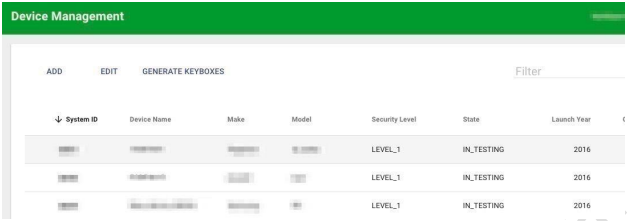
Device Management interface — Chinese source PDF; original figure, p. 11.
3.3 Google agreement considerations
The source says the Widevine team may request company background, employee numbers, the proportion of R&D staff, brands previously served, future product directions and whether the applicant has its own brand. Security questions may concern key protection, secure boot and protection against unauthorized reflashing; the guide offers Rockchip assistance with such answers. It also quotes a requirement that, upon Google’s written request, the licensee may have to self-certify compliance with Robustness Requirements in writing (including email) within seven (7) days. These are historical document statements and must be checked against the agreement actually applicable to the project.