
ArmSoM platform reference: full technical content of the Chinese Rockchip Android Remote key Provisioning Guide, document 747, V1.1 draft, 16 pages. The cover is bilingual but the technical body is Chinese. No separate English source exists in this batch; English, Russian and German translate Chinese and all four use nine original figures. No ArmSoM hardware or live Google account was tested. Current GMS/VSR policies, APIs and tools are not claimed to match this 2023 guide. Check the actual BSP, secure hardware and authorized partner requirements.
Source ambiguities and operating boundaries
- The page-15 secure-boot/test-versus-production rule is questionable and flagged in place.
is_test=trueregistration is permanent, not a casual probe. The claim that registered devices always obtain production certificates must be distinguished from permanent test registration. - Page 10 calls the encryption key a private key; page 13 says encryption “into the device public key.” These are imprecise cryptographic descriptions. This discussion concerns device public-key data in CSRs, not authorization to export device private keys. Android 14 removing HAL encryption of that data does not make private keys readable.
- The source curl payload lacks quoted JSON property names. It is preserved, not asserted to be executable; check the authorized API schema before correcting it. Verify the working directory for the relative
./data/local/tmp/...path. Source pseudocode mixes C/Python syntax and confused wrapping; it expresses conditions and is not compilable code. - PDF soft wraps were joined in long commands, JSON strings, credential paths and gtest_filter without changing flags, hashes, placeholders or error codes. Git authorship remains as code history, not contact information. OAuth consent, uploads, updates and registration change external state; none were executed here.
- Public-key content does not permit arbitrary CSR alteration: restrict writes and keep redundant storage. Protect OAuth credentials, service-account keys and cached tokens. Do not use
--cache-tokenon shared computers. Test roots must not establish production trust; resetting a device deletes user data. - “Every X devices” gives no X; no sample rate is invented. No-delay claims and RemoteProvisioner/API/GMS rules describe the source date, not service guarantees.
Overview
Remote Key Provisioning (RKP) introduces key management that moves provisioning from the factory to over the air. It combines factory public-key extraction, wireless certificate provisioning and short-lived certificates. As part of Android attestation infrastructure, it strengthens the trust chain and makes device trust more recoverable after vulnerabilities.
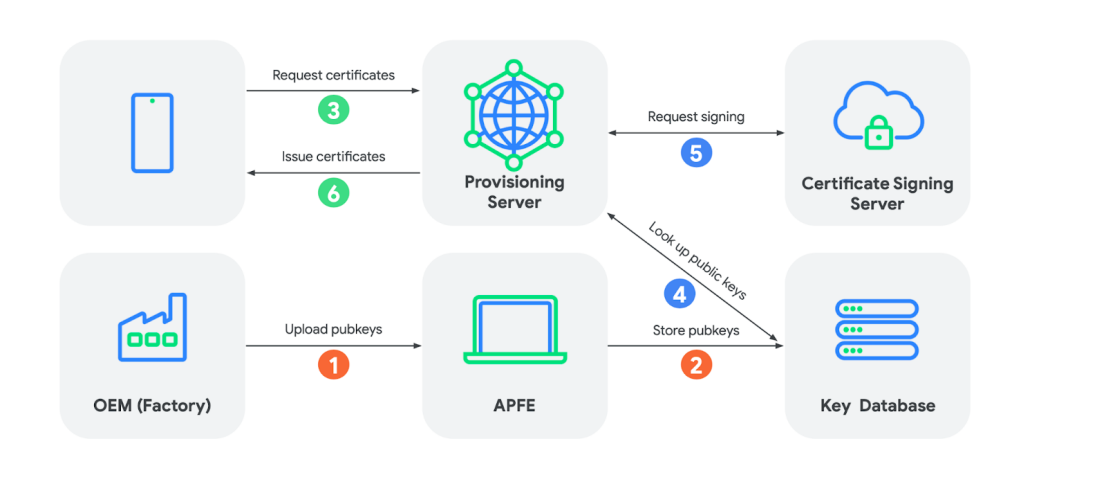
Figure 1. RKP workflow
The OEM factory extracts a unique public key from each device; the manufacturer uploads it to Google’s backend. A device requests attestation-key certificates by proving to the provisioning server that it possesses its own private key. The server verifies the public key and signs certificates for the device.
According to this source, devices launching with Android 13 or later on chipsets with Vendor Software Requirements (VSR) 12 or later must support RKP. The three main steps are: configure the Android Partner API, extract certificate signing requests (CSRs), and upload the CSRs.
Quick start: if the Android Partner API is already configured, complete the RKP flow with the following commands. Extract the CSR:
adb shell rkp_factory_extraction_tool --output_format build+csr > csrs.json
Upload the CSR:
./device_info_uploader.py --credentials /secure/storage/cred.json --json-csr csrs.json --cache-token --company-id COMPANY_ID
Run the GTS test:
run gts -m GtsGmscoreHostTestCases
Note: at the time of this guide, RKP supplements rather than replaces the factory attestation key.
Check whether an attestation key has been provisioned as follows:
adb push VtsAidlKeyMintTargetTest /data/local/tmp/
adb shell chmod +x /data/local/tmp/VtsAidlKeyMintTargetTest
adb shell
su
./data/local/tmp/VtsAidlKeyMintTargetTest --gtest_filter=PerInstance/AttestKeyTest.RsaAttestedAttestKeys/0_android_hardware_security_keymint_IKeyMintDevice_default
Build VtsAidlKeyMintTargetTest by running mm in hardware/interfaces/security/keymint/aidl/vts/functional.
1. Configure the Android Partner API
The Android Partner API is a Google Cloud Project (GCP) API supporting user accounts. Existing credentials saved as cred.json for other Partner API services can be reused. First-time users must follow the Android Partner API setup procedure; after creating an OAuth 2.0 client ID for the GCP project, download it as cred.json.
Access to the referenced setup material is restricted to MADA signatories or variants such as EMADA, TMADA and TADA with GMS distribution licenses. Follow those procedures carefully. For a newly configured API, first request Android Partner API activation, then enable it in GCP.
2. Extract certificate signing requests
At manufacture, extract from every device a CSR containing its public key. This SDK supports a command-line method and a factory-tool method.
2.1. Command-line method
Google’s reference rkp_factory_extraction_tool is integrated into firmware built from the SDK. Write its output to a separate file. Extract the device CSR:
adb shell rkp_factory_extraction_tool --output_format build+csr > csrs.json
The source is system/security/provisioner/rkp_factory_extraction_tool.cpp; customize it if necessary.
Command-line flags
The factory extraction tool accepts these flags:
| Flag | Description |
|---|---|
| –test_mode | Run in test mode; the underlying IRemotelyProvisionedComponent generates an ephemeral key. The resulting payload is unsuitable for upload. |
| –self_test | Obtain a test-mode CSR and validate it with the same logic VTS uses to validate chipsets. |
| –output_format | csr (default): CBOR certificate-request structure. build+csr: JSON string containing build fingerprint and CBOR certificate request, to track which CSR came from which device. |
Exit codes
The extraction tool uses these exit codes:
| Code | Result |
|---|---|
| 0 | Success |
| 1 | Unexpected execution error; description on stderr. |
| -1 | Invalid command-line arguments; description on stderr. |
2.2. Factory-tool method
Ensure that both directories contain the following commits.
hardware/rockchip/keymaster4:
commit 2a1c90a031f02964c05a66ba8aa971da528782e8
Author: Wu Liangqing <wlq@rock-chips.com>
Date:   Fri May 19 01:26:20 2023 +0000

    add rockchip_rkp_factory_extraction_tool arm32 version.

    Signed-off-by: Wu Liangqing <wlq@rock-chips.com>
    Change-Id: Id511b1e9277eec1073c0ae523e3065826811d9cd
device/rockchip/common:
commit 5b2b3c61d51e93cee1ce42e937ee1cace5b258fd
Author: Bian Jin chen <kenjc.bian@rock-chips.com>
Date:   Sat May 6 15:48:30 2023 +0800

    gms : Add rockchip_rkp_factory_service for factory MP.

    Signed-off-by: Bian Jin chen <kenjc.bian@rock-chips.com>
    Change-Id: I86f8a7a78dad7e62e78ebc6e938e9259178d1e04
-
Write the device serial number first, then reboot. On its first boot with a serial number,
rockchip_rkp_factory_servicegenerates the device’s RKP CSR in the vendor partition; it is not directly retrievable there. -
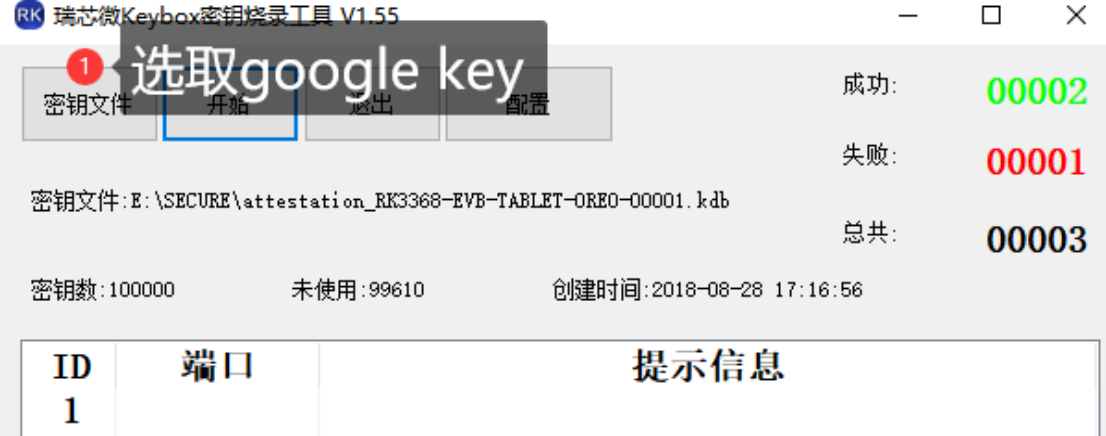
Open KeyboxWriter-v1.55 from
RKTools\windows\KeyboxWriter-v1.55.7zand select the Google key to write.
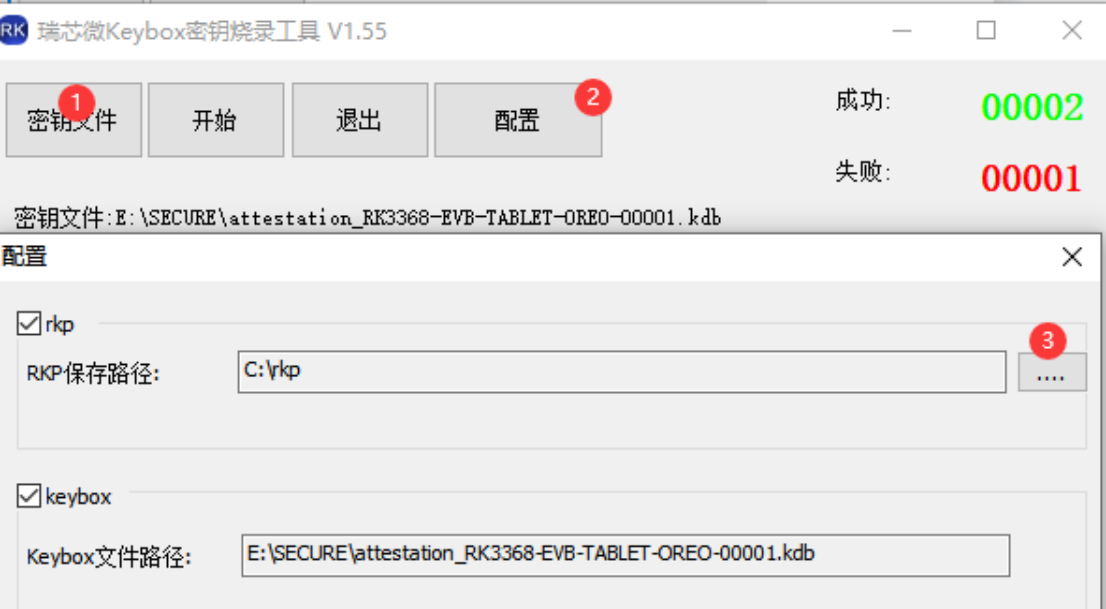
- Open configuration and select the PC directory where RKP CSRs will be stored.
- Put the device into loader flashing mode, then click Start.
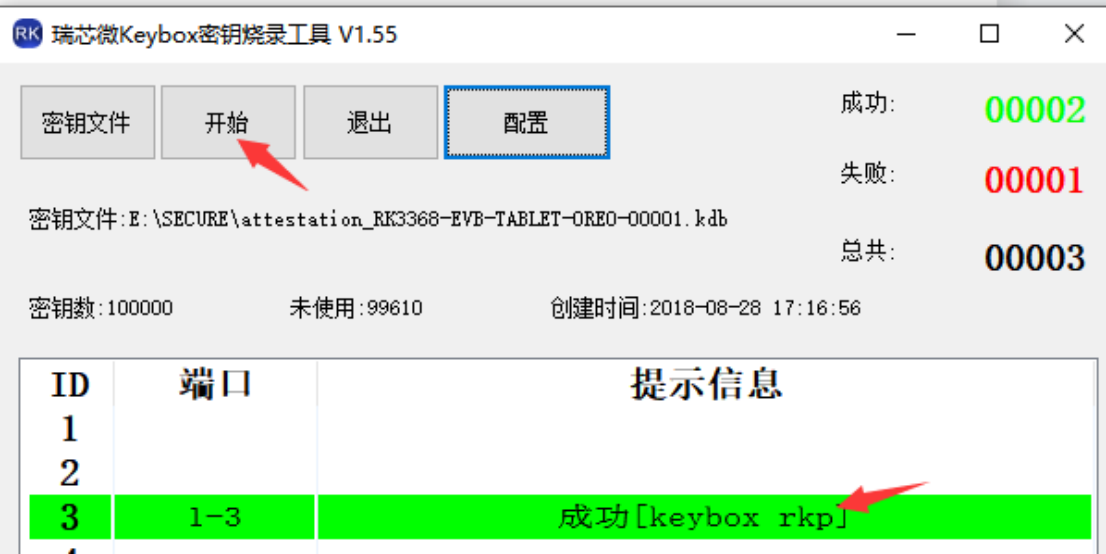
The device’s RKP CSR is saved in the configured folder, as shown below.
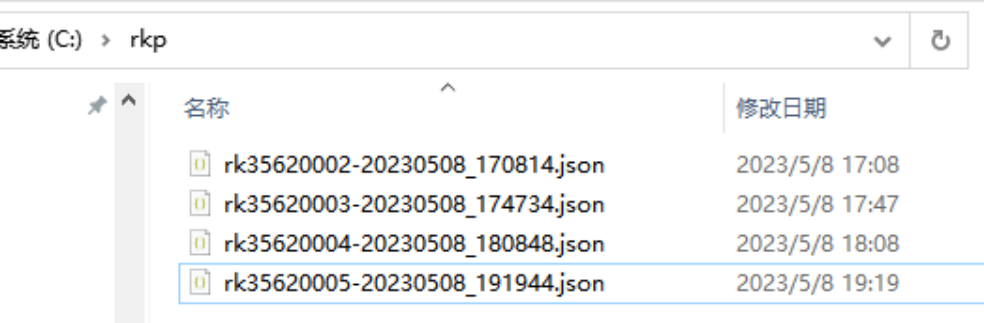
CSR filename format:
serial-number-specific-time.json (serial number followed by the timestamp).
Important:
- Writing the Google key before writing a serial number causes an error because the RKP CSR cannot be read, as shown below.
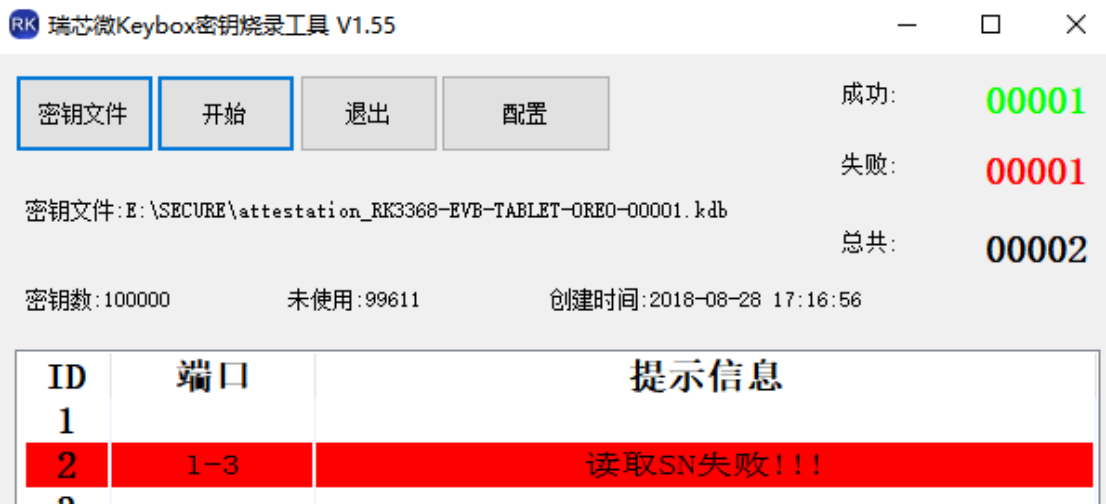
- After writing the serial number, reboot normally, re-enter loader mode, then retrieve the RKP CSR with KeyboxWriter.
3. Upload certificate signing requests
This section describes uploading CSRs to Google’s backend.
- Prepare the environment. Install the required dependencies:
pip3 install google-auth==2.13.0 requests==2.28
Download device_info_uploader.py.
-
Use the extracted
csrs.jsonfile. -
Find
COMPANY_IDfor the upload command: sign into Android Partner Approvals and inspect company metadata under Builds > Metadata. An example follows.
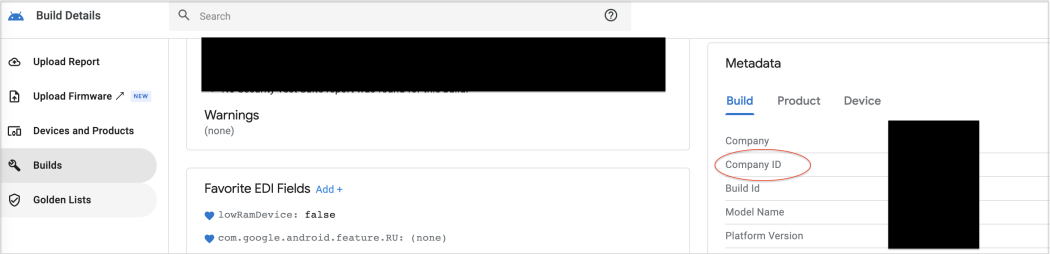
Figure 2. Company ID in Partner Approvals
- Upload device information. Use
batchUploadfor new devices andbatchUpdateto update existing registrations. Three invocation options follow: a GCP user account withdevice_info_uploader.py, a GCP service account with that script, or direct Android Partner API calls using curl.
Option 1: device_info_uploader.py with a GCP account
This option uses the uploader script.
- Run the script as in this example:
./device_info_uploader.py --credentials /secure/storage/cred.json --json-csr csrs.json --cache-token --company-id COMPANY_ID
--credentials authentication needs a locally installed JavaScript-capable browser. For remote terminal sessions such as SSH, use a service account: create it in Google Cloud, allowlist it, download its JSON key, and authenticate with --credentials-keyfile keyfile.json.
Replace /secure/storage/cred.json with your credential-file path. --cache-token stores the authorization token on local disk. Do not use it where storage may be insecure, such as a shared computer.
Format csrs.json as below; this is the stdout format of rkp_factory_extraction_tool --output_format build+csr.
{"build_fingerprint":"YOUR_FINGERPRINT","csr":"YOUR_CERTIFICATE_REQUEST"}
-
Wait for the script to print the login URL.
-
Copy that URL into a new browser tab to open Google sign-in. Select your corporate account, in the format
android-partner-api@company.com, as shown.
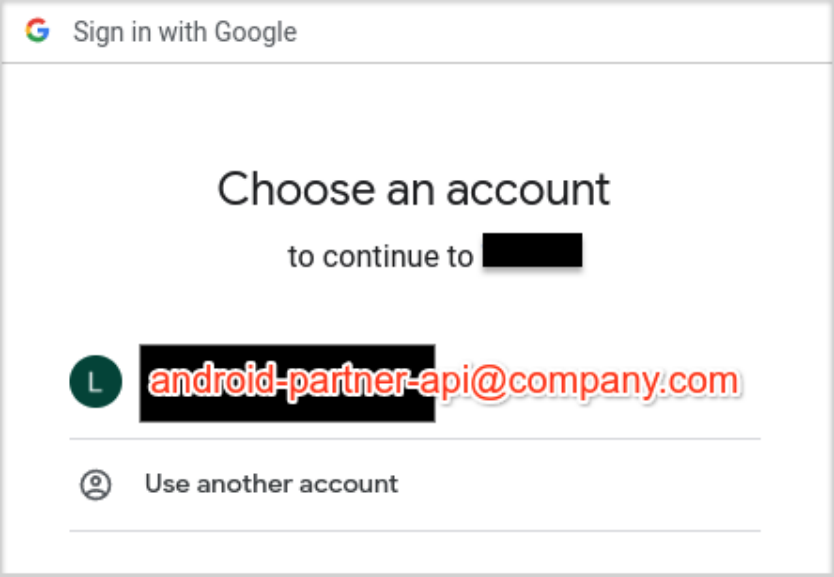
Figure 3. Select an account
- Select Allow to grant the test application access to view and manage partner device information, as shown.
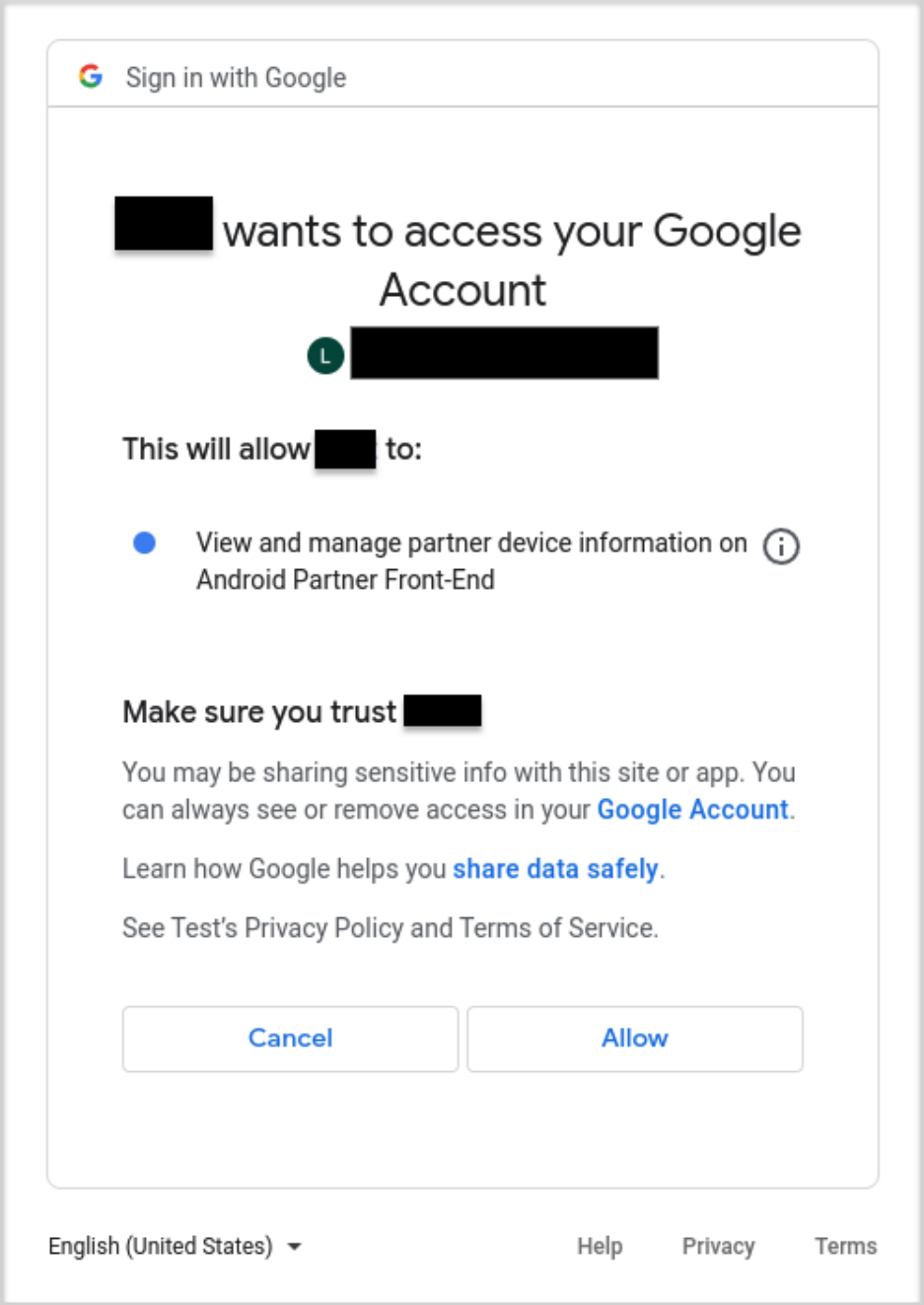
Figure 4. Allow access to the Google account
Option 2: device_info_uploader.py with a GCP service account
Run device_info_uploader.py with csrs.json and the my-project-0000000000-ffffffffffff.json key file downloaded from Service Account Credentials, as follows:
./device_info_uploader.py --credentials-keyfile /secure/storage/my-project-0000000000-ffffffffffff.json --json-csr csrs.json --company-id COMPANY_ID
Option 3: direct Android Partner API call using curl
Use curl to invoke the API and upload the file, as in this source example:
curl -s -X POST -H "Content-Type: application/json" -H "$(oauth2l header --json /secure/storage/cred.json androidPartner)" -H "X-GFE-SSL: yes" -d '{company_id: COMPANY_ID, device_payloads: [{certificate_payloads: [{certificate_signing_request: "CERTIFICATE_SIGNING_REQUEST"}]}]}' https://androidpartner.googleapis.com/v1/devices:batchUpload
Replace /secure/storage/cred.json with your credentials path, COMPANY_ID with your Android partner company ID, and CERTIFICATE_SIGNING_REQUEST with the CBOR-encoded certificate request produced by the extraction tool.
4. Test and validation
Device validation: the source recommends connecting each sampled device (the text says “each X devices,” without specifying X) to an external network and running GTS AttestationRootHostTest. A successful test indicates correct registration and receipt of valid Google attestation certificates. Upload public keys before devices reach the test station.
Extraction/upload reliability must be 100%: without its public key uploaded to Google, a device cannot retrieve attestation keys. Store extracted data with redundancy to preserve integrity before upload.
Data security: the source describes extracted data as encrypted with a key accessible only to Google’s backend and says the encrypted content is public-key data, not requiring high-confidentiality storage. This wording is ambiguous; see the editorial warning. Restrict write access so attackers cannot insert counterfeit device public keys into the factory database. Restrict and protect Partner API credentials used to authenticate uploads.
5. RKP API errors
The following CSR upload errors help diagnose RKP tests.
Specific errors
User permission denied for company ID
Occurs when the user lacks permission to upload for the specified company. Message: this CSR was not uploaded; user {USER} may not upload device information for company {COMPANY_ID}. File an issue or contact your TAM for access.
Code 7 (permission denied), HTTP 403 Forbidden.
Key already exists
Uploading a CSR whose public key was previously uploaded fails: “This CSR was not uploaded. Device public key already exists. Please call BatchUpdate to modify an existing key’s data.” Code 6 (already exists), HTTP 400 Bad Request. Use the update API to change device information associated with the key.
Key does not exist
Updating an absent key fails: CSR not uploaded; device public key not found; call BatchUpload first. Code 5 (not found), HTTP 400.
Missing CSR version
A CSR without its version fails: CSR not uploaded; version is missing; ensure the correct fields are present. Code 3 (invalid argument), HTTP 400. The version determines whether manufacturer validation is performed.
Manufacturer not found
The manufacturer cannot be extracted. CSR version 1 uploads successfully with a warning: manufacturer information is optional for VSR12 but required from VSR13; prepare factory tools to configure it on future chipsets. This is HTTP 200 success. CSR version 2 or later is not uploaded: manufacturer information is required from VSR13; code 3, HTTP 400.
Manufacturer permission denied
The user lacks permission for this manufacturer. CSR version 1 uploads with a warning: no permission for {MANUFACTURER}, but VSR12 CSR uploads are still accepted; acquire correct permissions for VSR13+. HTTP 200 success. CSR version 2 or later is not uploaded: permission for {MANUFACTURER} is denied; register and upload a report for that manufacturer in Android Partner Approvals. Code 7, HTTP 403. When first uploading for a new or unregistered manufacturer, submit a report containing its information to that portal.
Duplicate key in the same request
Uploading the same key more than once produces: duplicate device public key found in the request; key already uploaded. Code 3, HTTP 400.
Maximum CSR count
Uploading more than 5000 CSRs per request produces: maximum count reached; do not upload more than 5000 CSRs per DevicePayload. Code 3, HTTP 400.
Cannot deserialize CSR
Invalid CSR: not uploaded; cannot deserialize the certificate signing request during registration; ensure it is not corrupted. Code 3, HTTP 400.
General errors
Deadline exceeded: too many keys cause the deadline to expire. Message: deadline exceeded; retry with fewer CSRs per request; contact Google TAM if persistent. Code 4, HTTP 504 Gateway Timeout.
Internal error: the source calls this an uncached error requiring Google engineering investigation. Message: internal error. Code 13.
Unauthenticated: user authentication is missing; see Partner API setup. Message: unauthenticated. Code 16, HTTP 401.
Resource exhausted: for example, user quota reached or filesystem space exhausted. Retry later. Code 8 (RESOURCE_EXHAUSTED), HTTP 429 Too Many Requests.
Service unavailable: likely transient; retry with backoff. Message: service unavailable. Code 14 (UNAVAILABLE), HTTP 503.
Aborted:
An operation was aborted, usually due to concurrency such as a failed sequencer check or aborted transaction. Message: aborted. Code 10 (ABORTED), HTTP 409 Conflict.
Google Cloud Platform service disabled
Creating a GCP project with a partner-domain account can produce “Please contact your administrator to turn the service on the G Suite Admin console.” The source disallows partner-domain accounts for project creation: use your corporate account. Google Workspace users should ask their IT administrator to enable GCP for the account.
6. RKP frequently asked questions
Device-information upload/update
1. Why do I receive HTTP 500 “internal error”? Some TEE implementations format requests incorrectly, preventing backend payload parsing and causing HTTP 500. Retry and report the issue.
2. Why does the same device produce different CSRs? Does its public key change? In Android 13 and earlier, the HAL encrypts part of the CSR containing the public-key data. Randomness makes each V1/V2 HAL CSR ciphertext different. The plaintext key must remain identical. The source says CSR verification requires the Google backend team capable of decrypting the request.
3. How can I view the plaintext device key? In Android 13 and earlier, device-key data is encrypted inside the HAL. The source states only Google’s backend can decrypt it, not even Google staff can directly access it, so it cannot be viewed on Android 13. From Android 14, HAL encryption of this data is no longer required, simplifying architecture and testing. This refers to CSR public-key data, not permission to export a private key.
4. May I use a non-production model name? The model and manufacturer in device information must match your company’s registration in Android Partner Approvals.
Uploading CSRs
1. Does a corrupt CSR produce an error? Yes. The API returns documented errors; the backend verifies cryptographic operations in the CSR.
2. Can I cancel or change an incorrect CSR?
Yes. device_info_uploader automatically updates devices using the latest information, so rerun it to update the device.
3. What happens on a duplicate CSR upload? A normal upload API call returns an already-uploaded error. An update call changes the associated metadata, such as manufacturer and model.
4. Is there a per-upload limit? At most 5,000 CSRs per API call. The uploader automatically batches any input into groups of 2,000. For example, 100,000 CSRs become 50 API batches of 2,000.
5. How long between upload and device availability? The source says there is no delay: RKP works as soon as the CSR reaches Google’s backend. This is a source statement, not a measured service guarantee.
6. Can I inspect CSRs registered in Google’s backend? At the guide’s date, no; Google was considering this feature. An update can reveal a nonexistent-device error, but changes persist. Alternatively upload the same CSR, or a new CSR from the same device, with device_info_uploader.py --no-update:
./device_info_uploader.py --credentials /secure/storage/cred.json --json-csr csrs.json --cache-token --company-id COMPANY_ID --no-update
A response similar to the following is returned:
"status": {
        "code": 6,
        "message": "This CSR was not uploaded. Device public key already exists. Please call BatchUpdate to modify an existing key's data."
      }
This indicates the device’s CSR has already been uploaded.
Testing
1. How do I test RKP with pre-production devices? Production devices obtain real attestation certificates used by Google to sign certificate requests. Early pre-production devices should therefore not be registered as production devices. Set request is_test to true; this permanently registers the device key as a test device, which cannot be converted to production by updating its information. Test devices receive certificates chaining to a test root. If production certificates are required, for example by GTS, a device may instead be registered as production initially. Pass --is-test to the uploader to mark a test device.
Source wording requiring verification: “Mark devices with secure boot enabled as test devices; mark devices with secure boot disabled as production devices.” This appears inconsistent with production trust requirements. It is retained as an unresolved draft-source statement, not an instruction to disable secure boot or register insecure devices for production. Confirm the correct policy with the authorized platform owner before irreversible registration.
2. Is userdebug testing different from production? For unregistered devices running userdebug or eng, provisioning supplies test certificates without uploads. These chain to a test root that must not be trusted for production attestation but is suitable for testing. The source then says registered devices always receive production certificates regardless of build type; this must be read alongside the earlier permanent test-registration distinction, not as overriding it.
3. Can I upload CSRs for devices not subject to shipping requirements? Yes; uploads for internal or third-party tests are permitted by the source.
4. Does AttestationRootHostTest leave traces? Yes, but erasing user data removes everything left by this test. Erasure also destroys user data; back up first.
5. What are the minimum requirements? Is the SIM mentioned in GTS procedures mandatory? The source lists only a network connection reaching Google’s backend and the device key already uploaded there; it does not list a SIM as a minimum requirement.
6. Does upgrading a device launched on Android 12 to Android 13 cause RKP GTS failure? The source says no: the requirement targets devices launched with Android 13. Its exact eligibility logic is shown as pseudocode below.
bool is_rkp_supported() {  # not supported on CN-GMS devices  if
has_feature("cn.google.services") AND has_package("com.google.android.gms"):
return false  # supported on T+ with VSR S+  if ro.product.first_api_level >= 33
AND ro.vendor.api_level >= 31:    return true  # otherwise unsupported  return
false}
7. Why does testFallback or AttestationRootHostTest.testFallbackKey fail? These tests check whether Keymint can fall back to factory-provisioned keys when remote keys are unavailable. Without a local attestation key, keystore cannot create an attested signing key because there is no backup key to attest it. Failure is expected; ensure a local attestation key exists, then retry.
8. Why do all my RKP GTS tests fail?
A common cause is omission of RemoteProvisioner APK from the system image. The source says generic AOSP images do not include it; it must be explicitly included for GMS devices because RKP is a GMS rather than CDD requirement. AttestationRootTest.testRemoteProvisionerInstalled checks installation. If absent, include it in the system image.
9. What does com.android.remoteprovisioner.RemoteProvisioningException: HTTP error status encountered: 444 mean?
As defined by RemoteProvisioningException in this source, 444 means the device is not registered with Google’s backend.