
ArmSoM development-workflow reference based on the Chinese/English Rockchip Bug System V1.1.3 sources (24/27 pages). This is an SDK support and issue-reporting workflow, not a board-driver capability statement; no particular SoC, SDK or kernel compatibility is claimed. Services require an existing authorized account, business approval and SDK access. This article grants no access. No login, account modification, issue submission or hardware verification was performed.
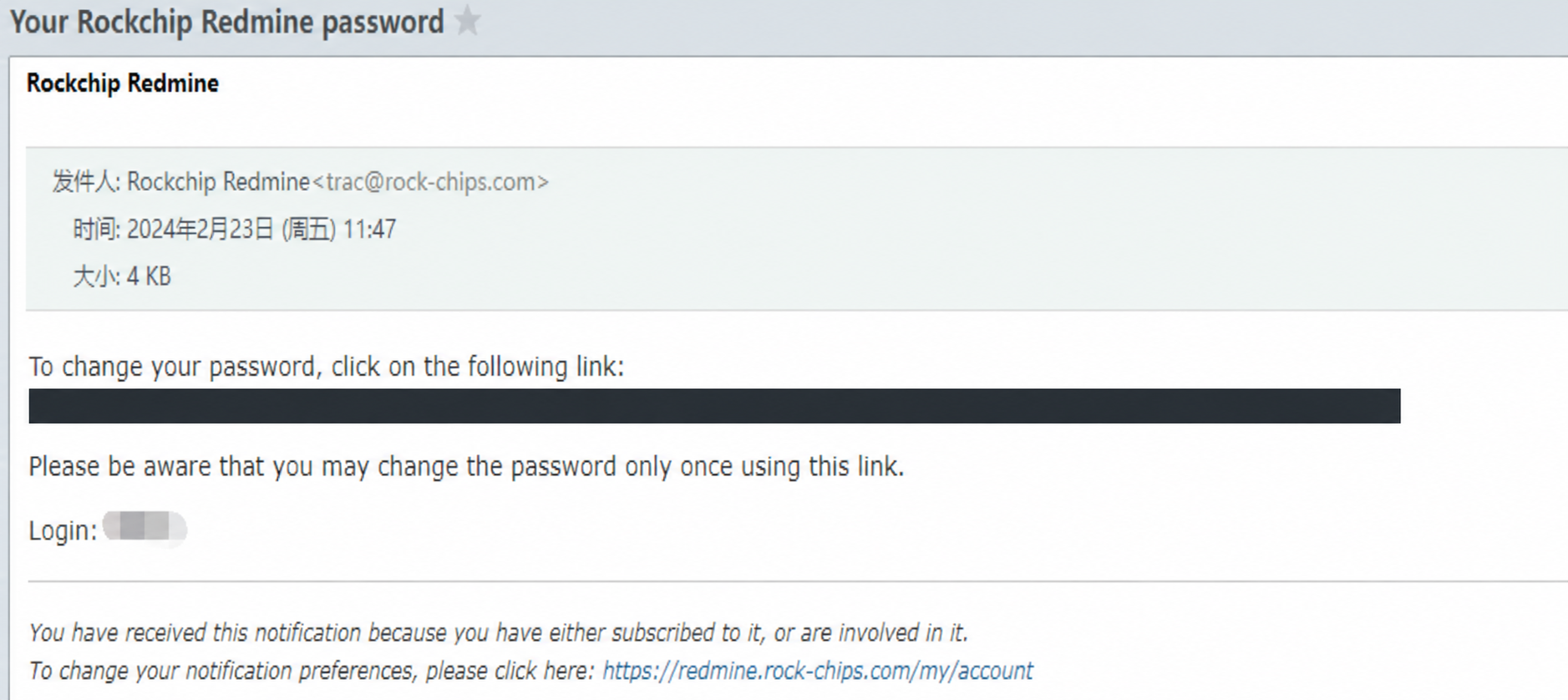
Security note: the source shared FTP password is not published; obtain authorized access through your contact. Password-reset email images are redacted copies with the complete token-bearing URL covered; the text steps remain. Other screenshots retain their source language. Nontechnical chapter 5 contacts/complaint channels are removed; chapter 6 numbering remains. The Camera links differ between sources and are recorded together. The source path data/arn/trace.txt and trailing backtick in the Android manifest listing are unresolved source issues, not silently corrected. Historical service URLs are source references, not verified working endpoints.
1. Operating Manual
1.1 Application Process
Rockchip redmine system accesses website is: https://redmine.rock-chips.com/. Redmine accounts will be created by Rockchip system automatically, and the application process is as follows: SDK Application process
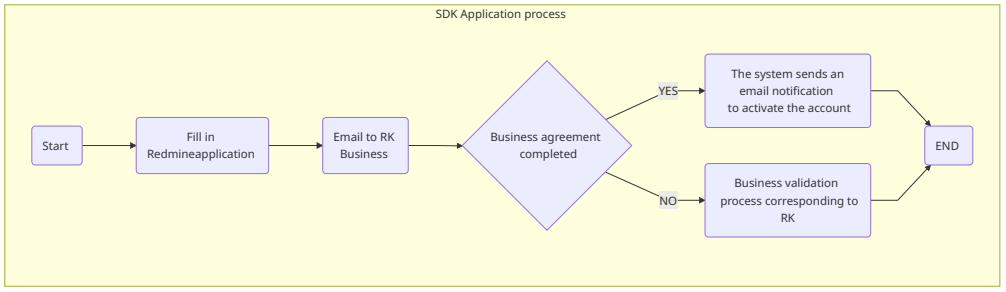
As a rule, a user can only apply for one redmine account, and multiple redmine accounts can be opened according to special circumstances. For details, please communicate with the corresponding businesses or contacts of Rockchip, ask them to assist in applying and it will be opened after approval. For example: you have multiple Rockchip platform projects, or your department is large and relatively independent, which affects the inconvenient communication between us,etc..
1.2 Login Method
After you complete the above business process, Rockchip system will send an email notification “Rockchip Redmine account creation success” as follows:
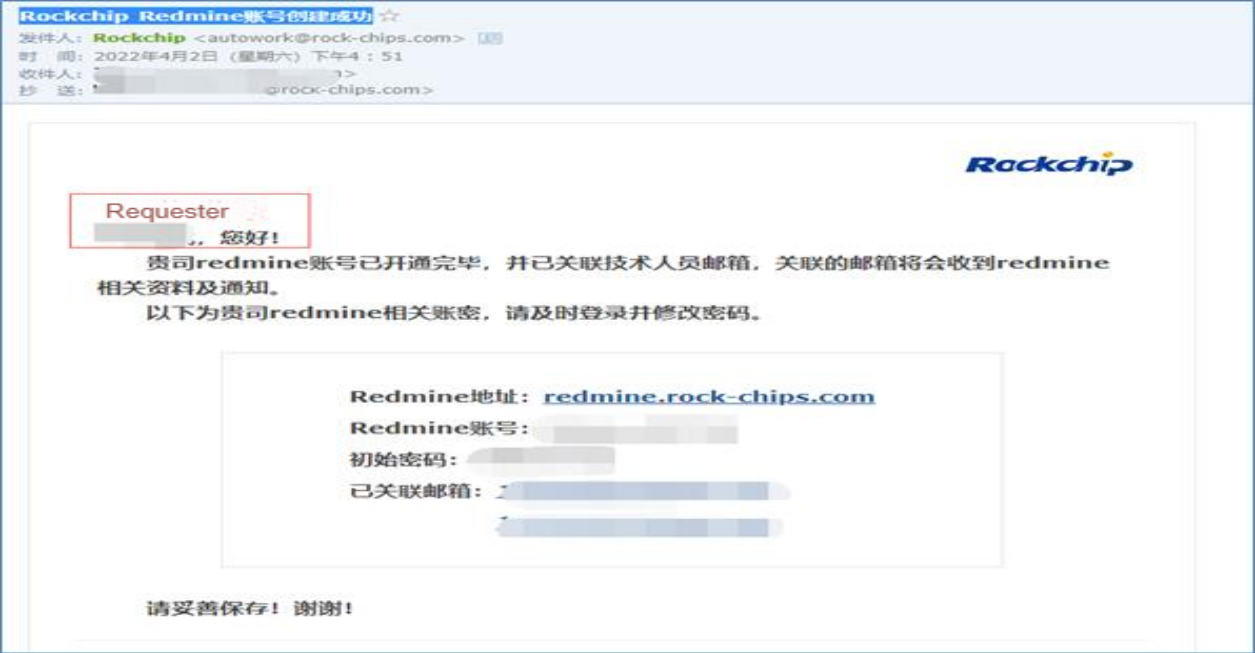
Rockchip will send the created redmine account, initial password and associated email address to you by email, and then you can log in the redmine address directly.
1.3 Activate Account
Once you open the redmine link, use the login name and initial password provided by Rockchip to activate your account.
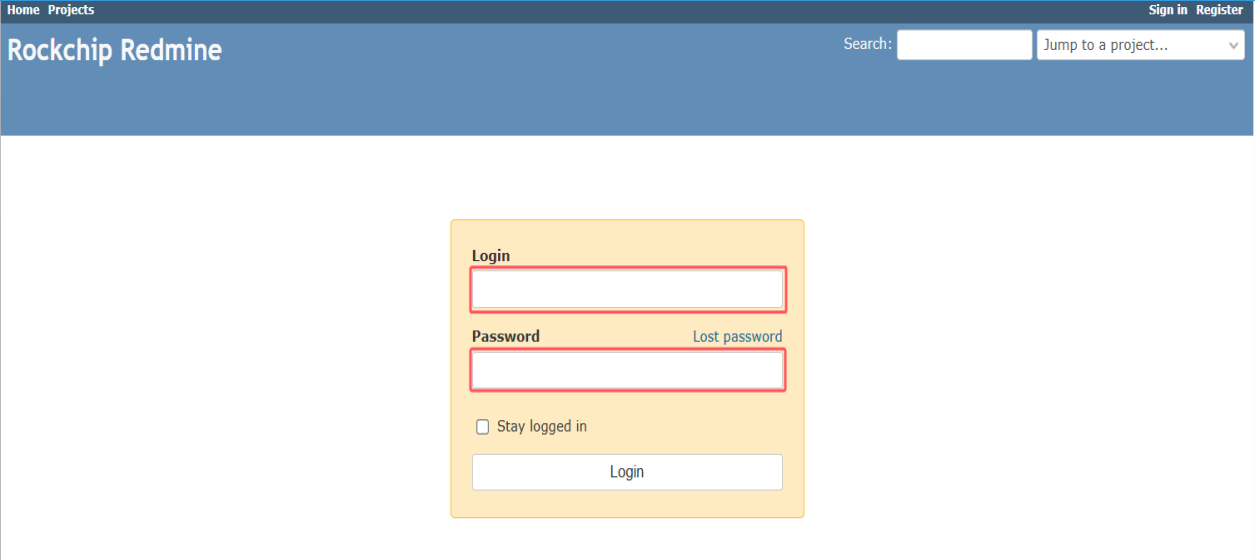
You have activated and logged in to your redmine through these steps, and then you can start your redmine journey.
1.4 Submit Issue
After your account is activated, you can log in to Rockchip’s redmine system and submit issues. The steps to create a new issue are as follows:
1.4.1 Select the FAE Project
Select “FAE Project” from the drop-down list at the top of the following page, as shown below:

1.4.2 Create New Issue
a. In the following interface, click “+” in the red box “New question”;
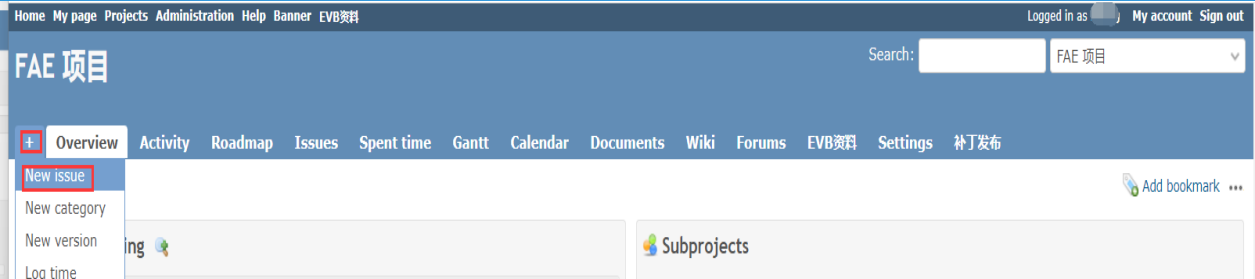
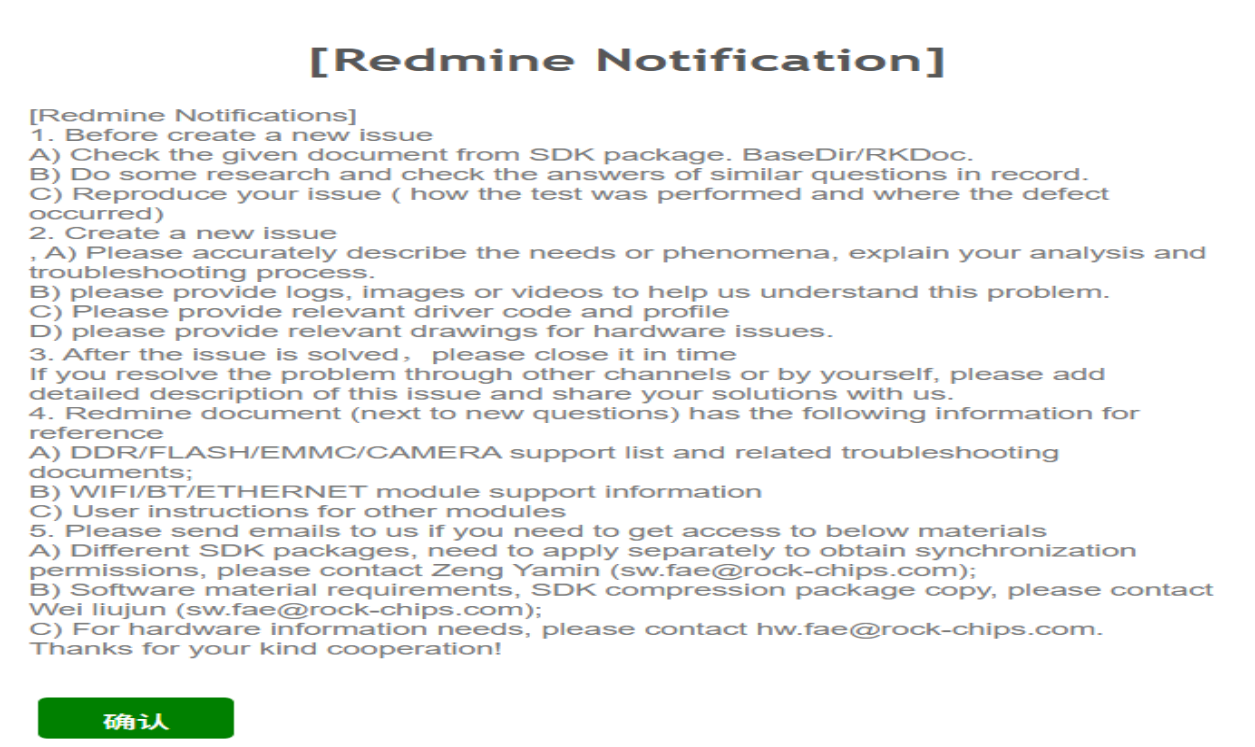
b. Then a text box “Redmine Notification” pops up. Please read the precautions carefully, which can improve your work efficiency; After reading, click the “确认” button to exit the notification text box;
1.4.3 Fill in the Content of the Issue
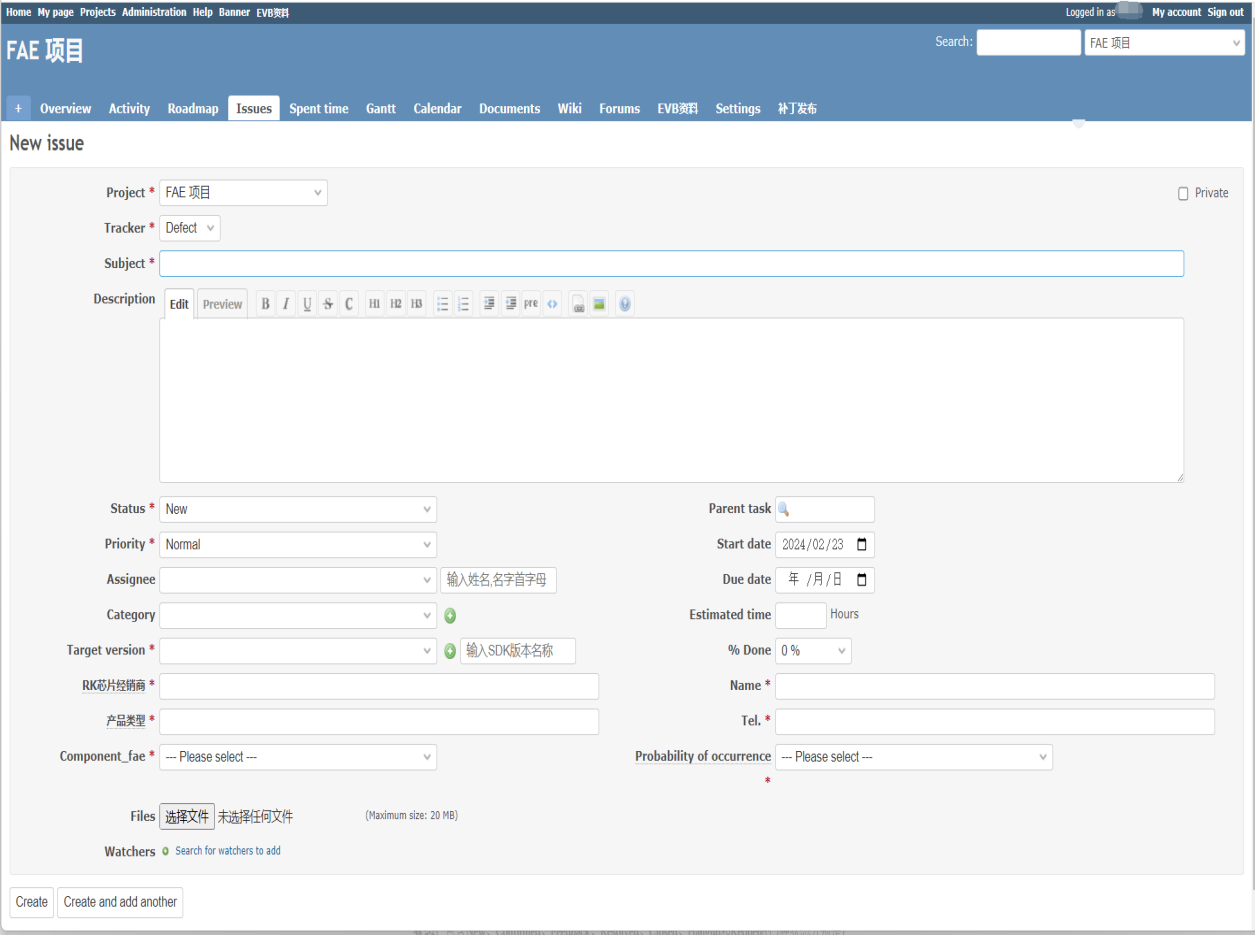
When you enter the page of the created issue, you need to fill in the details of the problem, so that the technical personnel to solve the problem can understand the specific requirements of the problem only through this description, which can improve the work efficiency of both sides.
1.5 Attributes Introduction
Tracking : Contains defect, feature, support, and test. Please fill in the field according to the actual problem category. Topic: Briefly describe the issue. Naming method: chip model +SDK version + summary description of the issue. For example, RK3588_Rockchip_Android13.0_SDK xx does not work. Description: Please describe the issue in detail as much as possible: detailed steps for reproducing abnormal problems, detailed data of comparison, target data, status, preliminary analysis results, etc. Please provide log, screenshots, on-site photos or videos, etc. as attachments which cannot exceed 10M. If it exceeds 10M, please provide by other ways (like cloud storage link, etc.) to Rockchip for analysis; State : 7 states including New, Confirmed, Feedback, Resolved, Closed, Hangup and Reopen are respectively: New: The issue you created; Confirmed: The issue has been assigned to the engineer to follow up, and the engineer is dealing with the problem. Feedback: Engineers provide feasible suggestions on the issue, not sure whether you accept or not; Resolved: The engineer believes that the issue has been resolved and awaits your verification. Closed: The problem is verified and solved. The issue is closed. Hungup: There is no very effective solution to the issue;
Reopen: The issue is resolved and reappears later and needs to be reopened. Priority: Divided into low, normal, emergency, immediate; Target version : Please select the SDK version number used for this project; RK chip dealer : The specific agent/distributor, if not clear, please consult the relevant person in charge; Product type : Specific product type; Component_fae : Select a module. If not sure, select others. Seriousness : Severity of the problem, including Fatal, Serious, Bad, and Warning. Problem-type : common issue, special issue, general issue, simple issue; Contact information name & tel. : Please fill in the contact information of the engineer who submitted this problem, so as to further communicate and confirm the information and status of the issue; Probability of occurrence: probability of occurrence; After you submit the issue, Rockchip engineers will handle it. After the issue is fixed, please close the problem in time and change status of the issue to “Closed”. If there are too many “unresolved” issues (e.g., you did not update the issue status after the solution provided by Rockchip), it will affect the processing speed of all issues you submit to the Redmine system..
1.6 Search Function
Rockchip has extracted common issues in the Bug system, making it easy for you to autonomously search and learn issues that have already been handled by Rockchip platform at any time. The link is: https://redmin e.rock-chips.com/projects/redmine-issues/issues
1.7 Hardware Review
The first project you imported with Rockchip platform or the key project confirmed by Rockchip business, It is strongly recommended to provide the schematic diagram and PCB layout diagram of this project for review by the Rockchip hardware engineers (these two files are required to provide original drawings, so that the review engineer can improve work efficiency and prevent omissions) In the case of no special requirements of the project, Rockchip only checks once in principle (schematic and PCB Layout should be reviewed together). If you have special requirements, please send an email to the corresponding Rockchip contact person or business, and ask them to push the corresponding staff to cooperate. It is strongly recommended customers to use the DDR template provided by Rockchip (direct copy without any modification) , the DDR template provided is simulated, and has been produced by customers in large quantities, to ensure the stability and reliability of the system. Any changes must be submitted to Rockchip for confirmation, and contact Rockchip business coordination resource simulation, so as not to affect the progress of your project development
If you cannot provide the original documents of schematic diagram and PCB Layout for special reasons such as confidentiality, you can arrange the engineer to bring the drawings to Rockchip office for on-site review (This requires booking in advance: because the engineers who cooperate with the review of drawings may be assigned to Shenzhen, Fuzhou or Shanghai).
2. Multi-user
2.1 Brief Introduction
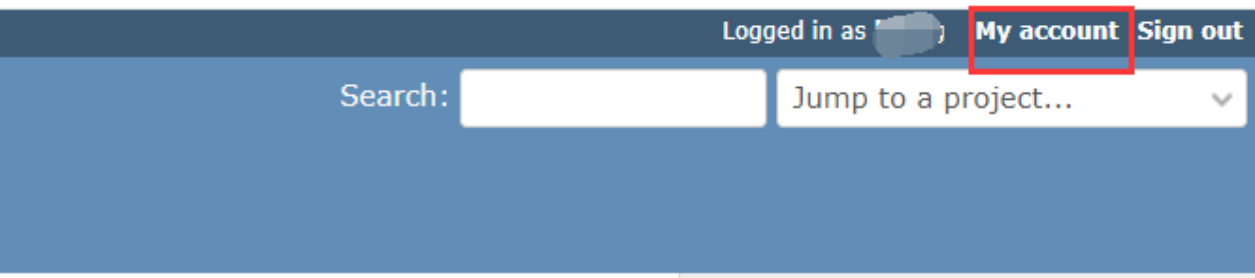
This paper introduces the personal account Settings of Redmine system, such as setting the basic information of personal account, language, simultaneous use of multiple emails, email notification status, etc. In the upper right corner of any Redmine interface, click on ‘My Account’;
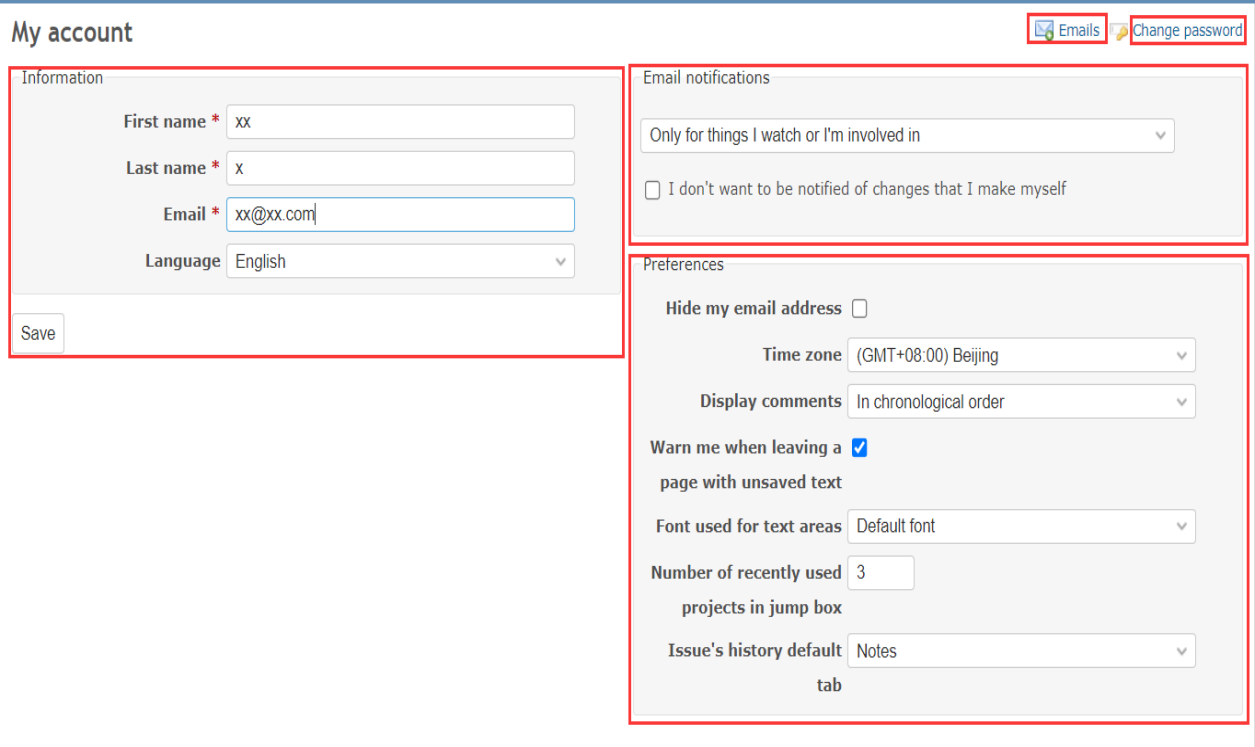
Then enter the following “My account” setting page.
2.2 Usage Method
2.2.1 Setting Basic Information
At the bottom of the “My Account” screen, you can set your first name, last name, and email address.
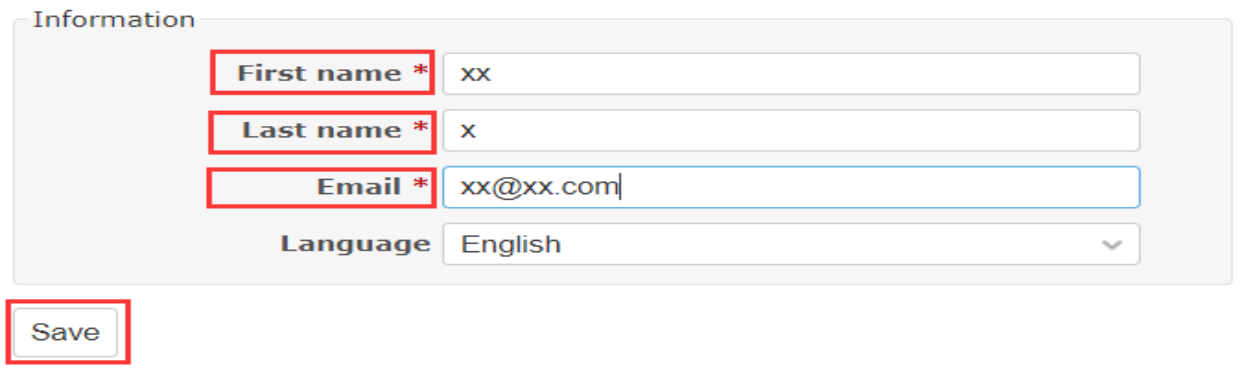
Note: Please use your specific company name and work email address to facilitate Rockchip identification and maintenance, so as not to affect the use of your company’s account
2.2.2 Setting System Language
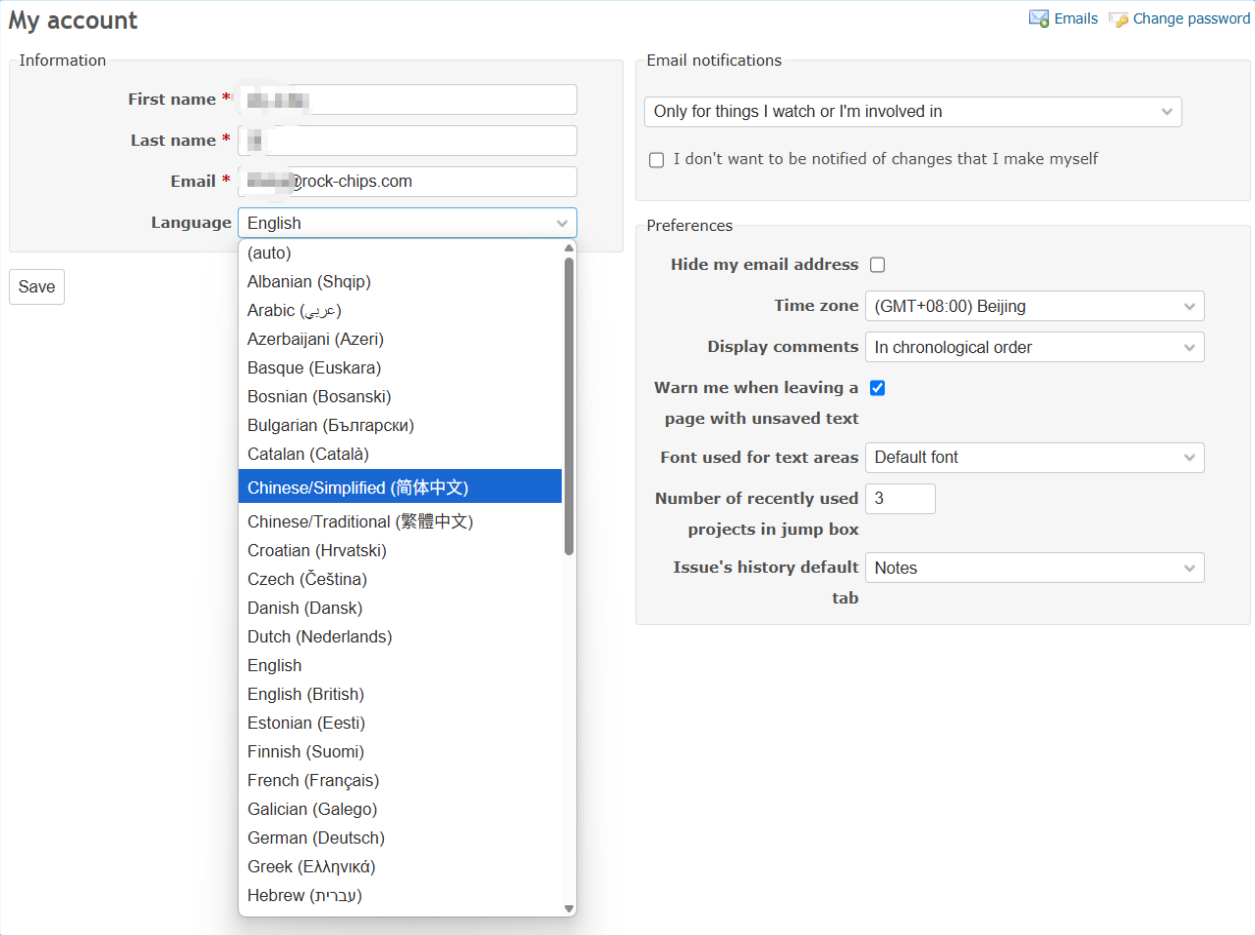
a. At the bottom of the “My account” screen, click and select the “Language” you want.
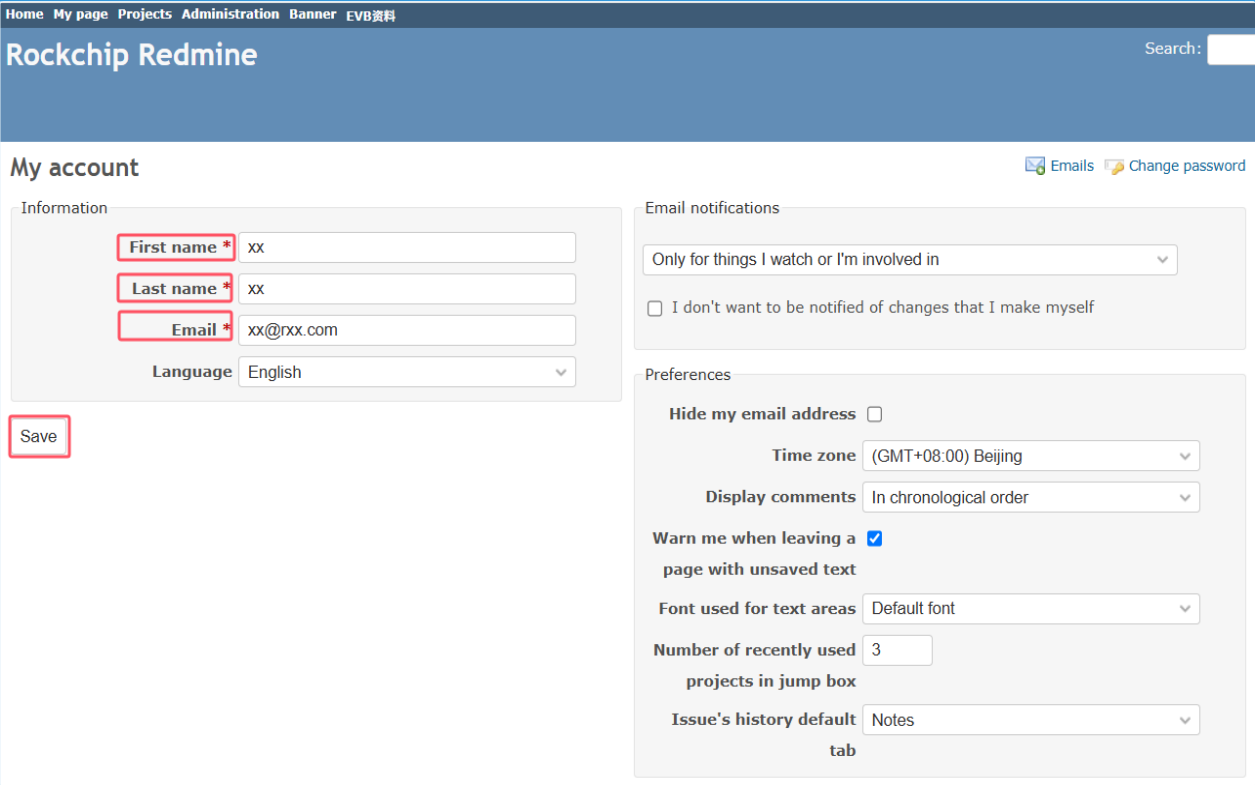
b. Select a specific language from the “Language” drop-down list and click “Save”.
2.2.3 Setting Email Notification
You can set the content of Redmine system push email notification according to your project requirements. a. On the right side of the “My account” interface, click “Email notification” from the drop-down list;
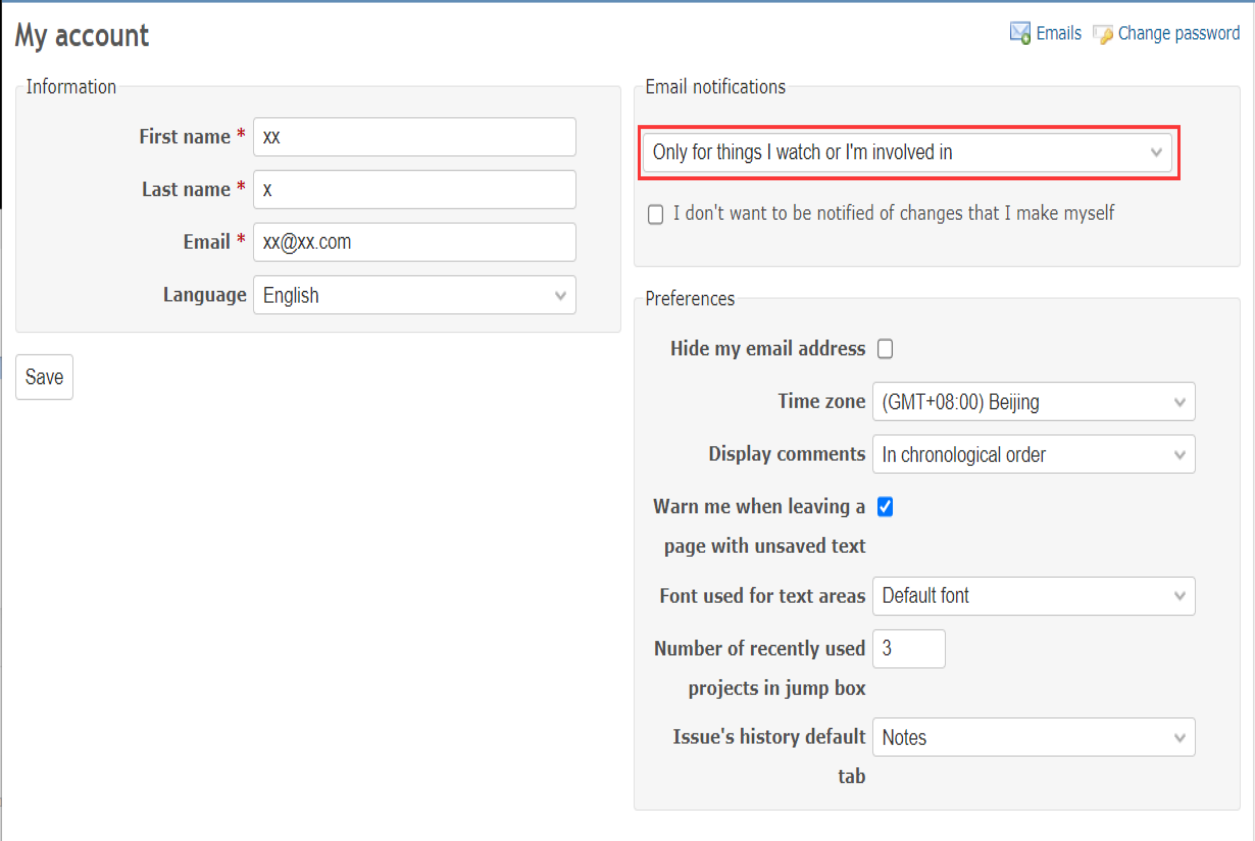
b. According to your requirements, select the corresponding email notification. The following options are available: For any event on all my projects For any event on the selected projects only Only for things I watch or I’m involved in Only for things I watch or l am assigned to Only for things I watch or I am the owner of No events
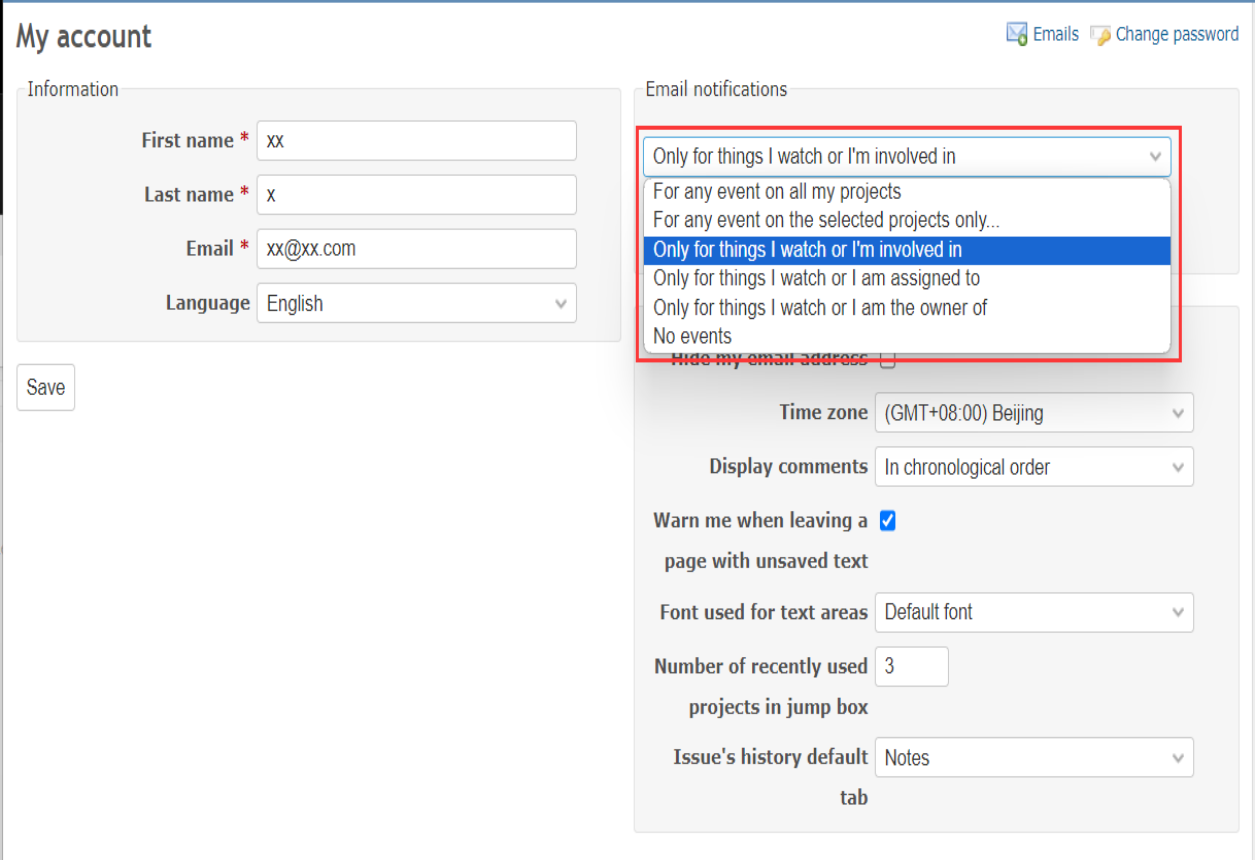
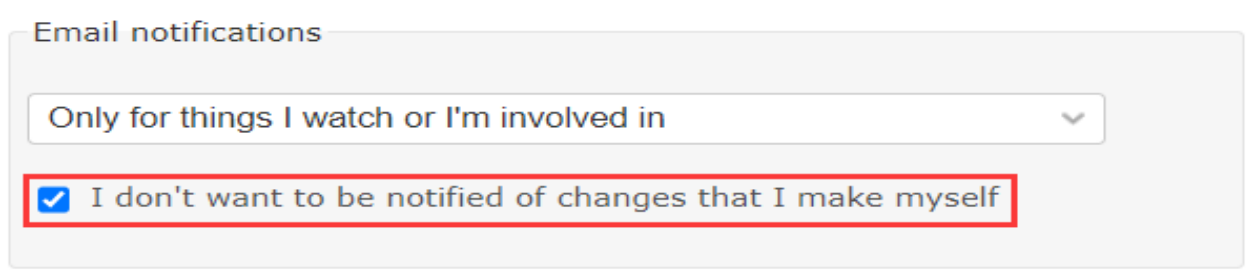
c. If you do not need to be notified of your own submitted changes, select “Do not send notifications of my own submitted changes” as follows.
2.2.4 Setting Multiple Users
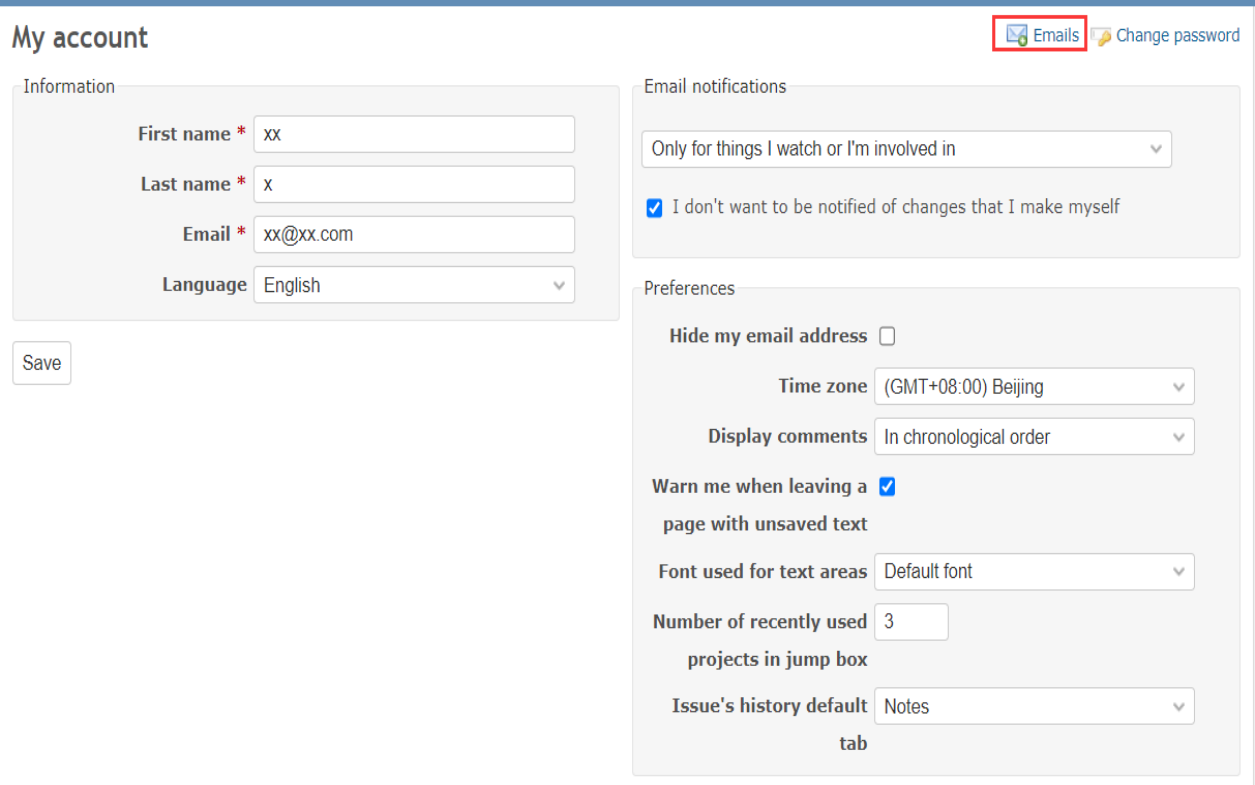
One Redmine account can be used by multiple people at the same time, so that multiple mailboxes can receive an update information of “Issues” at the same time, so that they can know the progress in time and speed up the efficiency of solving problems. a. In the upper right corner of the “My account” interface, click on “Emails”.
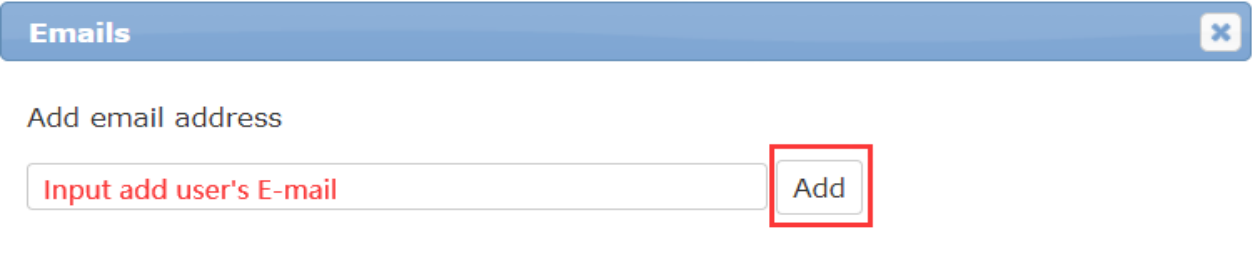
b. Then the following interface will pop up, please add email, click “Add” to save.
c. After the email address is added successfully, the dynamic information of “Issues” can be received in the main email address of “Email address”, and the email address in the following “Email” list can obtain this information;
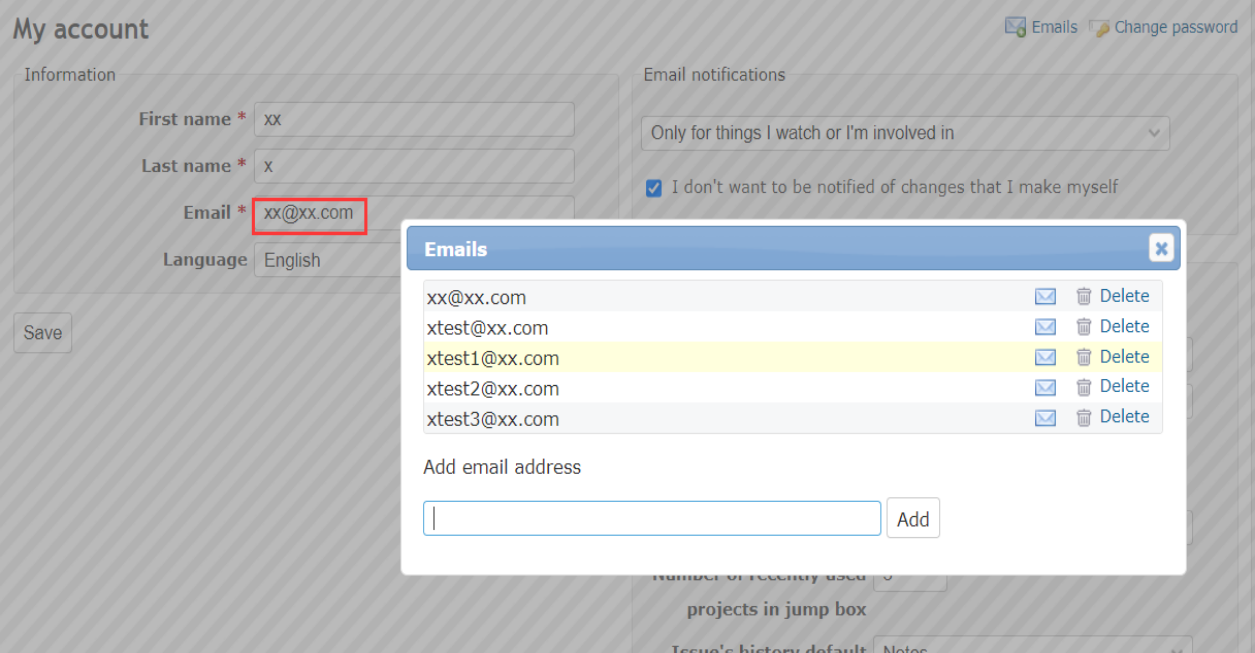
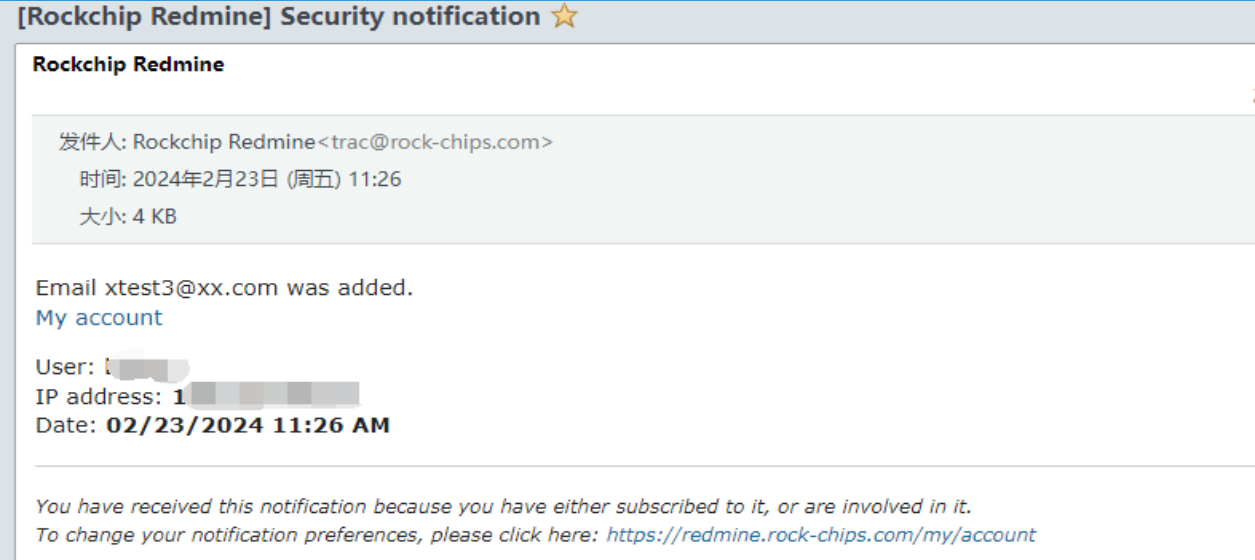
d After the addition is successful, the email address set in 2.2.1 Setting Basic Information will receive an email notification.
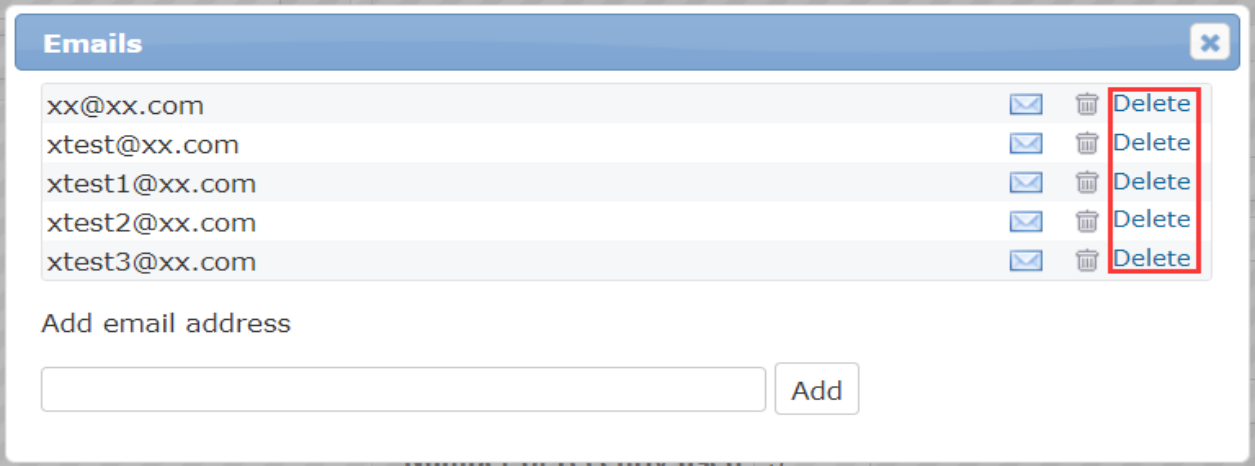
e. In case of staff changes such as resignation of email users, please delete them from the list in time to avoid occupation of the mailing list and confidentiality of the project.
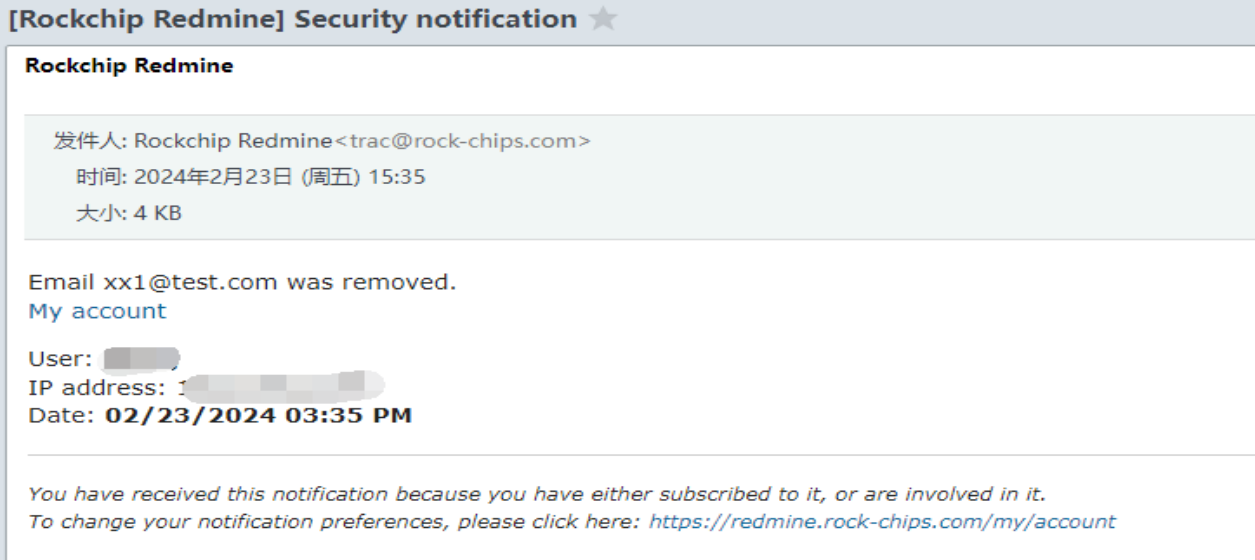
f. After the deletion is successful, the email address set in 2.2.1 Setting Basic Information will receive an email notification.
2.2.5 Change Password
a. On the right side of the “My account” interface, click the button “Change password”, and the UI will pop up;
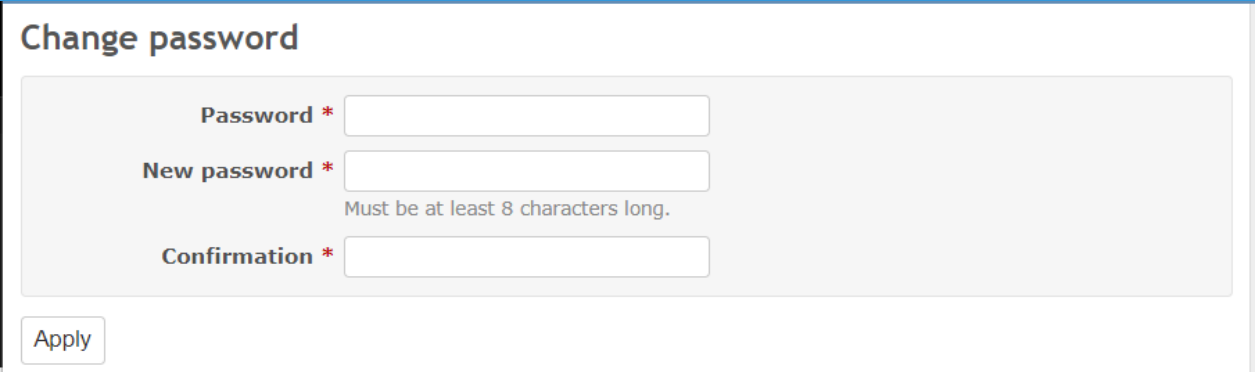
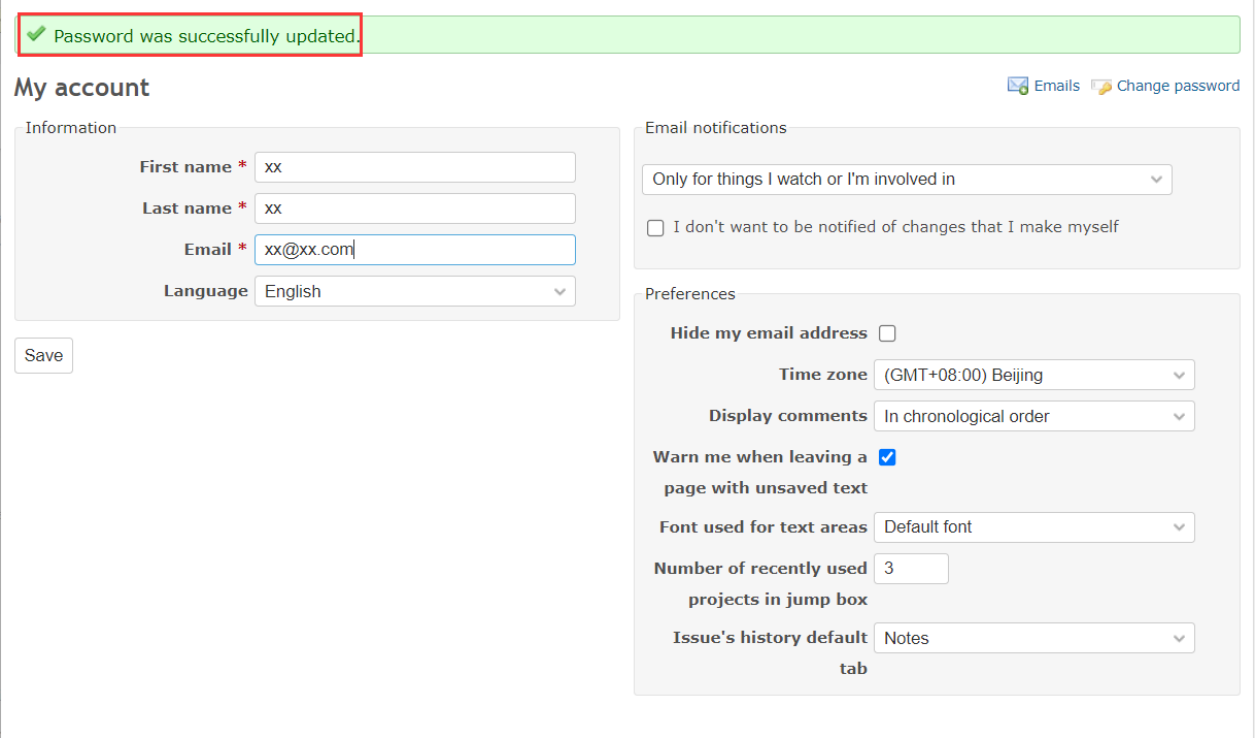
b. After you enter the current password and new password, click “Apply” button and the following interface will pop up, that is, the change is successful.
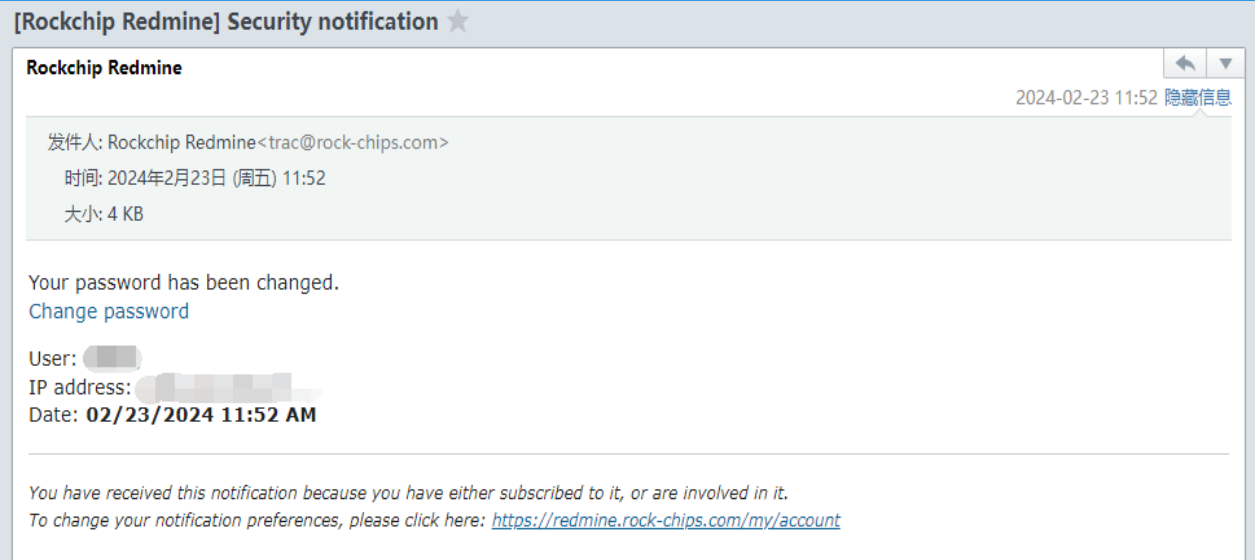
c. At the same time, you will receive the following notification via email.
2.2.6 Retrieve password
If you forget your password during use, you can set the email retrieval password in 2.2.1 Setting Basic Information. a. Open the official Rockchip address: https://redmine.rock-chips.com/login and click the button “Lost password”.
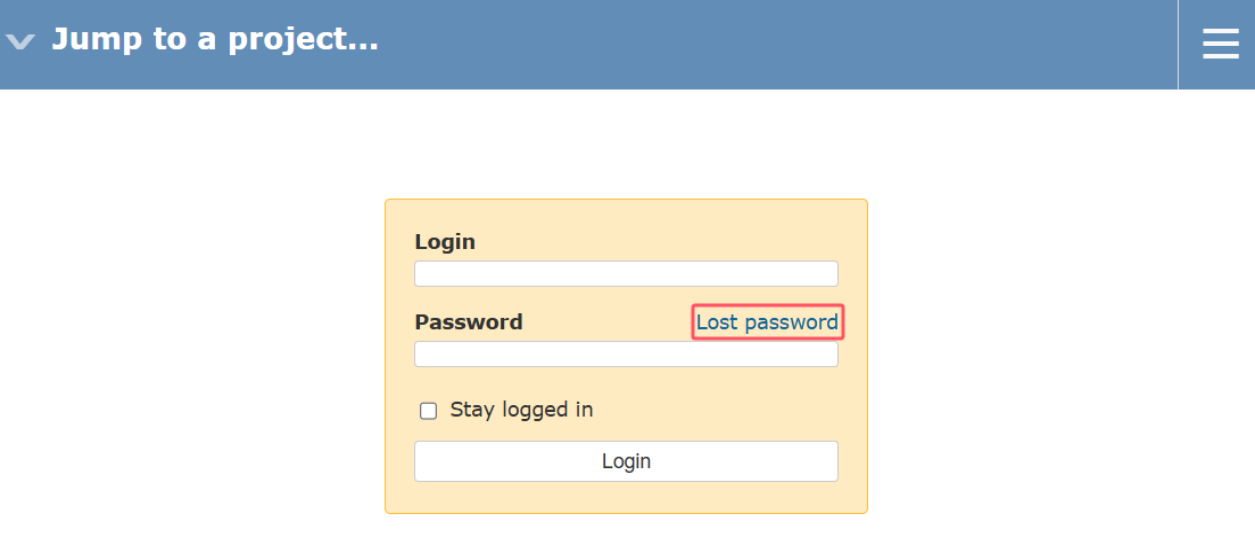
b. On the following interface, fill in the email of 2.2.1 Setting Basic Information and click the button “Submit”.
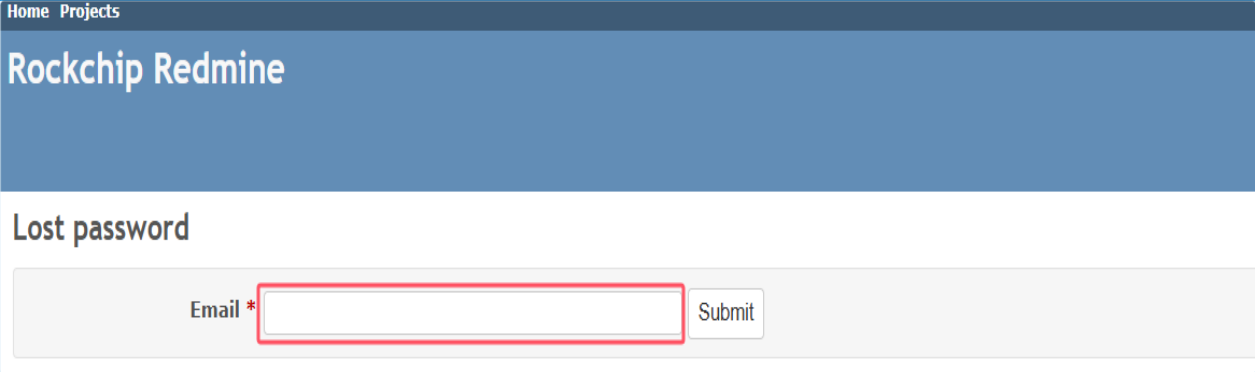
c. After submission is successful, the following message is displayed:
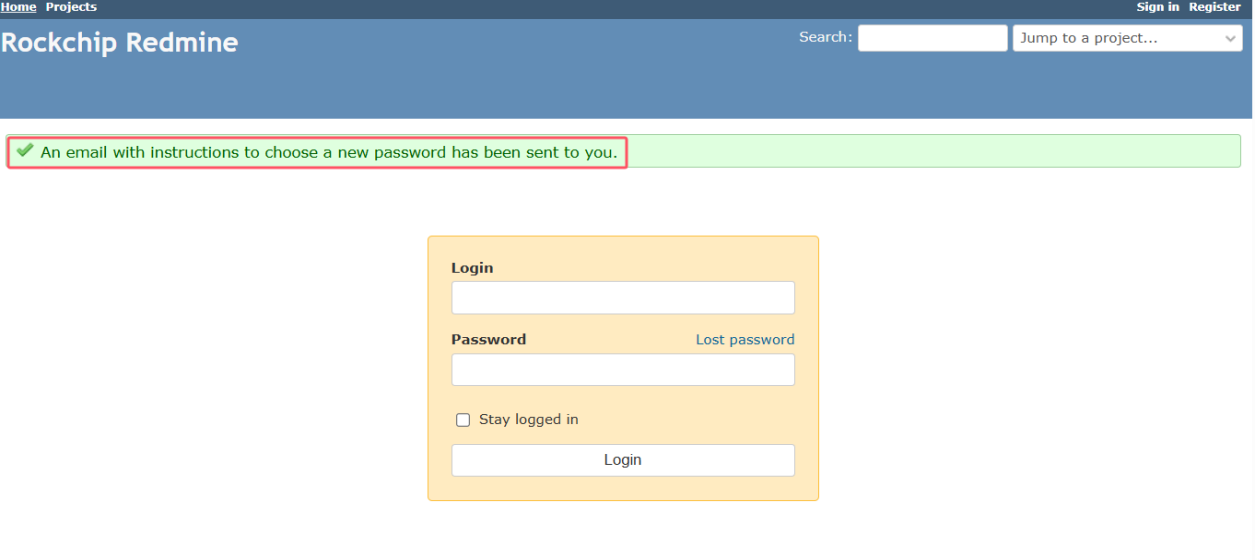
d. If you view the email address of 2.2.1 Setting Basic Information, you will receive the following link with the login name.
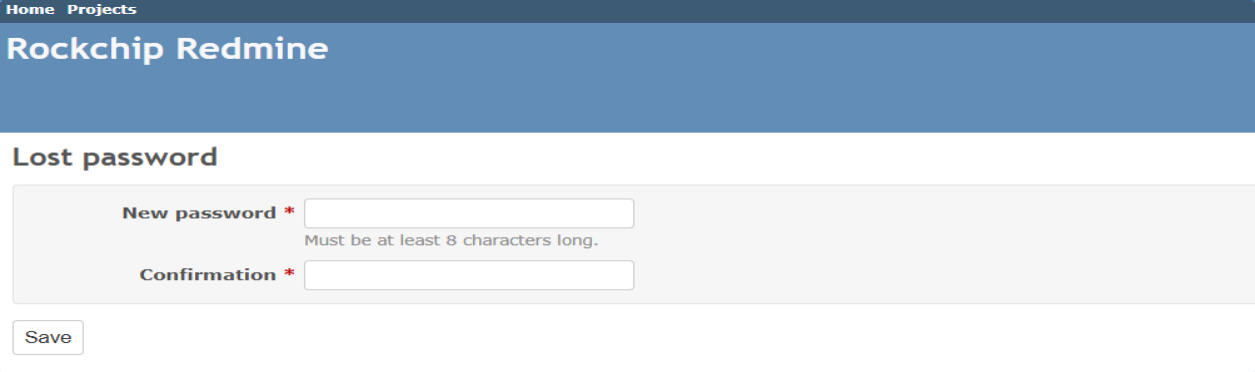
e. After opening the link above, enter a new password for the account.
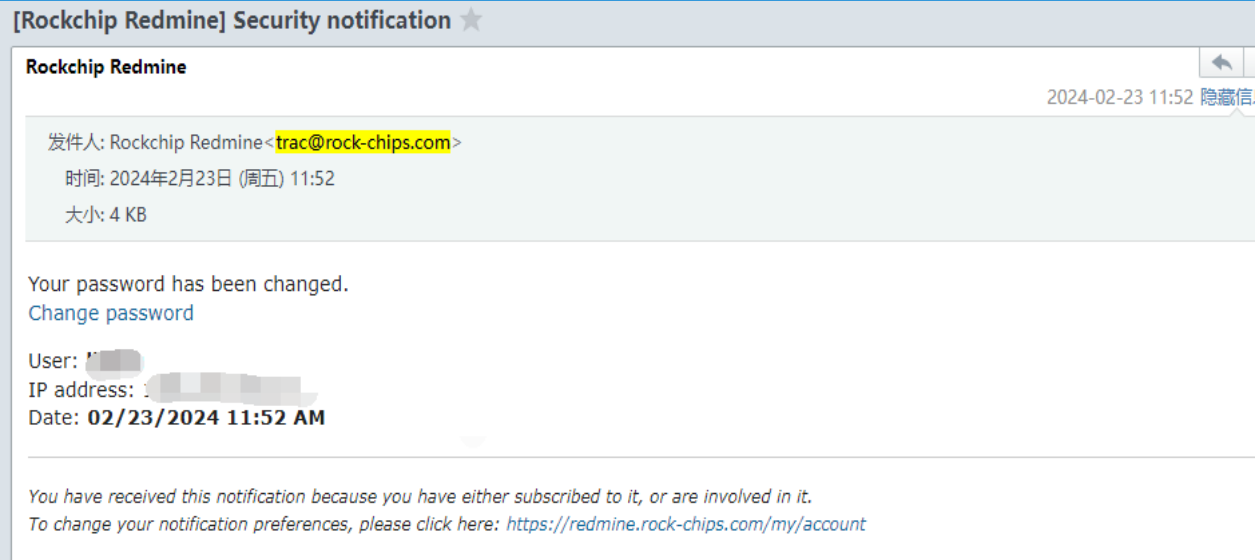
g. After the above password is set, go to the login page to log in again, and the email address of 2.2.1 Setting Basic Information will receive the following message:
3. Introduction to Materials on the System
In this system, some Rockchip platform materials are separated and placed on Redmine and corresponding FTP, convenient for customers to check in a time, please refers to : https://redmine.rockchip.com.cn/projects/f ae/documents. Mainly including: platform technical change notification, platform key materials (Flash, DDR, eMMC, Wi-Fi and Camera) support list, etc. :
3.1 FTP Server
In the FTP, (FTP address :ftp://www.rockchip.com.cn ; account name: rkwifi; password: [obtain through an authorized contact]) stores the common materials of the platform, as follows: Wi-Fi support list, drivers, and authentication tools can be obtained through this FTP. When debugging Wi-Fi/BT, you can refer to the attachment, analysis and troubleshoot related problems; (01-Wifi, 02-BT, 11-Linux platform) Customized function patches; (05-patch: multi-window, color temperature adjustment, multi-U disk multi-partition mounting, echo cancellation and noise reduction patch, HDMI_IN, a2dpsink Bluetooth speaker patch, etc.) Application source code; (06- All kinds of source code: player, pcba test, stress test, Wifidisplay, OtaUpdate, etc.) Datasheet for mainstream chip platforms; (08-Datasheet) Materials about Linux platform; (11-Linux platform: including DPDK, the source code for various applications such as Wi Fi and BT supported by Linux platform) Google security patches for Android platform; (10-Security_Patch) RKIVE hardware acceleration module documentation and patch; (12-Rockchip_RKIVE_Simulator_release) SDK version and corresponding SDK release documents of mainstream platforms; (13- Rockchip_SDK_Release_Note)
3.2 Redmine Document Bar
Document bar on redmine: https://redmine.rock-chips.com/projects/fae/documents, which lists the key material list, the SDK platform support list, released platform patch and technical change notification, Now, we will provide a detailed introduction as follows:
3.2.1 Patch Release
The Redmine access URL is:https://redmine.rock-chips.com/projects/rockchip_patch/issues
3.2.2 EVB board materials
The Redmine access URL is:https://redmine.rock-chips.com/projects/fae/urllist
3.2.3 Technical Summary Report
The Redmine access URL is:https://redmine.rock-chips.com/projects/fae/boards/6
3.2.4 Hardware Reference Design Versions and DDR Template List
The Redmine access URL is: https://redmine.rock-chips.com/documents/116, which includes hardware design versions and DDR templates and versions supported by various chip platforms. If you get a resource lower than this version, please apply for the latest version from RK materials obtaining window.
3.2.5 Key Component Flash Support List
The Redmine access URL is: https://redmine.rock-chips.com/documents/46
3.2.6 Key Component DDR Support List
The Redmine access URL is: https://redmine.rock-chips.com/documents/49
3.2.7 Key Component eMMC Support List
The Redmine access URL is: https://redmine.rock-chips.com/documents/50
3.2.8 Key Component Wi-Fi Support List
The Redmine access URL is: https://redmine.rockchip.com.cn/documents/52, which is associated with Wi-Fi support list, driving, authentication tools, etc., can be obtained through FTP, this is the address: ftp://www.roc kchip.com.cn; Account name: rkwifi; Password: [obtain through an authorized contact]
3.2.9 Key Component Camera Support List
The Redmine access URL is: https://redmine.rock-chips.com/documents/50 Chinese source: https://redmine.rockchip.com.cn/documents/53 . The sources conflict; verify the intended resource.
3.2.10 SDK Supported Versions and Release Documents
The Redmine access URL is:https://redmine.rock-chips.com/documents/117 Key materials for your first version of hardware(Flash, eMMC, DDR and Wi-Fi) must be in the list of RK AVL, otherwise, if the system cannot run after the PCB returns, It’s very difficult for us to fix the problem. In the future, if you want Rockchip to co-work and verify some compatible materials (such as Flash, DDR, eMMC, Wi-Fi and Camera), please send an email to the corresponding business or interface person of Rockchip for application. Chinese-source addition: Camera is also included among first-board AVL components; establish basic WiFi and camera operation before requesting additional compatible components.
4. On-site Technical Support
Depending on customers’ project schedule and the status of the specific problem, Rockchip will arrange for the appropriate engineer to provide technical support services on site. On-site technical support here includes two ways: customers come to Rockchip for on-site support and Rockchip engineers comes to customer company for on-site support.
4.1 On-site Support in Rockchip
In the following cases, you can apply to Rockchip for on-site support: On-site review diagrams (schematic diagram and PCB Layout diagram); Requires Rockchip hardware or laboratory for testing; Requires the special software and hardware platform of Rockchip to solve problems; Problems that can no longer be solved through the communication of the Bug system need on-site cooperation, such as building a reproducing environment; Requires a special hardware platform to cooperate; The processing speed of the Bug system can no longer meet the current project progress; Key projects need urgent work. All these problems need to be made at least one day in advance (working days) to Rockchip on-site processing, the appointment method is to communicate with the corresponding Rockchip business or technical interface person, After they agree, Rockchip will arrange the appropriate engineers in Shanghai, Shenzhen or Fuzhou to support on-site according to the customer’s specific problem.
4.2 On-site Support in Customers’ Company
In the following cases, you can apply for Rockchip engineers going to your company for on-site support. Review drawings, mainly requires Rockchip to review drawings together(schematic diagram and PCB Layout); Requires Rockchip engineers go to your laboratory for testing and verification;
Requires your special software and hardware platform to solve problems; Problems that cannot be solved through the Bug system communication, and need on-site cooperation, such as problems in the production line and building a reproducing environment; Requires a special hardware platform to cooperate; The processing speed of the Bug system can no longer meet the current progress of the project; Key projects need urgent tackling. All these problems, you need to make an appointment at least two days in advance (working days) to apply for Rockchip to deal with these problems on site. The appointment method is to communicate with the corresponding business or technical interface person of Rockchip first, after they agree, Rockchip will arrange the appropriate engineers in Shanghai, Shenzhen or Fuzhou to support on-site according to the customer’s specific problem. Generally, it is recommended that customers go to Rockchip for on-site support. Due to the limited personnel available to the customer company, and limited problems that can be solved on site.
6. Q&A
6.1 Submit an Example of a Software Case
In order to solve the problem as soon as possible and reduce the communication cost, here is an example.
6.1.1 Information Required to Submit a Question
a. logcat and kernel log; logcat Information : serial port or adb shell enter the command logcat -v time (If there is a lot of interference information, it is best to run the logcat -c before capturing valid log, for example, an exception occurs when starting an apk. Then a good log is to execute logcat -c before starting the apk, then logcat -v time, and then start the apk, so that the information obtained is easier to find the key information); kernel Information: Output directly from the serial port or adb shell to run the dmesg command. If the application is unresponsive or forcibly closed, provide a trace file (data/arn/trace.txt). b. The basic operating process, which Rockchip engineers can replicate according to instructions, and reproduce the problem; c. Confirmation of sdk version information; Take RK3588 Linux SDK for example :
~/linux_rk3588/.repo/manifests$ ls  rk3588_*
rk3588_linux_release.xml  rk3588_nvr_linux.xml

rk3588_linux:
RK3588_Linux5.10_SDK_Note.md            rk3588_linux_beta_v0.1.1_20220421.xml
rk3588_linux_release_v1.0.2_20220820.xml  rk3588_linux_release_v1.0.5_20221120.xml
rk3588_linux_release_v1.1.1_20230520.xml
rk3588_linux_alpha_v0.0.1_20220115.xml  rk3588_linux_release_v1.0.0_20220520.xml
rk3588_linux_release_v1.0.3_20220920.xml  rk3588_linux_release_v1.0.6_20221220.xml
rk3588_linux_release_v1.2.0_20230620.xml
rk3588_linux_beta_v0.1.0_20220414.xml   rk3588_linux_release_v1.0.1_20220620.xml
rk3588_linux_release_v1.0.4_20221020.xml  rk3588_linux_release_v1.1.0_20230420.xml
rk3588_linux_release_v1.2.1_20230720.xml

rk3588_nvr_linux:
rk3588_linux_nvr_release_v1.0.0_20220304.xml  rk3588_linux_nvr_release_v1.3.0_20220805.xml
rk3588_linux_nvr_release_v1.5.0_20230105.xml
rk3588_linux_nvr_release_v1.1.0_20220418.xml  rk3588_linux_nvr_release_v1.4.0_20221015.xml
rk3588_linux_nvr_release_v1.6.0_20230510.xml
rk3588_linux_nvr_release_v1.2.0_20220610.xml  rk3588_linux_nvr_release_v1.4.1_20221114.xml
RK3588_Linux_NVR_SDK_Note.md
When submitting a issue, in addition to selecting the correct version of the SDK, please also tell us the updated minor version of the SDK: rk3588_linux_release_v1.2.1_20230720.xml or rk3588_linux_nvr_release_v1.6.0_20230510.xml. Take RK3588 Android13 for example :
~/rockchip_android13.0_sdk_release/.repo/manifests/include$ ls
partner_gms_express.xml      rk3326_repository.xml  rk3528_repository.xml
rk356x_repository.xml  rk_checkout_repository.xml
partner_modules_express.xml  rk3399_repository.xml  rk3562_repository.xml
rk3588_repository.xml  rk_modules_repository.xml`
AS above, when submitting a issue, in addition to selecting the correct version of the SDK, please also tell us the updated minor version of the SDK: such as rk3588_repository.xml or rk3399_repository.xml. Check the Android version of RK maintenance as follows:
~/rockchip_android13.0_sdk_release/.repo/manifests/include$ cat rk3588_repository.xml
<?xml version="1.0" encoding="UTF-8"?>
<manifest>
  <project path="device/rockchip/rk3588" name="rk/device/rockchip/rk3588" remote="rk"
revision="refs/tags/android-13.0-mid-rkr5" />
</manifest>
The “android-13.0-mid-rkr5” here is the RK3588 android13 R5 version.